The user interface
The admin adapter is the basic adapter and is used to manage the entire ioBroker installation. It provides a web interface, which can be found athttp://<IP-Adresse des Servers>:8081 is called up.
This adapter is created during the ioBroker installation; manual installation is not necessary.
This page is an overview. Detailed descriptions can be found on the pages linked in the individual sections.
Construction
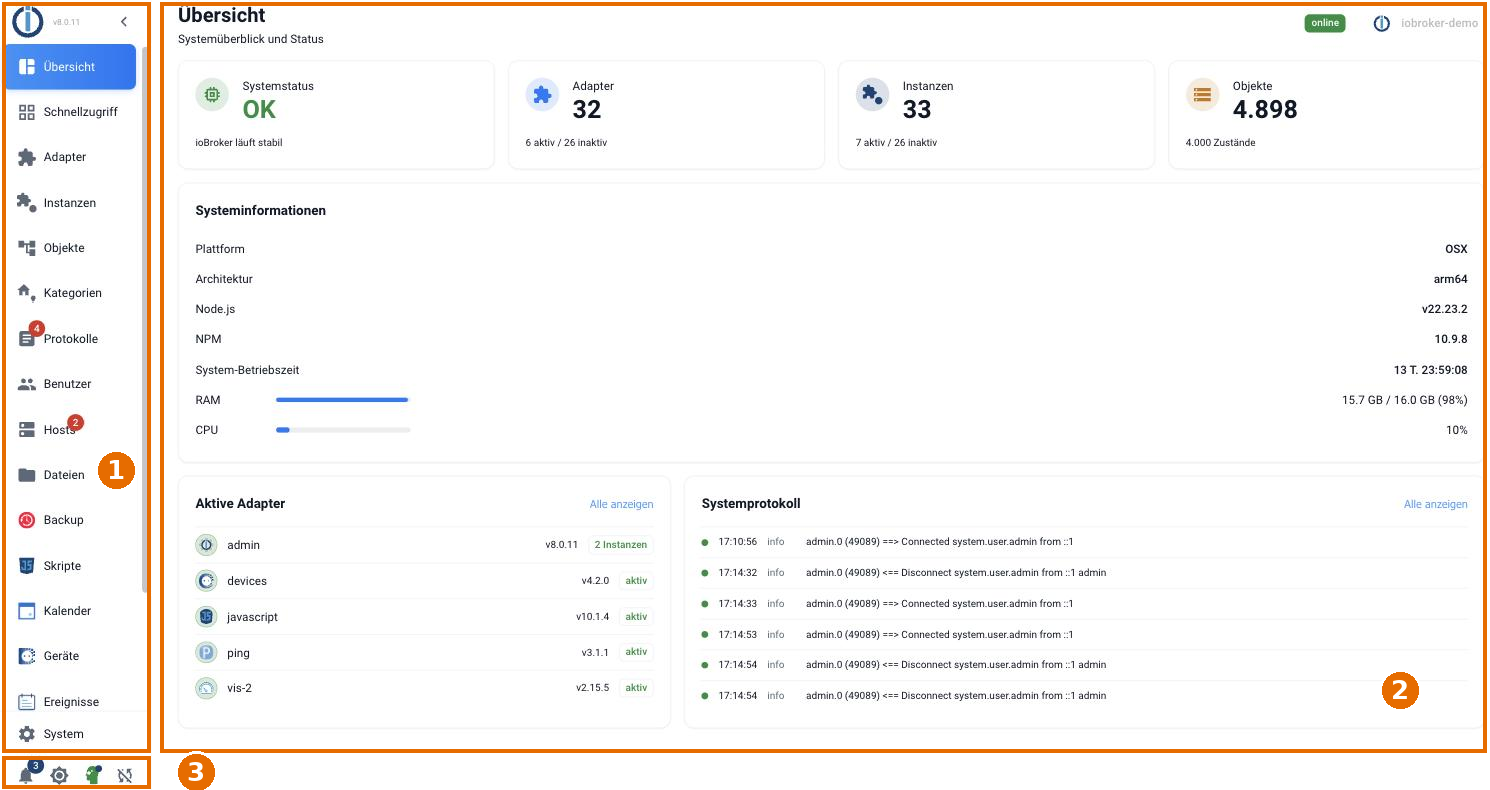
The interface is divided into three areas: 1 the menu bar, 2 the main window, and 3 the toolbar at the bottom of the menu bar.
1 Menu bar
The menu bar leads to the individual pages of the admin panel. In a fresh installation, these are:
| Menu item | Contents |
|---|---|
| Overview | System status, host hardware data, active adapters, and the last log lines. |
| Quick access | Tiles for all adapters with their own web interface as well as for the hosts. |
| adapter | Available and installed adapters, installation and update. |
| Instance | Start and stop the created instances with their configuration. |
| objects | The object tree with all devices, channels, and data points. |
| Categories | Rooms, trades, and favorites. This section used to be called "Lists". |
| Protocols | The log file. If an error occurs, the menu item is highlighted in red. |
| user | Users and groups, including their rights. |
| Hosts | The computers running ioBroker. A notification will appear here if a new js-controller version is available. |
| files | The file manager for files managed by ioBroker. |
| Backup | Create, view, and restore backups. |
Additional menu items appear with the installed adapters, such as scripts (javascript), calendar (fullcalendar), devices (devices), or events (eventlist). At the very bottom is System : this is where the system settings are configured.
Reduce menu size
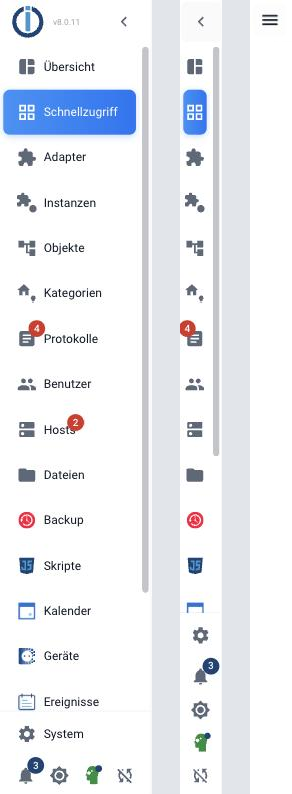
The menu bar can be toggled using the arrow in the upper left corner. It has three states: with labels, with icons only, and completely hidden. When hidden, it can be brought back using the icon with the three lines. This leaves more space for the main window on small screens.
2 main windows
The main window displays the content of the currently selected menu item. Details of what is shown there can be found on the pages linked in the table above.
Values are displayed in red in the object tree until they have been confirmed by the recipient (ack = false ).
3 Toolbar
At the bottom of the menu bar are four buttons:
| symbol | function |
|---|---|
| bell | System notifications . The number next to it indicates the number of unread messages. |
| contrast | Change color theme : switches between color themes (see below). |
| Head symbol, white or green | Switch to expert mode . Green means it's enabled. It displays additional objects, settings, and columns and only applies to this browser session. |
| Connected windows | Synchronize settings between all open browser windows . |
Two buttons outside this bar
Two things are not located in the menu bar, but at the edge of the window:
- An eye icon in the header opens the device search . It only appears when adapter discovery is running and displays a badge showing the number of suggestions that have neither been created nor discarded.
- The AI assistant is floating in the bottom right corner. It is deactivated by default.
Many descriptions in this documentation assume expert mode. If a described button is missing, it's worth checking that switch first.
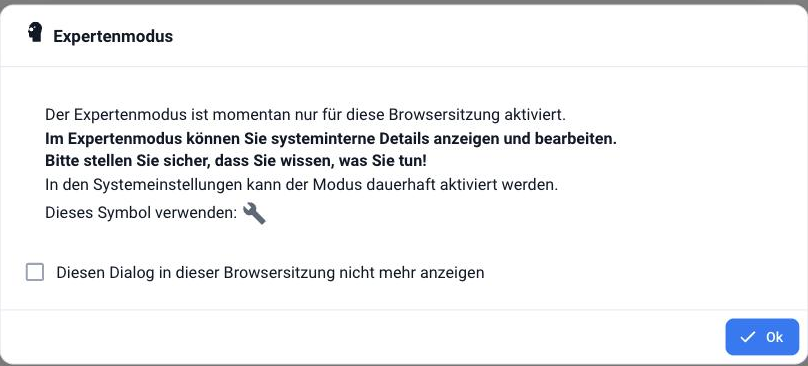
Expert mode only applies to the current browser session. It can be permanently enabled in the system settings .
Color themes
The contrast switch changes the color theme. The choices are modernLight and modernBlue . Both display the same content; they differ only in color.

The color theme applies per browser, not per user. Users accessing the admin panel from multiple devices must configure it individually on each device.