The AI Assistant in the Admin
Since Admin 8, a floating button has appeared in the bottom right corner, behind which an assistant is located. It answers questions about your system, suggests adapters for a device or service, and can also make changes if desired.
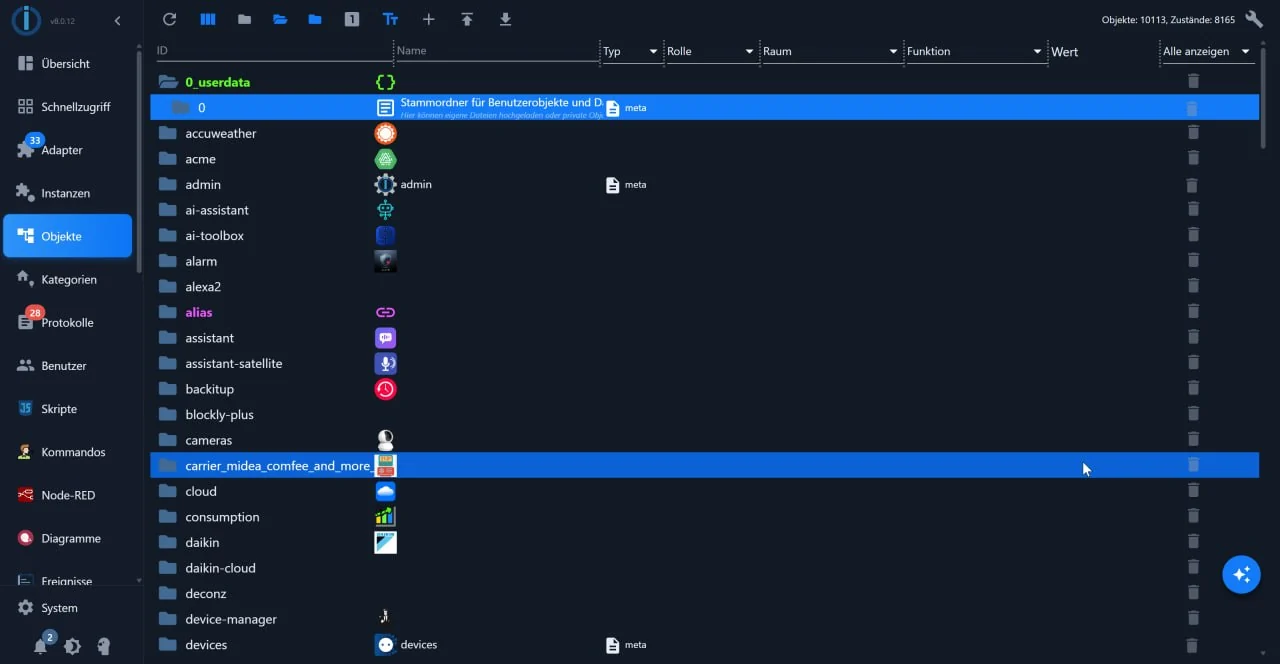
The button in the bottom right corner, above the object list: clicking it opens the wizard.
!> The language model is not from ioBroker. The administrator provides the user interface; access to a model is provided by each individual user: either through an account with a provider or by having a model on their own network. The requirements for this access are determined by the respective provider. The assistant is disabled by default.
Turn on
The assistant relies on the administrator's MCP access, which is disabled by default.
Two steps are required:
- In the Admin's instance settings, uncheck the box next to *Wizards in the
Disable* remove user interface.
- Open the button in the bottom right corner and under *Settings of the
AI Assistant* Provider, Access Data and Model. The administrator retrieves the list from the provider via Load Models; they report "Connection OK" along with the number of models found.
Until that is set up, the assistant responds with a note to first configure the provider, access data and model.
If you don't want to see the button without disabling access, you can hide it using Hide Assistant Button.
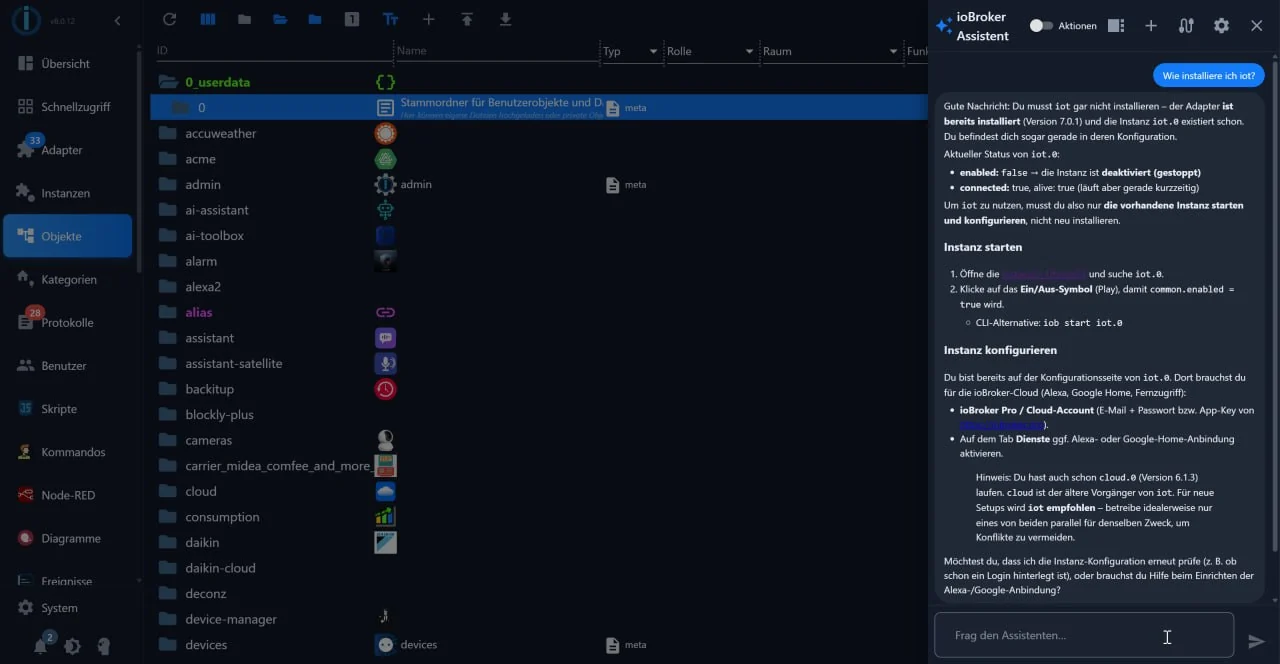
The open assistant: it responds in the column on the right, while the interface remains open next to it. The action button is located at the top of the window.
Read only or act
The assistant has two operating modes. In Read-only mode, it examines the system and responds. In the "Actions" mode, it can also perform actions, such as installing an adapter or changing a setting. It doesn't execute these actions silently: it first displays which actions it intends to perform and waits for confirmation.
Without its own key: an external client
Users who don't want to enter a provider in ioBroker can control the assistant externally. The administrator includes a built-in MCP server for this purpose; MCP is the interface through which an AI client uses the tools of an application.
The dialog box Use without API key (external MCP client) contains the following three steps:
- Deploy the MCP server. The admin has a built-in one; for him, it is
Nothing needs to be installed. Alternatively, there is the adapter iobroker.mcp, ideally as a web extension of a web instance.
- Enter the server in your own client, for example in Claude Desktop, Codex
or Gemini CLI. The dialog displays the address in the form http(s)://<host>:<port>/mcp; it can be copied from there.
- Accept the system prompt. The same dialog displays the text with which the
The built-in assistant is working. Anyone who uses it as an instruction in their client will get the same behavior.
What goes outwards
The assistant works with the data contained in the system: objects, states, and logs are passed to the selected provider for processing. This is also stated in the dialog box. Users who do not want this should operate a model on their own network or simply disable the assistant.