Rider Adapter
This page lists all available adapters for ioBroker: the installed ones and the over 800 available ones. Adapters are installed, updated, and removed from here.
An adapter is initially just the program. For it to do anything, it needs an instance . This is also created here and then configured in the Instances tab.
The toolbar

| No. | function |
|---|---|
| 1 | Change view mode : switches between tile and list view. |
| 2 | Check adapters for updates. This happens automatically when the administrator starts; here, it can be triggered manually. |
| 3 | Repository timestamp. When the adapter list was created and last loaded. |
| 4 | Show only installed adapters. |
| 5 | Show only adapters with updates. |
| 6 | Install from your own source (see below). |
| 7 | Filter by name. |
| 8 | Choose a category : lighting, energy, communication, and so on. |
| 9 | Sort by : Title, Name, Popular first, Recently updated, Recently created. |
| 10 | The counter column. Clicking on it opens the statistics: available, installed, and updated adapters from the last month. |
If a yellow warning appears above the list indicating that the current repository is the Latest (Beta) repository , ioBroker is delivering pre-release versions. For a system that needs to run reliably, the Stable repository should be selected. This can be changed in the system settings .
The tile view
Each adapter gets a tile with its name, description, number of instances, and available and installed versions. The button with the three dots flips the tile over; the commands are on the back.

| No. | function |
|---|---|
| 1 | Add instance. If the adapter is not already installed, it will be installed during this process. |
| 2 | Automatic upgrade policy for this adapter. |
| 3 | Readme : opens the adapter's documentation. |
| 4 | File upload. |
| 5 | Delete the adapter. Existing instances and their objects will be lost. |
| 6 | Install a specific version : for example, to revert to an older version. |
The small characters under the adapter name describe how the adapter works, not its installation status:
| Sign | Meaning |
|---|---|
| Cloud with a line through it | The adapter doesn't require a cloud; it communicates directly with the device. |
| Cloud | The adapter requires the manufacturer's cloud service. |
| Down arrow ( push ) | The device automatically reports changes. |
| Up arrow ( poll ) | ioBroker queries the device regularly. |
| Green Mountains | The adapter reports crashes to its developer via Sentry. |
?> push is the more pleasant case: values arrive immediately, without ioBroker having to query every second.
Below the adapter name, you'll also see up to five stars. This is the rating from users who have installed the adapter. Clicking on it opens the ratings and comments and allows you to vote yourself. See adapter ratings .
The list view
The adapters are grouped by category in the list. Each line shows the installed and available versions as well as the license; the same commands as on the back of the tile are displayed on the right.
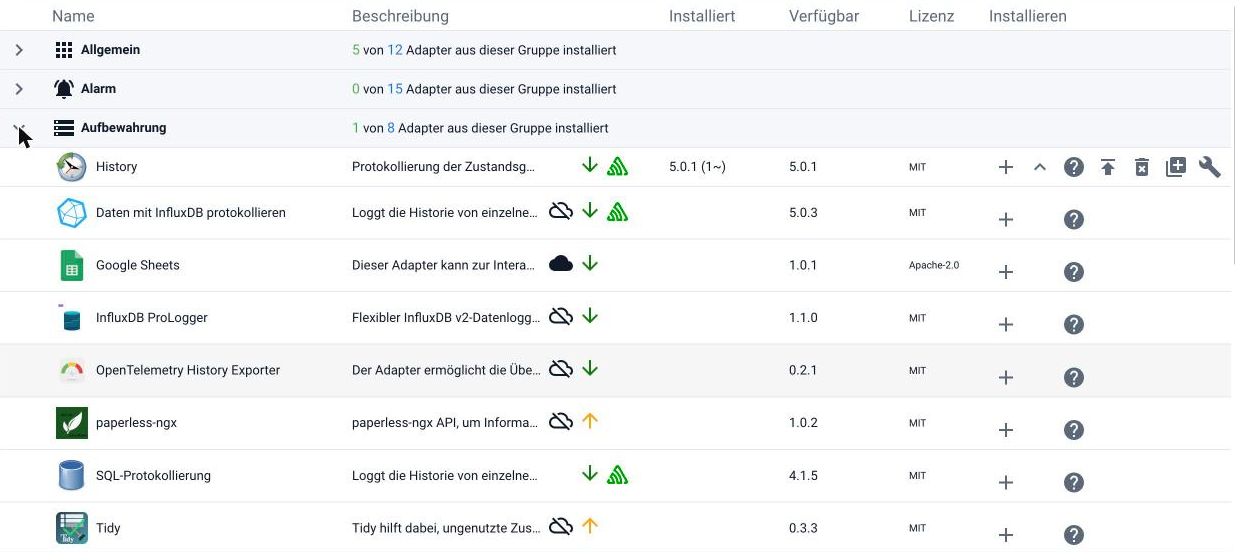
This view is good for browsing: The header of each group shows how many adapters of the category are already installed.
Install from your own source
The button with the Octocat opens a dialog with four options:
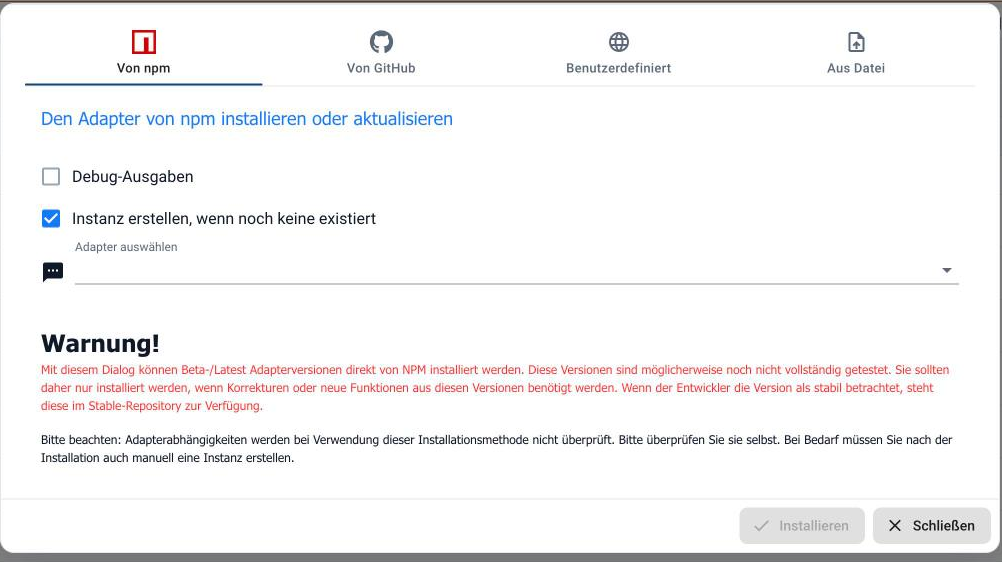
- From npm : a beta or latest version directly from npm.
- From GitHub : the latest preview version from the developer's repository.
- Custom : any URL.
- From file : a locally stored package.
These methods bypass the verified repository. The versions may not be fully tested, and dependencies are not checked . On a system that must be running, only use this if a fix is urgently needed; otherwise, wait for the stable version.
The option to create an instance if one does not already exist is selected by default. If it is deselected, the instance must be created manually afterwards.
If an update is rejected
An adapter may require a specific version of the Admin or JS Controller. If this version is missing, the update dialog displays the dependency in red, and the update will not be performed. The correct procedure is then: first update the required component, then the adapter. In a system with multiple hosts, this applies to each host running an instance.
Devices and services find
The adapter discovery feature scans the network for devices and services and suggests suitable adapters. When it's running, an eye icon appears in the header; this icon indicates how many suggestions are still pending, meaning neither created nor rejected.
The dialog process works as follows: "Discover" starts a search, " Next" carries over the results from the previous search. For each find, you can create the corresponding instance or reject the suggestion; the badge counts towards this. If there are still suggestions pending from the last search, the dialog opens directly on the results page.
Firewalls and traffic analysis systems can interfere with the scan: the scan sends requests to the network, which some devices only respond to if there are no intervening devices. Disable them for the scan, then re-enable them afterwards.