Objects tab
This tab contains all the objects managed by ioBroker. Each instance creates its own namespace here, containing its devices, channels, and data points. Objects can also be created, edited, and deleted manually, and entire subtrees can be saved as JSON files and restored.
What objects and states actually are can be found under Objects and States .
The toolbar
The most important commands are located at the top. Each icon has a tooltip; simply hover your mouse cursor over it for a moment.

| No. | function |
|---|---|
| 1 | Update tree. If newly created objects are not yet visible, click here. |
| 2 | Configure. Determines which columns the table displays and how wide they are. |
| 3 | Open or close all knots. |
| 4 | Expand one level. |
| 5 | Fold one level down. |
| 6 | Switch status view (see below). |
| 7 | Show/hide object descriptions. Displays the object's description text in addition to its name. |
| 8 | Add new object (see below). |
| 9 | Add object tree from a JSON file. |
| 10 | Save the object tree as a JSON file. The currently selected subtree will be saved. |
On the far right of the toolbar are the number of objects and states, as well as the wrench icon for editing custom configurations . This sets the recording settings for all data points that currently match the filter criteria.
Before clicking the wrench icon, be sure to check which filters are set. Otherwise, settings will be applied to far more data points than intended.
The page content
The objects are listed in a table. The input fields and selection menus below the column headers filter the display.
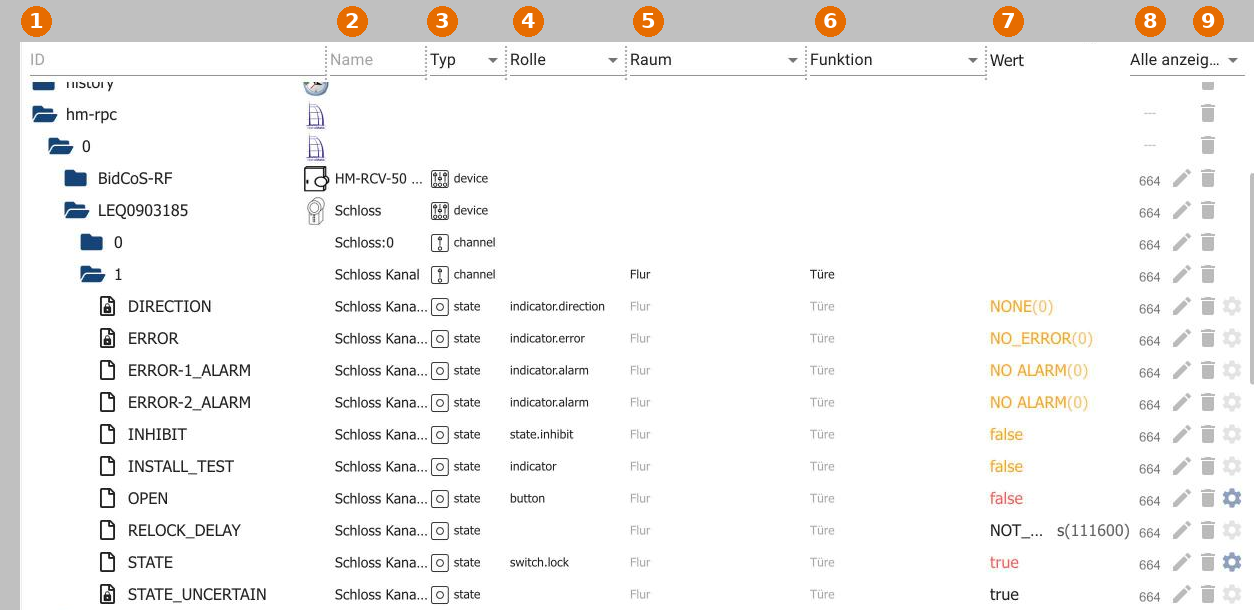
| No. | Split | Meaning |
|---|---|---|
| 1 | ID | The object hierarchy. At the top are the namespaces, below them devices, channels, and data points. The filter field may contain...* They are used as placeholders. |
| 2 | name | The object's name, preceded by a symbol indicating its hierarchy level. The name can be edited directly. |
| 3 | type | Device, channel, state, or directory. The selection menu can be used, for example, to restrict the search to specific states. |
| 4 | role | Tells surfaces like vis what the data point represents (switch.lock ,indicator.alarm ,button …). Editable, with a suggestion list; free text input is allowed. |
| 5 | Space | The assigned room. Clicking on the field opens the list of created rooms. |
| 6 | function | The assigned trade, for example lighting or heating. |
| 7 | Value | The current value is shown for data points. Red means: not yet confirmed by the device (ack = false ). |
| 8 | right | The object's access rights are expressed as an octal number, similar to Linux file permissions. |
| 9 | The buttons in the row (see below). |
Rooms and trades are created in the Categories tab.
The status view
Symbol 6 displays additional columns for each state: who last set it, its quality, the timestamp, and the time of the last change.
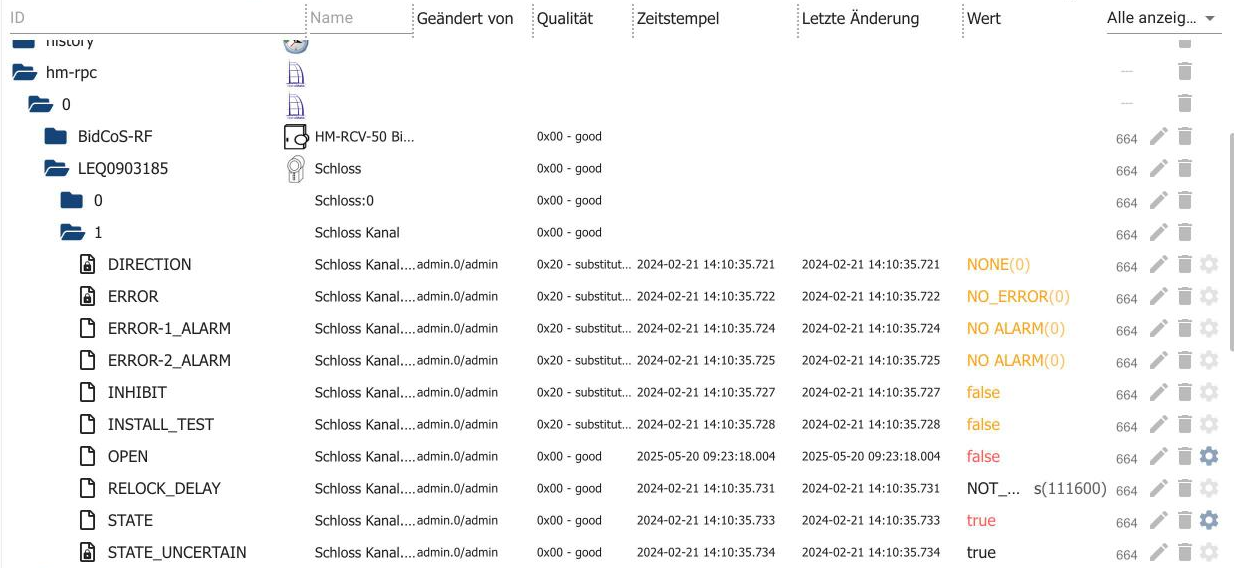
?>0x00 - good This means the value is valid. Other values indicate a problem, for example...0x20 - substitute for a replacement value.
Create a new object
Symbol 8 creates an object below the currently selected entry.
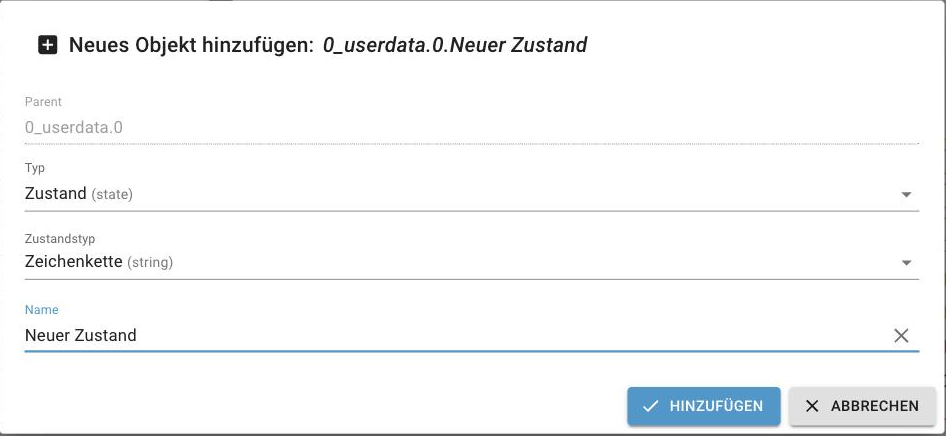
Available types are State , Channel , Device , and Directory . For states, the state type can also be specified as: Logic Value, Number, String, Value List, Field, Object, or a combination thereof. The following structures are permitted: Directory → State, Directory → Channel → State, Directory → Device → Channel → State, Device → Channel → State, and Channel → State.
Without expert mode, custom objects can only be used under0_userdata.0 andalias.0 They will be created. This is not a limitation, but rather the correct place: Objects in the adapters' namespaces will be overwritten the next time they are started.
The buttons in a row

- The rights of the object.
- The pencil icon opens the object editor with all properties. Changes here take effect immediately. Only use this if you understand the consequences.
- The trash can deletes the object and everything below it in the hierarchy. A confirmation prompt appears beforehand.
- The gear icon opens the custom settings . Here you define whether and how the data point is recorded. It only appears if at least one instance of history, InfluxDB, or SQL is installed.