Tab Protocols
This is where system messages are displayed. The newest one is at the top. If something isn't working, this is the first place to check.
If the "Logs" menu item appears red, there is an error. The number next to it indicates the number of logs.
The toolbar

| No. | function |
|---|---|
| 1 | Update log. |
| 2 | Pause output. Instead of the symbol, the number of new, undisplayed messages will appear. Useful if you want to read a specific line at your leisure. |
| 3 | Clear log : only clears the display in the browser. |
| 4 | Permanently delete from disk : deletes the log file on the host. |
| 5 | Show/hide process ID. |
| 6 | Show/hide colors : highlights errors in red and warnings in yellow. |
| 7 | Reverse output direction : newest message at the top or bottom. |
| 8 | Show only errors. The number next to it indicates the number of errors present. |
| 9 | Display errors and warnings. |
| 10 | Download log : downloads the complete daily file/opt/iobroker/log . |
| 11 | The size of the current log file. |
The host is located to the right of this. In a multi-host system , this is where you switch between hosts. Only the messages from the selected host are displayed.
The list
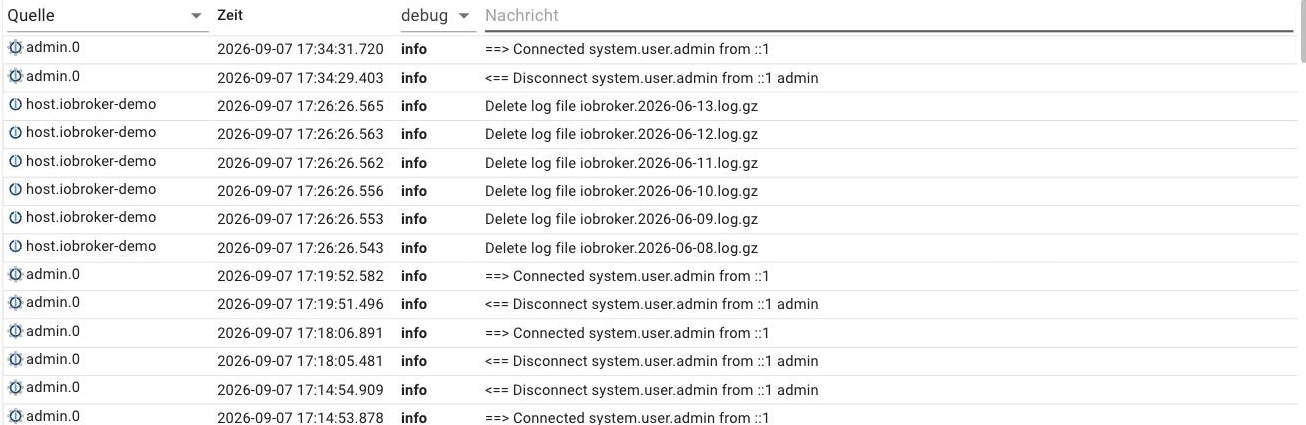
The columns are source (the instance or host), time , log level , and message . The fields in the header allow filtering: by source, by minimum log level, and by text within the message.
Log levels from most detailed to most concise:
| Level | For what |
|---|---|
silly (in the dialogue Everything ) | Absolutely every single report. Only ifdebug is not enough. |
debug | Internal processes too. For troubleshooting, then reset. |
info | The normal procedure: Start, Stop, Connections. |
warn | Something is unusual, but it continues. |
error | Something went wrong. |
The level is set for each instance in the Instances tab, and the default for new instances is set in the system settings .
Long lines are truncated in the list. Anyone who wants to get to the bottom of a message should download the log file and look there. Often the actual cause is in the lines preceding it.
If there is an error in the log
Two things almost always help:
- Look for the first error message, not the last. One error often leads to further errors; the beginning of the chain is what's interesting.
- The log level of the affected instance is at
debugTry restarting the instance and reviewing the messages again.
If that doesn't help, the forum can help. The relevant post should be an excerpt from the downloaded log file, not a screenshot of the list.