Overview and quick access
Tab Overview
The overview is the admin's homepage. It answers the question of whether the system is healthy at a glance and links from there to the relevant tabs.

The host to whom the display refers is shown in the upper right corner, next to it whether they are online . Below that are four tiles:
| tile | Meaning |
|---|---|
| System status | Collective message from running instances, storage, and log.OK This means: no errors remain. |
| adapter | How many adapters are installed, and how many of them are actively used. |
| Instance | How many instances have been created and how many of them have been started. |
| objects | Number of objects and their describable states. |
The System Information block displays the host's data: platform, architecture, Node.js and NPM version, runtime since the last restart, and current RAM and CPU usage.
If the RAM usage indicator is constantly maxed out or the Node.js version is not the recommended LTS version , this is the first place to start looking.
Below are the active adapters with their version and status, as well as the last few lines from the system log . Clicking "Show all" takes you to the complete instance list or the logs .
Quick Access Tabs
The quick access feature gathers all adapters that have their own web interface as tiles. Clicking on a tile opens that interface at the address shown at the bottom of the tile.
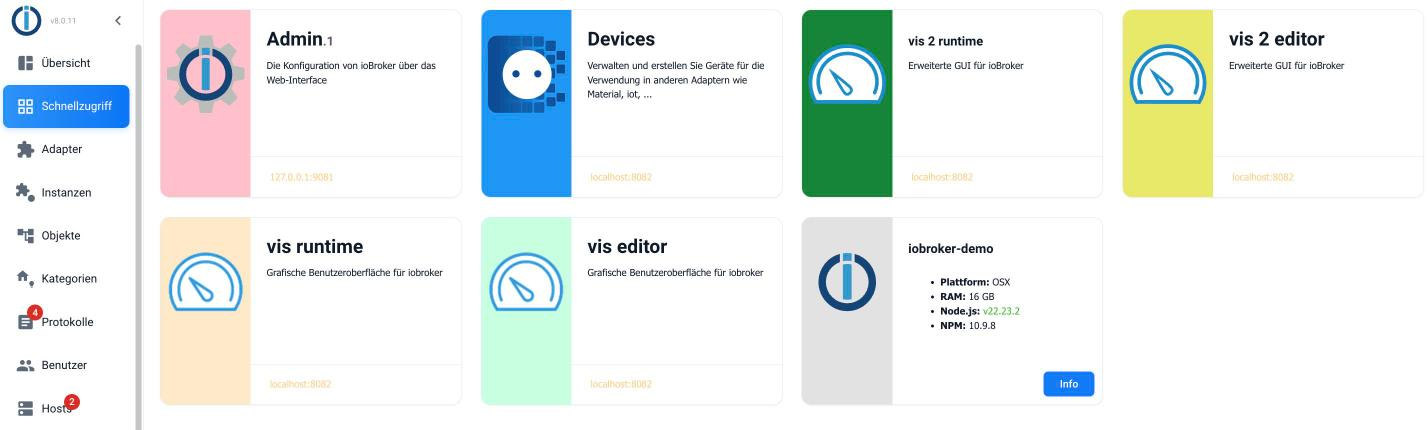
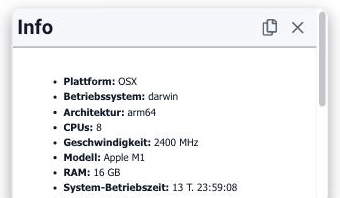
Finally, there is one tile for each host in the system. In a standard installation, this is the single ioBroker server; in a multi-host system , it's the master and all other hosts. The Info button in this tile expands the host's hardware and system information.
Customize tiles
You can freely choose which tiles are displayed. To do this, click on the pencil icon in the bottom right corner. Each tile will then have a checkmark that can be selected or deselected.
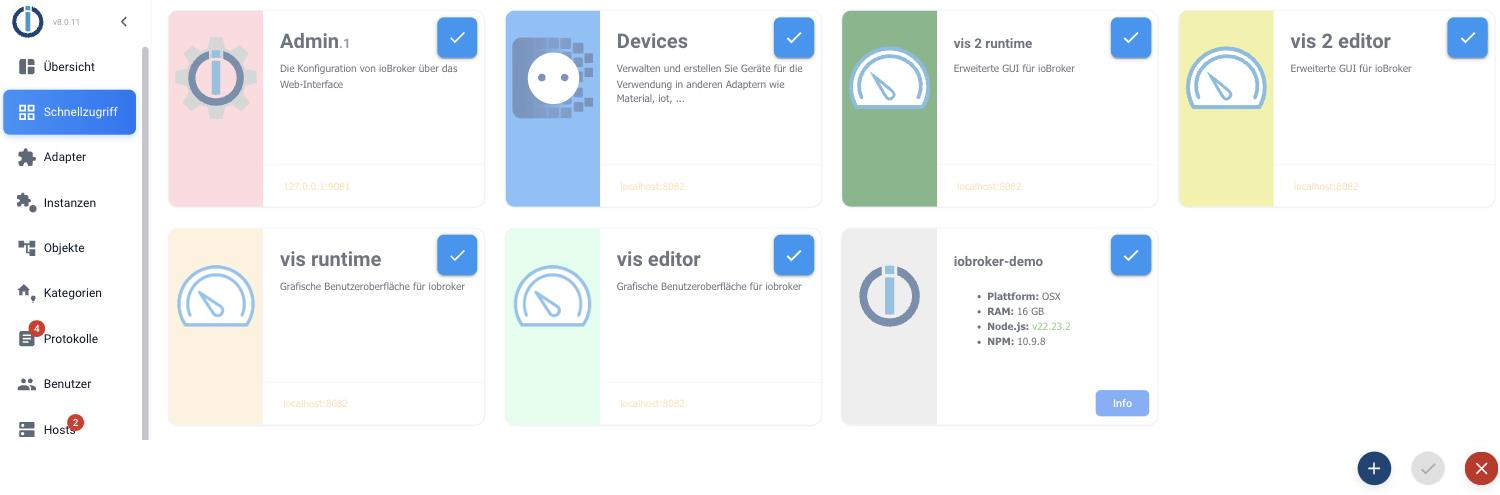
In edit mode, there are three buttons in the bottom right corner:
- + creates a separate tile, for example for a device in the network that does not run via ioBroker.
- The checkbox saves the selection.
- X rejects them.