Manage adapters
Two terms are constantly confused when it comes to adapters, and this is the source of most misunderstandings:
- An adapter is the software. It is downloaded to the computer once.
- An instance is a running process of this adapter, with its own configuration. There can be multiple instances of the same adapter, for example...
hue.0for the one andhue.1for the second bridge.
Only an instance takes action. An installed adapter without an instance just sits idle.
The details of what the Adapter tab looks like, which symbols the tile displays, and the function of each toolbar are explained under Adapter . This page explains the underlying processes.
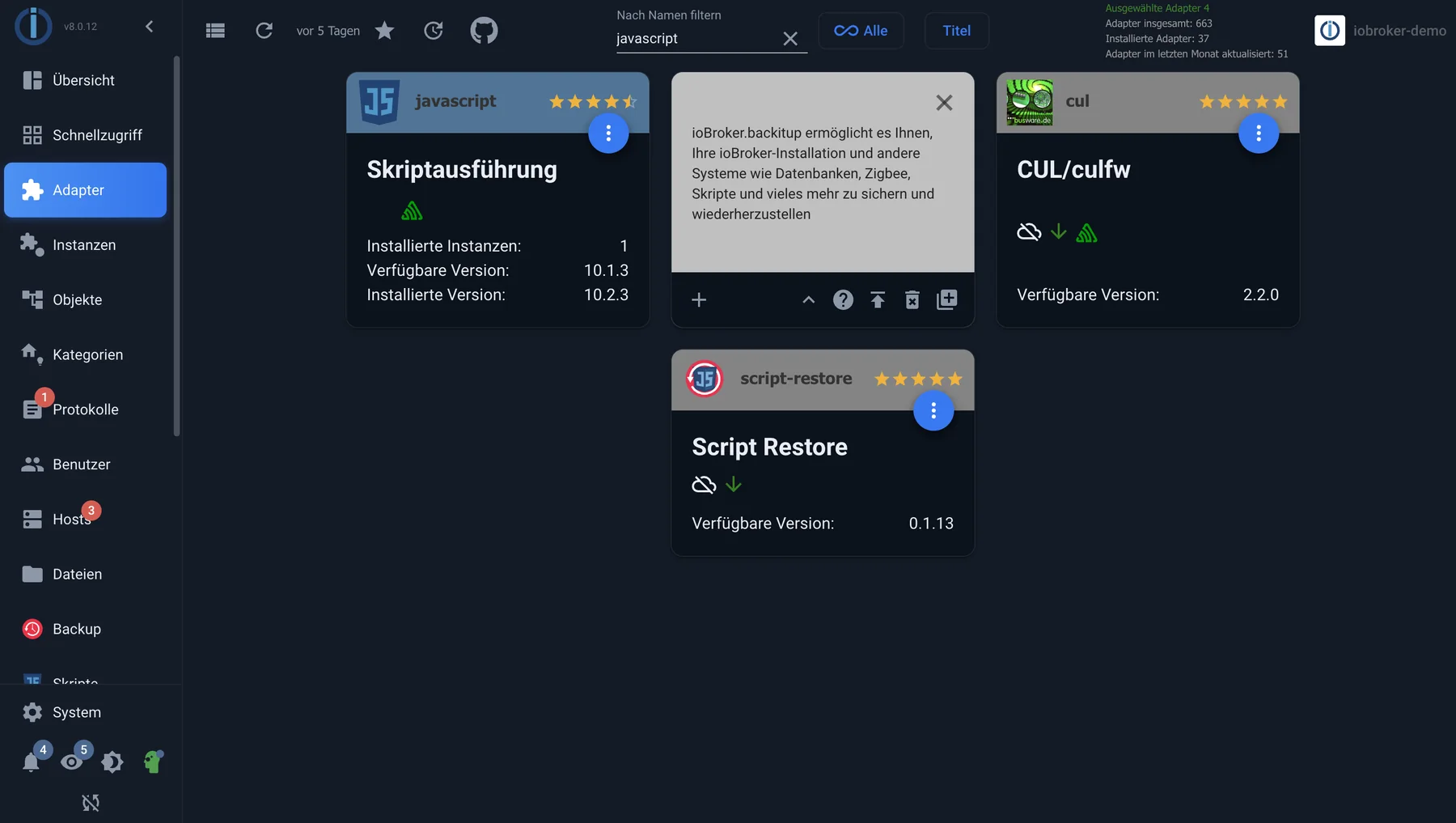
The Adapter tab in the tile view: at the top is the search field; on each tile are the stars, the versions, and the plus sign for a new instance. The inverted tile shows the description.
Install an adapter
There's no dedicated command for this in the admin panel , and that's intentional: When creating an instance, the adapter is installed automatically if needed. A single click on the plus sign next to the tile is all it takes.
On the console:
iobroker install <adaptername>
Create an instance
In the admin panel: on the Adapter tab, click the plus sign on the adapter tile. This will open the configuration for the new instance.
On the console:
iobroker add <adaptername>
If the adapter files are missing, ioBroker will automatically perform the installation beforehand.
Update
If a newer version is available, the tile changes color and the available version appears green. Clicking the update icon installs it. Two steps then occur in the background: the new files are installed and subsequently uploaded to the instances.
iobroker upgrade <adaptername>
Keeping adapters up to date is worthwhile not only for new features: adapters often require a specific version of another. A system where everything is up to date has fewer surprises.
Revert to an older version
If a new version causes problems, an older version can be installed.
In Admin mode : Enable expert mode, then select "Install a specific version" on the back of the tile. A list of versions released by the developer will appear.
On the console:
iobroker upgrade <adaptername>@<version>
Upload files
A special case that is not needed in normal operation: The upload process re-adds the files of an adapter to the database. This is only necessary if someone has manually modified files.
In Admin mode : expert mode, then on the back of the tile, select file upload .
On the console:
iobroker upload <adaptername>
Where the adapters come from
The list in the Adapter tab is initially just a catalog. The items listed there are not yet on the computer. They come from the configured repository and are updated when the Admin window is opened; if there is no connection, the last known version is displayed.
There are three sources, and they differ in maturity:
| source | What it contains |
|---|---|
| stable | Tested versions. The right choice for a system that needs to run. |
| beta | Newer versions, not yet fully tested. Formerly called latest . |
| GitHub | The development status. Including unfinished intermediate versions. |
The same version number can appear in all three versions if little has changed. However, they can also differ significantly. This is precisely why the frequent question arises as to why a version mentioned in the forum is not offered as an update.
The repository used is specified in the system settings ; details can be found under Repositories .
A single version from beta or GitHub
Previously, this required switching the entire repository and then switching it back, which was often forgotten. This is no longer necessary: Using the "Install from local source" option in the toolbar (the Octocat icon), you can retrieve a single version from npm or GitHub, while everything else comes from the stable repository.
!> Only download from GitHub after consulting with the developer. It contains a work in progress, not a release. An unfinished version can render the installation unusable. Anyone installing a test version should have a backup beforehand and know how to revert to it.
What you shouldn't do
!> Nonpm install by hand. The way
cd /opt/iobroker
npm install iobroker.<adaptername>
This used to be included in many tutorials. On modern installations, it leads to permission problems or fails because npm is running as the wrong user.iobroker Commands accomplish the same thing and set the permissions correctly. If this has already happened, the Installation Fixer can help.