Access management with users and groups
Anyone logging into ioBroker does so as a user . What this user is allowed to do is determined by two things: the rights of their group and the access rights to the individual object . Both must permit the intended action. If either is prohibited, nothing happens.
These users are not the operating system users. They only apply within ioBroker: for logging into the admin interface, vis, and the web adapters. They are created in the Users tab.
The two existing groups
| group | Intended for |
|---|---|
Administrator (system.group.administrator ) | Full access. This is where the user is located.admin . |
Users (system.group.user ) | Daily operation: switching and reading, but no modifications. |
A user can belong to multiple groups. Their rights are then the sum of all group rights.
What a group is allowed to do
In the Users tab, the pencil icon opens the editing function for a group; the Permissions tab shows the rights:
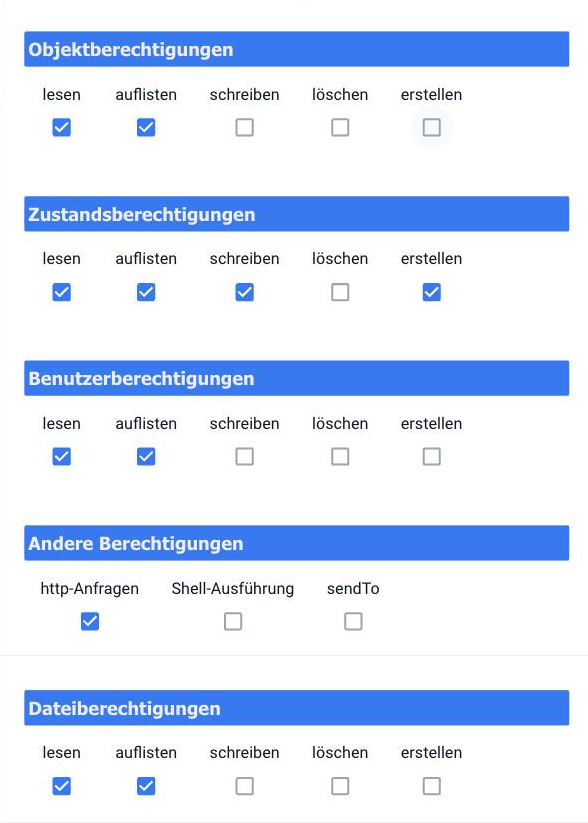
Five blocks, each with the same five rights:
| block | What it applies to |
|---|---|
| Object permissions | The description of a data point: name, role, unit, assignments. |
| Status authorizations | The value itself. Switching is a write access to the state. |
| User permissions | Manage users and groups. |
| Other permissions | http-Anfragen ,Shell-Ausführung andsendTo . |
| File permissions | The file storage, i.e., everything in the Files tab. |
The five rights mean: read ( retrieve individually), list (see that something exists), write (change), delete ( remove), create ( create a new one).
The user group is set by default to cover everyday use:
| block | Allowed |
|---|---|
| objects | read, list |
| Conditions | read, list, write, create |
| user | read, list |
| Other | onlyhttp-Anfragen |
| files | read, list |
This allows such a user to see everything and control devices, but not to modify objects or run scripts.sendTo Do not initiate the process and do not issue any shell commands.
!>Shell-Ausführung This means that scripts from this user are allowed to execute commands on the operating system. This right belongs only to the Administrators group.
Rights to the individual object: the ACL
Group permissions define what a user is generally allowed to do. Object permissions define which data point this applies to . Both are checked, and the stricter permission always prevails. A user whose group has write permissions can still encounter problems with a single data point.
These rights to the object are called ACLs , short for Access Control List . They are structured the same way as file permissions in Linux: a three-digit number, for example:664 .
The three numbers represent three roles, in this order:
| Number | Applies to |
|---|---|
| first | the owner , i.e. the user who is entered at the top of the dialog. |
| second | the owner group , i.e., everyone who is in this group |
| third | all other registered users |
Each digit is made up of two actions: reading counts as 4 , writing counts as 2. Together this makes 6, nothing makes 0.
| Number | Means |
|---|---|
664 | Owner and group can read and write; everyone else can only read. The usual default setting. |
644 | Only the owner writes, everyone else reads. |
666 | Anyone is allowed to write. |
600 | Only the owner, nobody else. |
An example that occurs exactly like this in everyday life: A user in the group "Users" is allowed to write states. The data pointalias.0.Licht stands up664 and belongs to the owneradmin in the administrator group. The user is neither one nor the other, so the third digit applies to him:4 He can only read. He sees the lamp, but he can't switch it on. The problem isn't the group, but the object's ACL.
Objects and states have separate permissions. The object is the description, the state the value. Anyone who only needs to be able to toggle the state needs write permissions for the state, not the object.
The permissions become visible in expert mode : the Objects tab then displays a column with this number. Clicking on it opens the access control list.
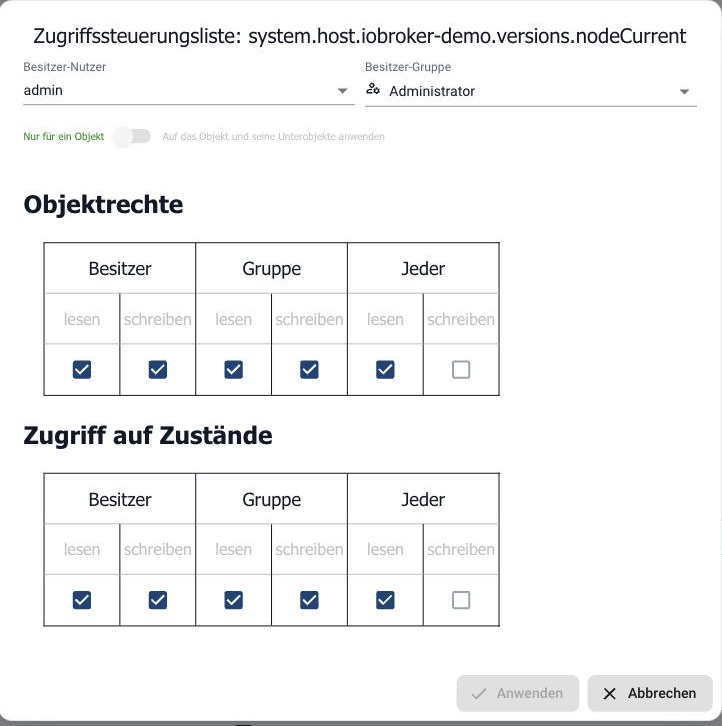
At the top are owner-user and owner group , below are the rights, separated by object and state, and each for three roles:
- Owner : the registered user.
- Group : who is in the registered group.
- Everyone : all other registered users.
The three numbers represent precisely these three roles. Reading counts.4 , Write2 , together therefore6 .664 This means that the owner and group are allowed to read and write, everyone else can only read.
The "Apply to object and its sub-objects" switch applies the setting to the entire subtree. This is a convenient way to, for example, set an entire adapter namespace to read-only.
The permissions assigned to newly created objects are specified in the system settings under Default ACL . This setting does not affect existing objects.
Objects that an adapter creates itself belong to it. If it recreates them during an update, the permissions are restored as the adapter intended. Where a restriction needs to be permanent, an alias is the more reliable approach: it belongs to you, and the adapter doesn't touch it.
Create a restricted user
The usual scenario: someone should be able to operate the visualization, but not be able to change anything in the system.
- In the Users tab, create a user and assign a password.
- Move him to the Users group, not the Administrators group.
- Enable login in the authentication settings of the relevant web adapter.
- Log in with this user and test whether only what is supposed to work actually works.
If the user group is insufficient, a separate group is created and assigned only the necessary permissions. If a specific area needs to be additionally restricted, this is done via the object's access rights.
Create a backup before making the change. If you accidentally lock yourself out with overly restrictive permissions, you'll only be able to regain access via the command line .