vis
vis was long the visualization tool for ioBroker: an interface where users could create their own user interfaces using building blocks instead of code. Many systems still run on it today.
For a new project , vis-2 is the right choice. It's the successor and is continuously being developed. This page describes the original vis and is intended for those maintaining an existing project.
Requirements
vis requires the web adapter, which is included with the installation. Otherwise, nothing needs to be configured except for the license. It is managed in your account on iobroker.net and is free for private use; see Adapter Licenses .
There can only be one vis instance.
Call
| address | |
|---|---|
| Advertisement | http://<server>:8082/vis/index.html |
| A particular view | .../vis/index.html#Ansichtsname |
| editor | http://<server>:8082/vis/edit.html |
| Further project | .../vis/<projekt>/index.html#Ansichtsname |
Both addresses are also listed as references in the Instances tab. On the first call, vis creates a sample view.
A project consists of several views (called "Views" in the editor), on which the widgets can be freely placed.
The editor
The editor is divided into four areas:
| Area | Contents |
|---|---|
| Top header | four tabs with the tools, plus help and undo. |
| Widget bar on the left | All available widgets, with filter field and selection of the widget set. |
| Work surface center | the view on which the widgets are located |
| Properties on the right | The settings of the selected item, with the tabs Views, Widget and CSS |
The four tabs of the header:
| Equestrian | For what |
|---|---|
| Views | Select view, create, rename, delete |
| Widgets | Select, copy, delete, and align multiple widgets |
| Tools | Resolution, grid, identifiers, export and import view settings |
| Set up | Theme, language, projects, file manager, settings, object browser |

Multiple widgets can be selected together by clicking and dragging with the mouse or by holding down the Ctrl key while clicking. The toolbar then aligns them, distributes them evenly, or gives them the same size. Their properties can then be changed together.
Two switches in the Widgets tab help with building: one freezes the values so that nothing changes during setup, the other locks moving so that a finished layout doesn't accidentally shift.
Resolution and standard view

Under Resolution, a screen size is selected, and the editor then draws a frame around it. This is only a guideline; it is invisible when the screen is being displayed.
Combined with the "Default" checkbox, this becomes something useful: vis remembers which view is the default for each resolution and switches automatically when the tablet is rotated. So you create one view for portrait mode and one for landscape mode, and the device displays the appropriate one in each case.
Grid allows widgets to snap to adjacent elements when moved, either to a fixed grid in pixels.
The instance ID and browser ID identify a single browser. This allows the control interface to address a specific device instead of all devices.
A single view is exported as text and imported back in. This allows you to incorporate examples from the forum into your own project.
Projects
By default, the project is availablemain Its files are located in the installation underiobroker-data/files/vis.0/main .
Creating multiple projects is worthwhile because when a project is loaded, all its views are loaded along with it . A project for the phone with a few, streamlined views starts noticeably faster than the large main project, especially over mobile data. It's common practice to separate projects by device.main for the computer, one project each for wall tablet and telephone.
Views can only be copied between projects via export and import, and a navigation widget cannot link from one project to another.
An entire project is exported as a ZIP file under Setup → Projects , including images and the stylesheet.vis-user.css and the definitionsvis-views.json To import the file, drag the ZIP file onto the window and assign a name. Alternatively, the export can also be anonymized.
Also under Setup : the file manager , which allows images and other files to be loaded into ioBroker's file storage without additional software, and the object browser , which places an object ID in the clipboard for pasting.
Settings for operation
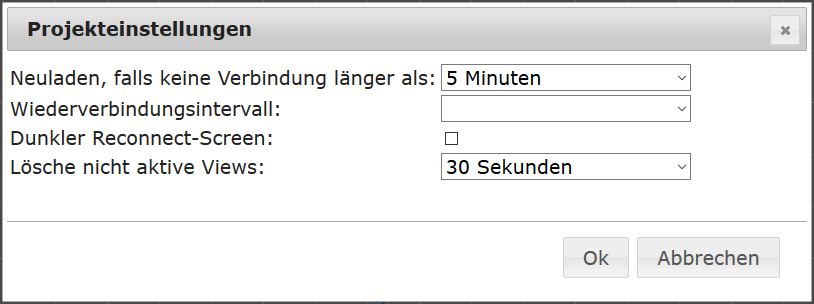
| Attitude | For what |
|---|---|
| Reload if no connection lasts longer than | After this period without a connection, the view reloads completely. If set to "never", this never happens. |
| Reconnection interval | How often a new connection attempt is made. |
| Dark Reconnect Screen | So that a tablet in the bedroom doesn't light up brightly when recharging. |
| Delete inactive views from RAM | After this time, unused views are removed from memory. This helps on a tablet with limited RAM, but the next time the view is accessed, it takes longer. |
Widgets
The widget bar on the left allows you to filter by term or select a set of widgets; the star represents all sets. A widget can be dragged onto the workspace or inserted by clicking the Insert button in the upper left corner.
The available building blocks depend on the installed widget sets; see Widget Sets . The settings for each widget are listed under Widget Settings .
A data point is assigned in the General section of the right-hand properties bar. Size, font, colors, background, and border settings are also located there. The CSS tab allows for custom configuration.
What's different in vis-2
- A view is called a page there.
- The editor has been redesigned: palette on the left, attributes on the right, pages as tabs.
- Widgets can be positioned relatively and will then arrange themselves automatically, instead of being stuck to fixed coordinates.
- Navigation and application bar are built-in and do not need to be constructed from widgets.
- Read and write permissions can be assigned per user.
The classic widget sets continue to run in vis-2. See vis-2 for details.