Restore an installation
After a hardware change, a faulty memory card, or a failed update, the installation is restored from a backup. This sounds more complicated than it is: if done correctly, the process takes less than an hour, and in the end, the system is back to where it was.
This page describes the complete process for setting up a newly configured system. For minor issues, such as an accidentally deleted item, there are faster methods: Restore configuration .
What's included in the fuse and what isn't
An ioBroker backup does not include the recorded measurements. It backs up objects, states, configurations, scripts, and visualizations. The data fromhistory InfluxDB and SQL are separate backup types in BackItUp and must be enabled there separately. The same applies to the Zigbee database and Redis. See Data Backup for details.
Anyone who only notices this during the restoration process will realize it too late.
Preparation
1. Set up a working system. Install the operating system, then ioBroker according to the instructions for Linux . Restoring the system requires a working, empty installation.
2. Find out if Redis is needed. If there is still access to the old system, give
iobroker status
the information:
Objects type: redis
States  type: redis
It says there next to one of the tworedis A Redis server must be running on the new system beforehand . This is stated for both.file orjsonl It's not needed. If in doubt, i.e., without access to the old system, it's better to install Redis.
3. Install Redis , if necessary:
sudo apt update
sudo apt install redis-server
sudo usermod -a -G redis iobroker
sudo reboot
4. Transfer the backup to the new system. Use an SFTP program like FileZilla or WinSCP to copy it to the folder./opt/iobroker/backups The installation already creates it.
BackItUp can also restore directly from NAS, Dropbox, or Google Drive. However, restoring from a local file is the method with the fewest potential errors and is therefore the one described in this guide.
Option 1: with BackItUp
The more convenient way, without using a single console command.
1. Install BackItUp. In the Adapter tab, look forbackitup Search and create an instance using the plus sign.
2. Open the Restore tab and set the backup source to Local , then save.
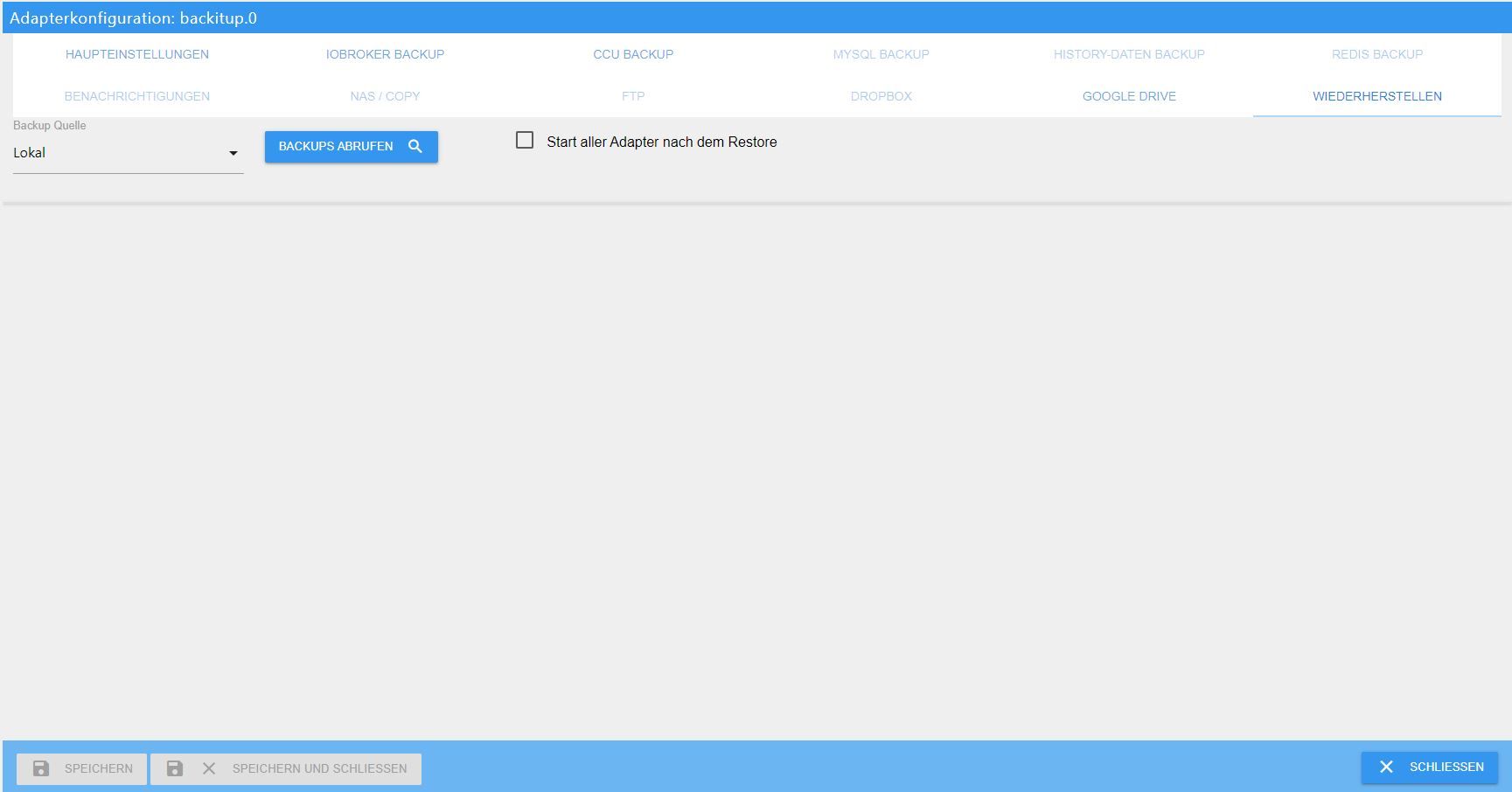
The setting "Start all adapters after restore" remains disabled if the backup is being performed on a different host. Before starting the backup, IP addresses usually need to be adjusted on that host. It can be enabled on the same device.
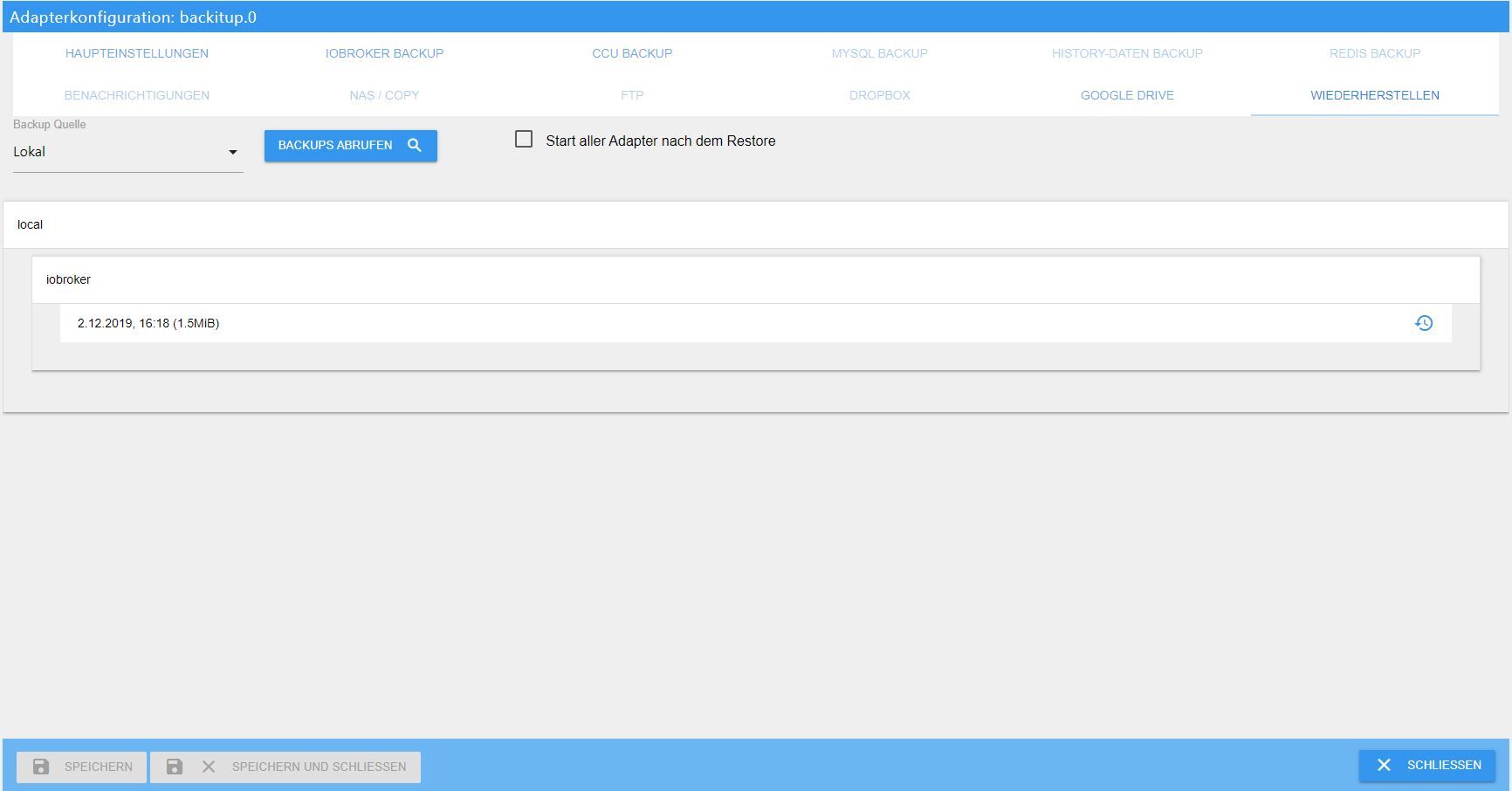
3. Retrieve backups. The file you just uploaded will appear in the list under iobroker . Select it.
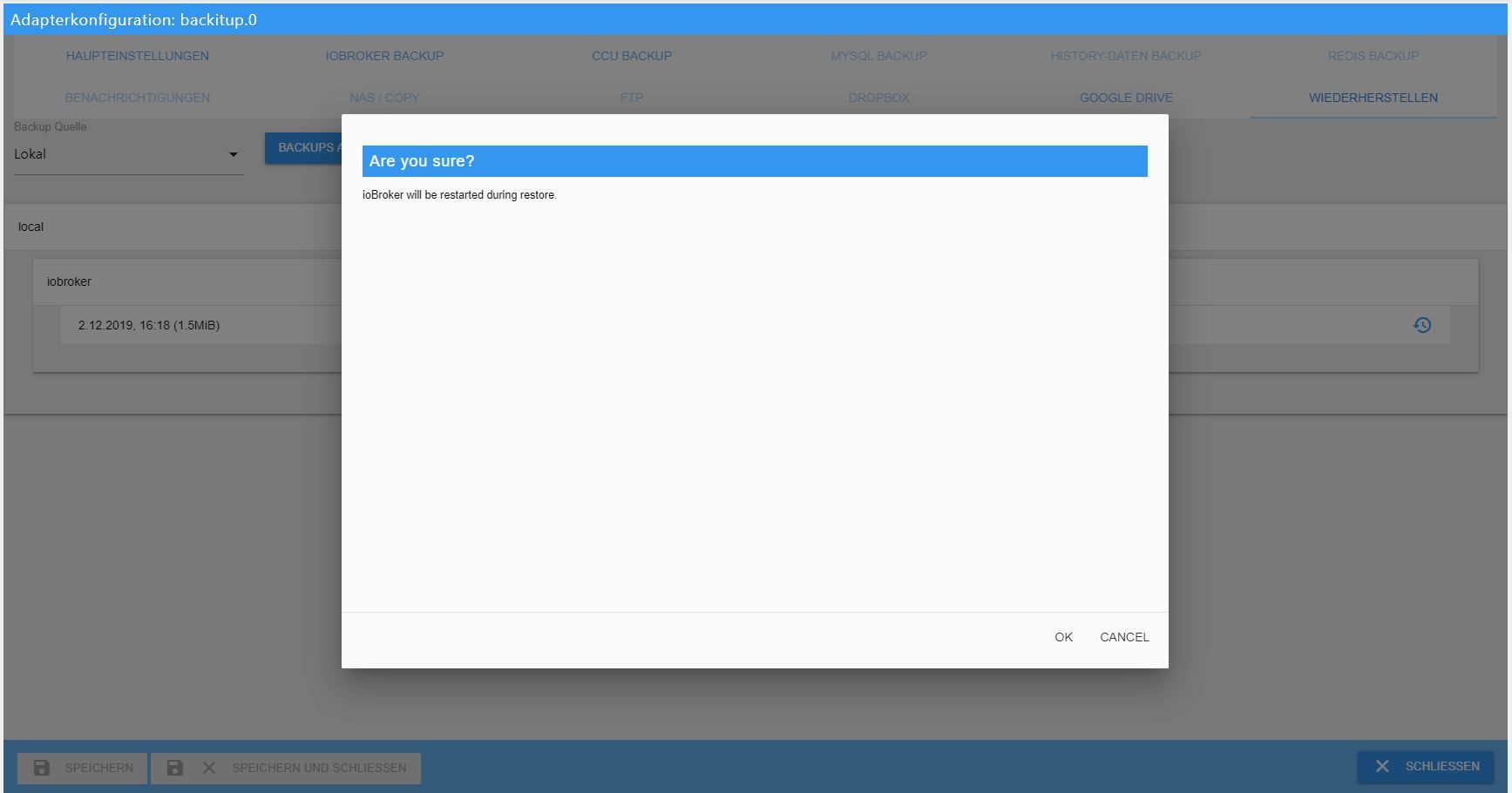
4. Confirm. The message states that ioBroker will be stopped for recovery and then restarted.
5. Watch. Another tab opens in the browser, where the process runs as if on the console.
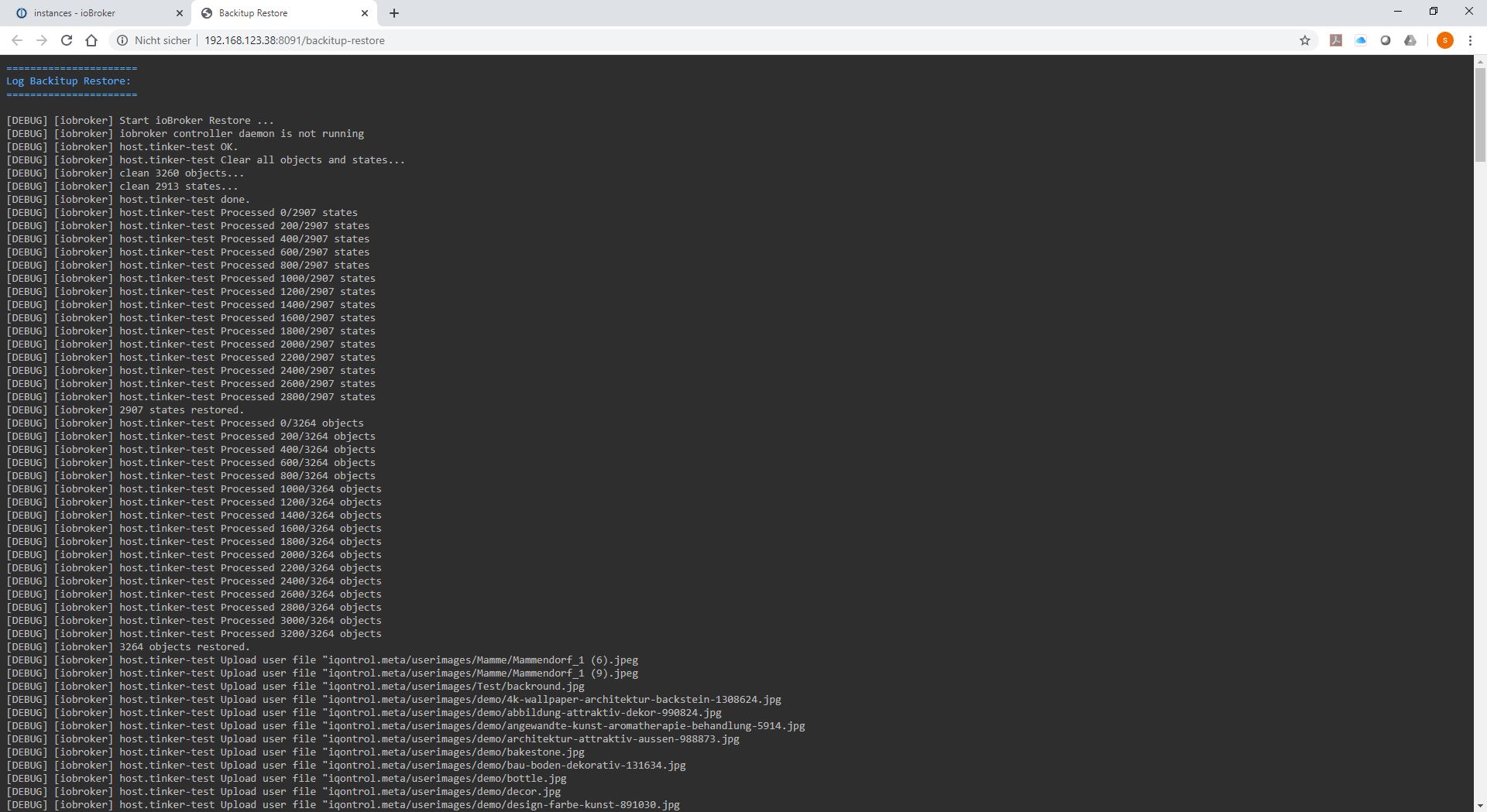
The story ends with a success story.
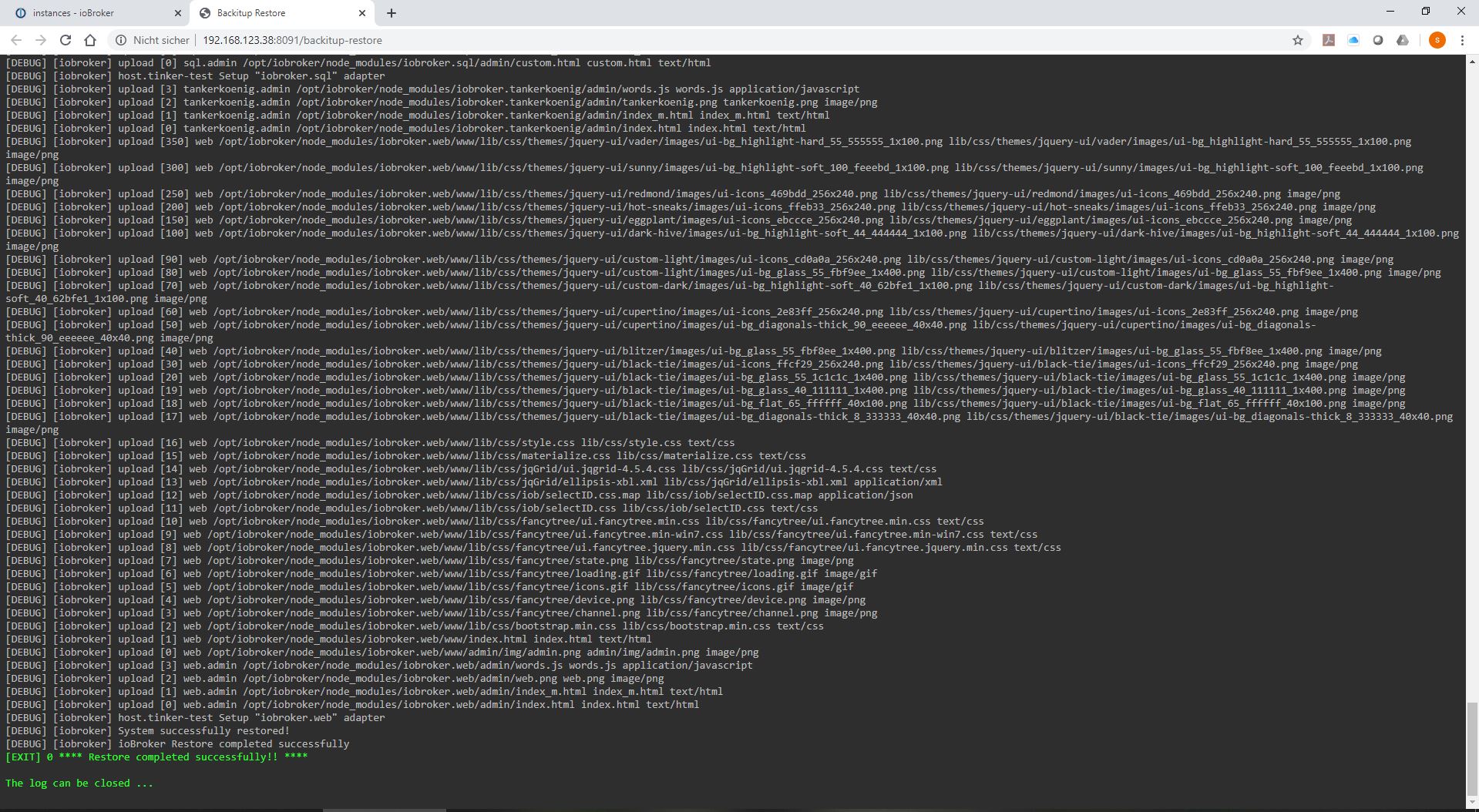
Depending on the device and the size of the installation, this takes about 10 to 15 minutes, after which ioBroker restarts automatically.
6. The remaining backups. If Redis, Zigbee, SQL, or history data were also backed up, they will now be restored individually using the same method. They appear as separate entries in the list:

Method 2: via the console
Those who want to see what's happening right now take the direct route.
iobroker stop
iobroker status
Only wheniobroker status confirms that nothing is working anymore:
cd /opt/iobroker
iobroker restore <Name der Sicherung>
iobroker start
Lists without namesiobroker restore The existing fuses can be selected by number.
Only ioBroker backups can be restored this way. Redis, Zigbee, MySQL, or history backups come from BackItUp and can only be restored there.
After the restoration
The Log tab shows how ioBroker reinstalls all adapters from the old installation one after the other via npm. This is the time-consuming part: depending on the size of the installation, the device's performance, and the internet connection, it can take two to three hours.
Do not touch anything during this time. Do not restart, do not intervene. You can track what has already finished in the instances: Adapters without a symbol are still in the queue. Refreshing the view occasionally is sufficient.
If ioBroker does not start automatically after restoration in exceptional cases:
iobroker start
Once all instances have their icon, the system is complete again: with all settings, scripts, visualizations, and mappings.
Which way
Both methods lead to the same result. Those who are uncomfortable using the console should choose BackItUp and are less likely to make mistakes. Those who want to see exactly what is happening on the system should take the second method.
And after that, even before making your first change: create a fresh backup and check that it ends up in a different location than on the device itself.