Installing ioBroker on Windows
Check prerequisites
Before installation, please check that the system meets all necessary installation requirements .
Problems with the Windows Installer can be discussed here in the forum: https://forum.iobroker.net/topic/63610/test-iobroker-unter-windows-installieren-2023-edition
The ioBroker Windows Installer
The ioBroker Windows Installer allows you to install ioBroker on Windows PCs with just a few clicks. The installer itself does not include any software packages. Required software is downloaded automatically during the installation process. Therefore, an internet connection is absolutely necessary.
Once ioBroker is installed, the installer can be used for the following actions:
- Update Node.js to the currently recommended version
- Running the ioBroker Fixer
- Deleting or creating rules for the Windows Firewall so that ioBroker can also be accessed from outside.
- Specify whether ioBroker starts automatically when Windows starts.
The installer installs itself and can be found in the Windows Start menu under "ioBroker automation platform" - "ioBroker Setup".
ioBroker under Windows: is that a good idea?
ioBroker generally runs just as well on Windows systems as on Linux systems. However, Windows systems may have inherent disadvantages for 24/7 operation, which each user must weigh up. Windows is particularly well-suited for quickly trying out ioBroker on an existing Windows PC.
Install ioBroker
First, the installer must be downloaded. The latest version is always available on the official download page: /installation
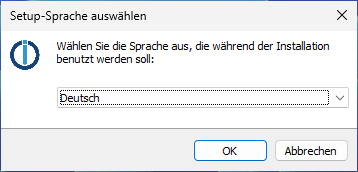
The installer is then started by double-clicking. First, we select the language to be used:
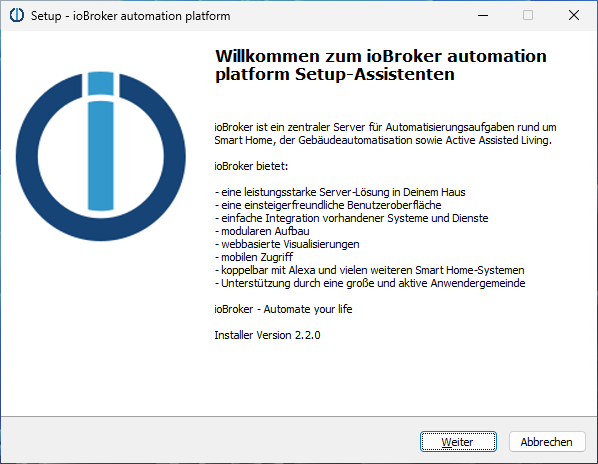
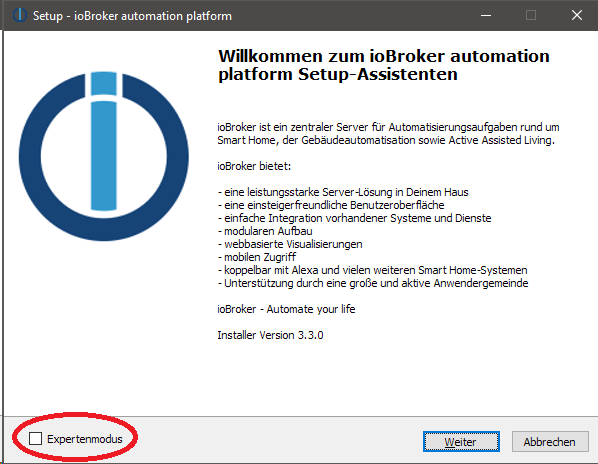
The welcome page then appears:
After clicking "Next", the license page appears:
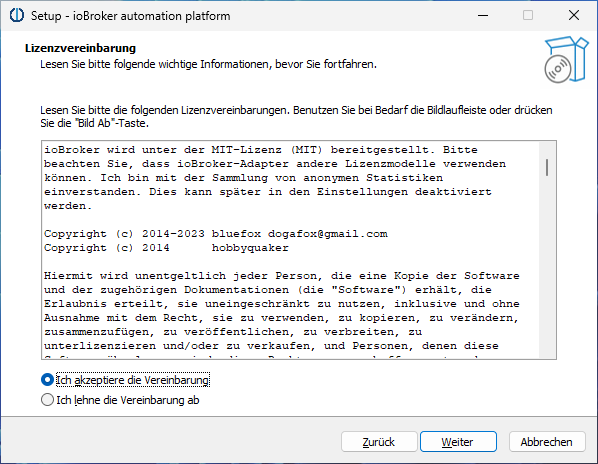
We must accept the license and then click "Next" again. On the following page, we can now select the installation folder for our ioBroker installation:
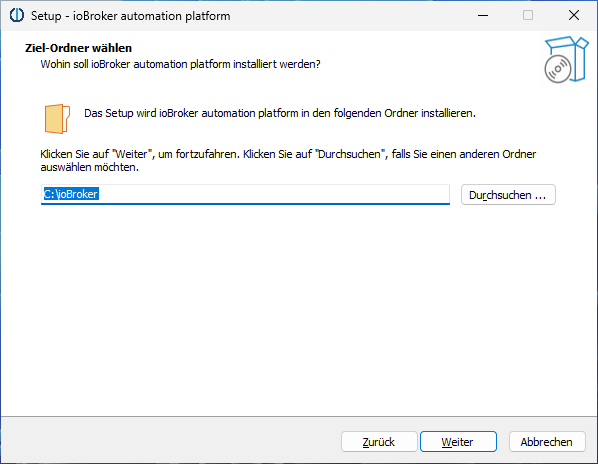
Generally, it's a good idea to simply use the default value "C:\ioBroker". After clicking "Next", some checks will be performed:
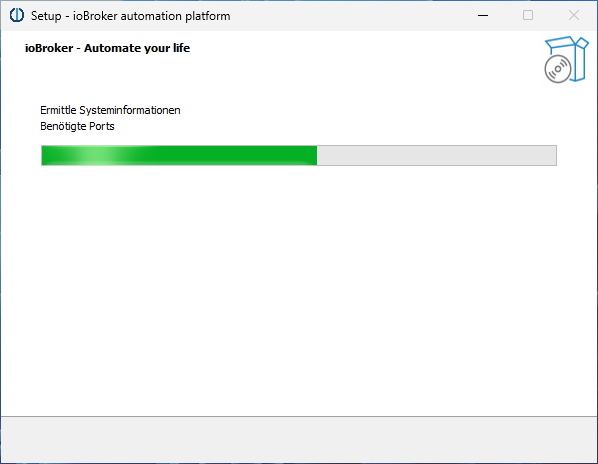
This may take a moment. The result of the check will then appear automatically:
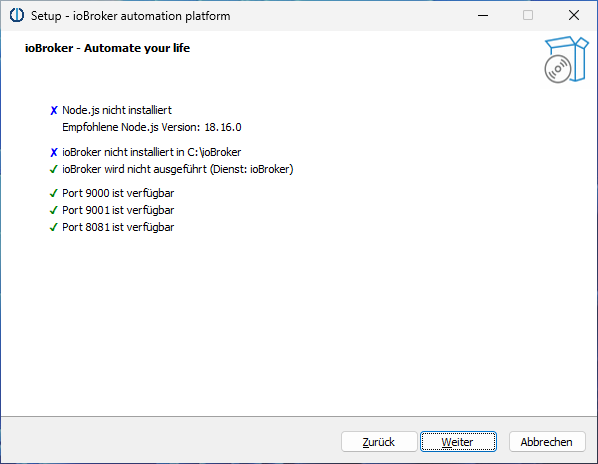
In this example, everything is fine and we can proceed. If not all the necessary prerequisites are met, we first need to determine what to do. Often, ports required for installing and running ioBroker are unavailable. If you find yourself in this situation and don't know what to do, you can find help in the ioBroker forum at https://forum.iobroker.net/. After clicking "Next," we can select some details:
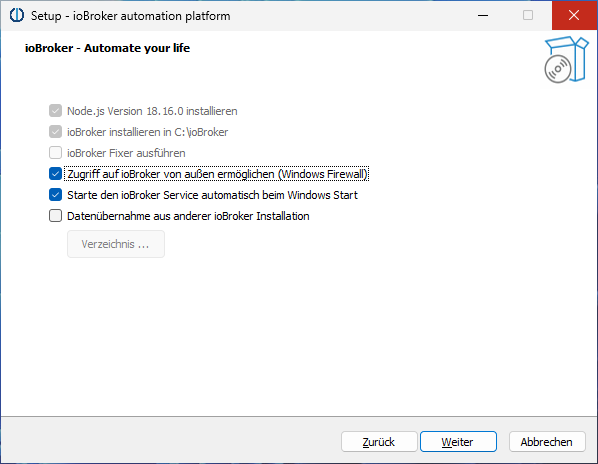
During the initial ioBroker installation, the first three options are predefined:
-
Node.js, the runtime environment for ioBroker, is downloaded and installed in the recommended version.
-
ioBroker itself will be installed.
-
The ioBroker Fixer cannot be selected. The next two options can be changed, but it is generally recommended to keep the default settings. Finally, the installer offers the option to import the configuration of an existing installation. This requires the complete "iobroker-data" folder, which is located in the ioBroker folder of an existing ioBroker installation. This folder can originate from an ioBroker installation on Windows or Linux. The data is copied from this folder during the installation; the contents of this folder are not modified. After clicking "Next," we now see a summary of the planned actions:
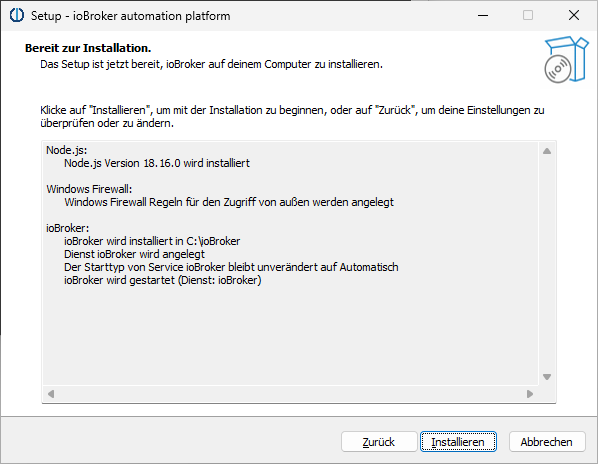
Clicking "Install" will now start the actual installation:
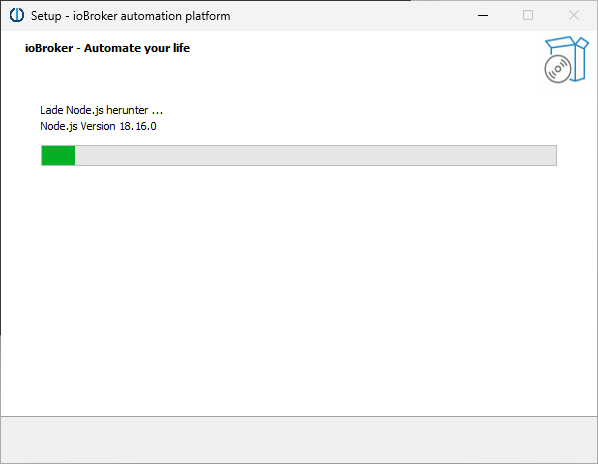
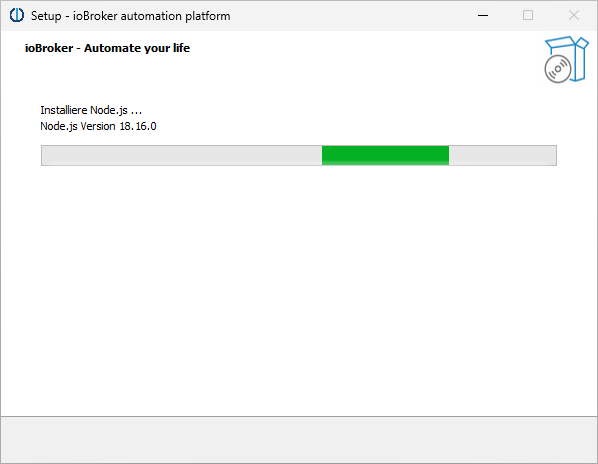
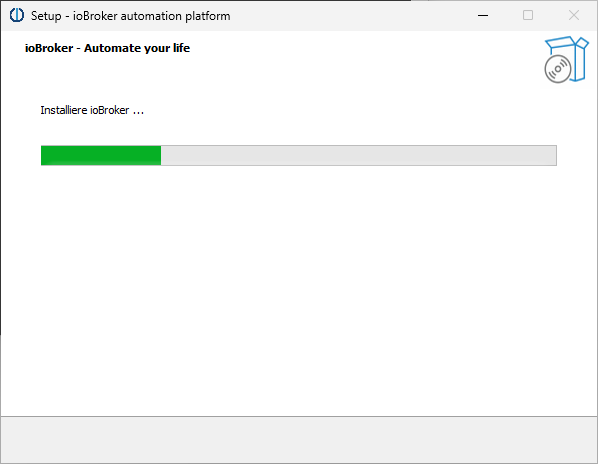
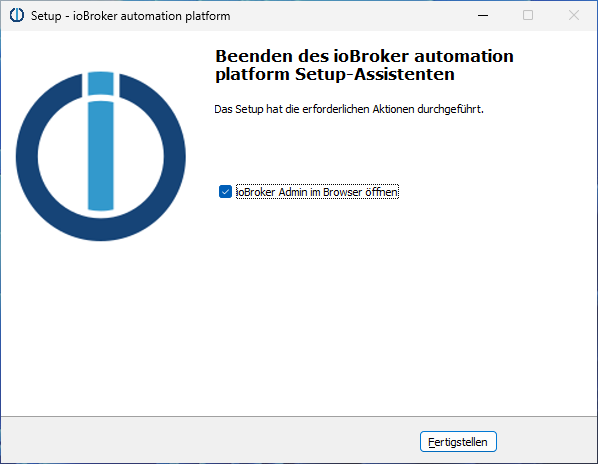
Clicking "Finish" will open a web browser and ioBroker will guide you through the first steps of the setup.
Update
Updates usually proceed smoothly and safely. Nevertheless, it's advisable to perform a data backup before proceeding.
-
The Windows Installer can automatically update your installed Node.js version to the recommended version. Simply launch the installer from the Windows Start menu ("ioBroker Setup") and follow the instructions. Any available Node.js update will be automatically detected and offered.
-
Since Windows Installer version 3.1.0, the JS Controller can also be updated using the Windows Installer. Simply start the installer from the Windows Start menu ("ioBroker Setup") and follow the instructions. Any available update for the JS Controller will be automatically detected and offered.
-
It is also possible to update JS controllers manually. However, it is strongly recommended to perform updates using the Windows Installer.
If you still want to perform the update manually, you can do so with the following commands:
iob stopiob updateiob upgrade selfiob start
Expert mode
The installer also offers an expert mode, which is usually not needed for the average ioBroker user. It can be activated on the first page of the installer by double-clicking the ioBroker logo and then checking the "Expert mode" box.
Expert mode offers the following additional features:
- Installation and maintenance of multiple ioBroker servers simultaneously on one PC
- Installing JS Controller Alpha Versions
Troubleshooting
Problem: The installation cannot be performed because port 9001 is occupied by a process named "System".
Possible solution: The Intel® Graphics Command Center is known to block port 9001. Check if there is a Windows service named "Graphics Command Center" or similar on your PC. If so, stop and disable this service. Afterwards, the installation of ioBroker should be possible.
Problem: Git was not installed during the ioBroker installation. The log file contains a corresponding error message:Fehler beim Durchsuchen der Quelle: winget Unerwarteter Fehler beim Ausführen des Befehls: 0x8a15000f : Data required by the source is missing
Possible solution: In the ioBroker Command window (from the start menu), enter the following command, then restart the installer and select "Repair".powershell -command " Add-AppxPackage -RegisterByFamilyName -MainPackage Microsoft.Winget.Source_8wekyb3d8bbwe"