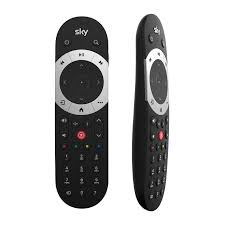
Sky Remote Adapter for ioBroker
Control Sky Q boxes via network commands
This adapter allows you to send remote control commands to Sky Q boxes over your network. It provides states for all remote buttons and allows you to send command sequences.
Sky Q is a set-top box from Sky.
Prerequisites
- ioBroker installation
- Sky Q box connected to your network
- IP address of your Sky Q box
Installation
- Install the adapter via ioBroker Admin
- Configure the IP address of your Sky Q box in the adapter settings
- Start the adapter
Configuration
In the adapter settings, you need to configure:
- IP address or hostname of your Sky Q box
- Port (usually 49160 for Sky Q boxes)
- Connection check frequency (in milliseconds) - how often the adapter checks if the Sky box is online
Connection Monitoring
The adapter periodically checks the connection to your Sky Q box and updates the sky-remote.X.info.connection state. This state shows whether the adapter can successfully connect to your Sky Q box:
true: The Sky Q box is online and reachablefalse: The Sky Q box is offline or unreachable
You can use this state in your visualizations or scripts to monitor the status of your Sky Q box.
Button Behavior
The adapter provides buttons that work as momentary push buttons. They are write-only and carry
no readable value, so a button is triggered purely by writing true to it:
- You write
trueto abuttons.*state - The command is sent to the Sky Q box
Writing true again always re-triggers the command, even if the state already holds true. This
allows you to press the same button multiple times in succession, which is essential for entering
channel numbers (e.g., pressing 1, 0, 2 for channel 102).
Usage
States
The adapter creates the following states:
sky-remote.X.buttons.*- States for each remote control button (e.g.,sky-remote.0.buttons.power,sky-remote.0.buttons.play)sky-remote.X.sendSequence- Send a sequence of commands separated by commas
Examples
- To press the power button: Set
sky-remote.0.buttons.powertotrue - To navigate to a channel: Set
sky-remote.0.sendSequenceto"1,0,6"(for channel 106) - To open the TV guide and navigate: Set
sky-remote.0.sendSequenceto"tvguide,right,right,select"
Available Commands
| Command | Description |
|---|---|
| power | Power button |
| select | Select/OK button |
| backup | Back button |
| channelup | Channel up |
| channeldown | Channel down |
| interactive | Interactive button |
| help | Help button |
| services | Services button |
| tvguide / home | TV Guide/Home button |
| i | Information button |
| text | Text button |
| up | Up arrow |
| down | Down arrow |
| left | Left arrow |
| right | Right arrow |
| red | Red button |
| green | Green button |
| yellow | Yellow button |
| blue | Blue button |
| 0-9 | Number buttons |
| play | Play |
| pause | Pause |
| stop | Stop |
| record | Record |
| fastforward | Fast forward |
| rewind | Rewind |
| boxoffice | Box Office button |
| sky | Sky button |
The following aliases are also accepted in sendSequence (they map to the same
commands as the buttons above, so no separate button state is created):
dismiss (= backup), sidebar (= interactive), search (= services).
Integrating with Blockly
You can use the Blockly visual programming interface in ioBroker to create sequences of commands:
- Create a new Blockly script
- Use the "set state" block to set the
sendSequencestate - Add your comma-separated command sequence
Integrating with JavaScript
Example to send a sequence of commands:
// Press Guide, then right, then select
setState('sky-remote.0.sendSequence', 'tvguide,right,select');

// Turn on the TV and navigate to channel 101
setState('sky-remote.0.sendSequence', 'power,1,0,1');
Troubleshooting
- Ensure your Sky Q box is powered on and connected to your network
- Verify the IP address of your Sky Q box is correct
- Check that port 49160 is open and accessible
- Check the adapter logs for any connection errors
Changelog
WORK IN PROGRESS
- (ioBroker-Bot) Adapter requires admin >= 7.8.23 now.
1.0.6 (2026-08-19)
- (Alan Paris) Button states are now write-only (
read: false) as required for thebuttonrole; existing installations are migrated on start - (Alan Paris) Fixed info.connection latching at a stale value after a failed or successful command; all writers now share one code path
- (Alan Paris) An unknown command name in sendSequence no longer marks a reachable box as offline
- (Alan Paris) Stop writing states and drop the in-flight connection check when the instance is unloaded
- (Alan Paris) Stopped shadowing the adapter base class
hostproperty, which misrouted js-controller crash notifications - (Alan Paris) A command now fails with an error instead of hanging silently when the Sky box closes the connection mid-command
- (Alan Paris) Corrected the German, Dutch and Chinese admin translations of "Port", which used the harbour sense of the word
1.0.5 (2026-07-05)
- (Alan Paris) Reset own button states via setState instead of setForeignState
- (Alan Paris) Validate and clamp the port and connection-check-frequency config in code (not only in the admin UI)
- (Alan Paris) Add a default value to the sendSequence state and more descriptive button names
- (Alan Paris) Document the sendSequence command aliases and add a Sky product link to the README
1.0.4 (2026-07-04)
- (Alan Paris) Removed the abandoned
sky-remotethird-party dependency; the Sky Q / Sky+HD control protocol is now built in and modernized (node:net, Buffer.from, promise-based, no deprecated APIs)
1.0.3 (2026-07-04)
- (Alan Paris) Verify automated release publishing via GitHub Actions trusted publishing (no functional changes)
1.0.2 (2026-07-04)
- (Alan Paris) Modernized adapter for community submission: jsonConfig admin UI, updated dependencies, CI/release tooling
1.0.0 (2025-05-05)
- (Alan Paris) Initial release
License
MIT License
Copyright (c) 2026 Alan Paris alan.paris@scottish.rugby
Permission is hereby granted, free of charge, to any person obtaining a copy of this software and associated documentation files (the "Software"), to deal in the Software without restriction, including without limitation the rights to use, copy, modify, merge, publish, distribute, sublicense, and/or sell copies of the Software, and to permit persons to whom the Software is furnished to do so, subject to the following conditions:
The above copyright notice and this permission notice shall be included in all copies or substantial portions of the Software.
THE SOFTWARE IS PROVIDED "AS IS", WITHOUT WARRANTY OF ANY KIND, EXPRESS OR IMPLIED, INCLUDING BUT NOT LIMITED TO THE WARRANTIES OF MERCHANTABILITY, FITNESS FOR A PARTICULAR PURPOSE AND NONINFRINGEMENT. IN NO EVENT SHALL THE AUTHORS OR COPYRIGHT HOLDERS BE LIABLE FOR ANY CLAIM, DAMAGES OR OTHER LIABILITY, WHETHER IN AN ACTION OF CONTRACT, TORT OR OTHERWISE, ARISING FROM, OUT OF OR IN CONNECTION WITH THE SOFTWARE OR THE USE OR OTHER DEALINGS IN THE SOFTWARE.