Hello, ioBroker community!
As we wrap up another eventful month, we're excited to share several significant updates, new features, videos, and informative blog post, that have rolled out in May 2024.
New adapters
pid (22.4.2024) Developer: mcm1957
https://github.com/mcm4iob/ioBroker.pid
The ioBroker PID Adapter introduces the functionality of a PID controller, which is a sophisticated tool for system regulation. Essentially, a PID controller continuously adjusts a control variable to bring a system's actual value closer to a desired set point. It does so through a calculated correction based on three parameters: Proportional (P), Integral (I), and Derivative (D).
A common real-world application of this is a car's cruise control, which adjusts the vehicle's power output to maintain a set speed despite changes in road incline. Similarly, the PID controller in this adapter minimizes delays and overshoots in system responses, ensuring efficient operation.
This adapter allows the configuration of multiple controllers within a single instance. Users can set and adjust the P, I, and D parameters, as well as the cycle time for calculations.
Additional features include the ability to pause and resume calculations, reset the controller, and a manual mode that lets users directly set the output.
The output itself can be confined within minimum and maximum values and adjusted by a fixed offset for precision.
For diagnostic purposes, all essential data, including internal states, are accessible within the adapter, providing a comprehensive overview of the controller’s performance.
Developer's Note: This adapter owes its existence to the excellent foundational work done by @Philmod, https://github.com/Philmod who developed the node-pid-controller. You can find this invaluable resource on GitHub: https://github.com/Philmod/node-pid-controller Our implementation builds upon his robust framework, enabling us to bring PID control capabilities to the ioBroker environment.
unifi-protect (28.4.2024) Developer: Peter Baumert and iobroker-community-adapters
https://github.com/iobroker-community-adapters/ioBroker.unifi-protect
This adapter connects to the UniFi Protect Controller and retrieves data from all added cameras. It enables you to set up, configure, and monitor your UniFi video cameras.
air-q (1.5.2024) Developer: Corant GmbH
https://github.com/CorantGmbH/ioBroker.air-q

This ioBroker adapter is designed to work with the air-Q device from Corant GmbH.
The air-Q is renowned as one of the most advanced and powerful air quality monitors available. It assesses air quality and detects fine dust, carbon monoxide, chemicals, and other pollutants.
The adapter regularly retrieves data from the device's sensors and displays these readings within the ioBroker environment.
You can see the device in action in a live demonstration video on YouTube, which highlights features including how the air-Q can serve as a smart smoke detector.
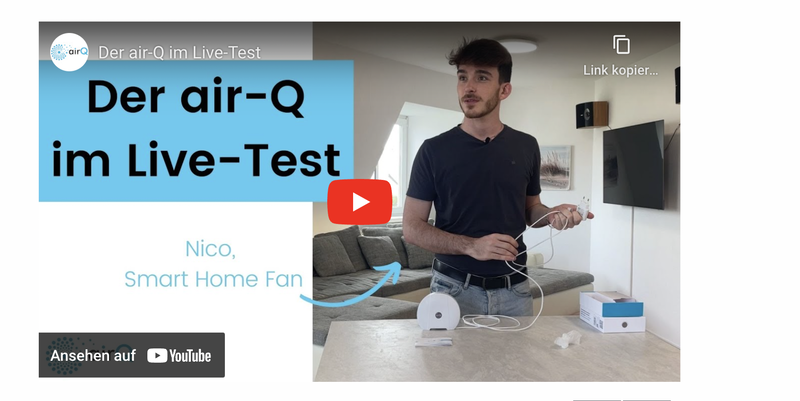
Link to video: https://youtu.be/nkcpaHKTcZ0
boschindego (4.5.2024) Developer: TA2k
https://github.com/iobroker-community-adapters/ioBroker.boschindego

Adapter for the Bosch Indego Mower that displays the mower's status and allows for control of the mower.
radar-trap (29.5.2024) Developer: Steiger04
https://github.com/Steiger04/ioBroker.radar-trap
Radar trap adapter is designed to enhance road safety by providing real-time traffic updates and alerting users to potential hazards on predefined routes and areas. This adapter gathers detailed information about various disruptions such as construction sites, accidents, and various types of speed cameras, including fixed, mobile, and semi-stationary ones. It can also detect alcohol controls, general traffic controls, and police reports.
Information is structured within the object tree of the adapter, adhering to the standard device/channel/state structure, and can be visualized in the VIS-2 interface. Users can create routes and areas through the adapter's admin panel, which requires a Mapbox account for route mapping.
English radar-trap Wiki https://github.com/Steiger04/ioBroker.radar-trap/wiki/radar-trap-Adapter-(english)
Key features include:
-
Dynamic Updates: Leveraging cron jobs to manage updates, with options to pause, resume, or run these jobs as needed.
-
Customizable Routes and Areas: Routes and areas are easily set up via the admin interface, with support for Points of Interest (POIs). Users can define specific cron patterns for updates and set the maximum distance for detecting obstacles from the planned route.
-
Interactive Visualization: The Maps tab shows routes and areas along with their disruptions, and the VIS-2 interface includes widgets for displaying routes, areas, and a detailed list of obstacles.
-
API Access: Under a specified Feathers Port, the adapter offers an API for accessing route, direction, and trap information in JSON format, which can be enhanced through browser plugins for better visualization.
New feature
Windows installer (20.5.2024)
There is a new version for Windows installer available: 3.2.0
New features:
- Update/Upgrade of JS-Controller implemented
- Some bugfixes
- Fixer will be executed after JS-Controller Upgrade (required for JS-Controller 6)
New IoT-Blog post by foxriver76
Be sure to check out the latest blog post by our core developer, Moritz Heusinger.
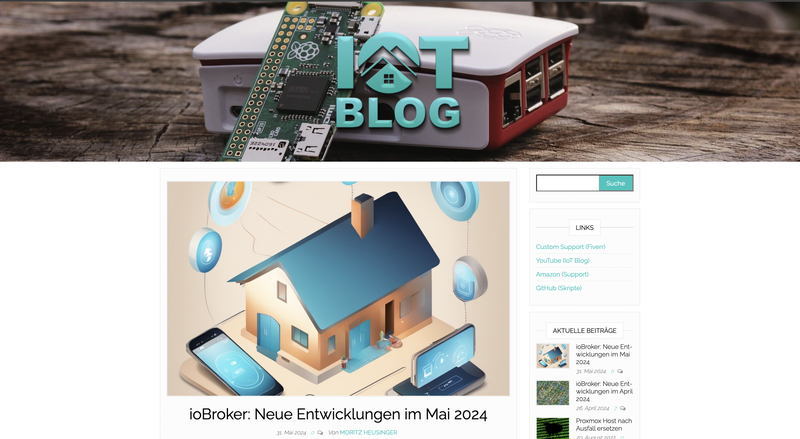
He offers valuable insights into the technical aspects he's been working on lately, including:
- ioBroker Visualization App with Background Synchronization
- Refinements to js-controller Kiera
- Admin node.js Update and Upgrade Policy
- Puppeteer Startup Arguments
- Community Events
Read the full blog post here (german): https://iot-blog.net/2024/05/31/iobroker-neue-entwicklungen-im-mai-2024/
New YouTube video "FullCalendar" & Presence Simulation option
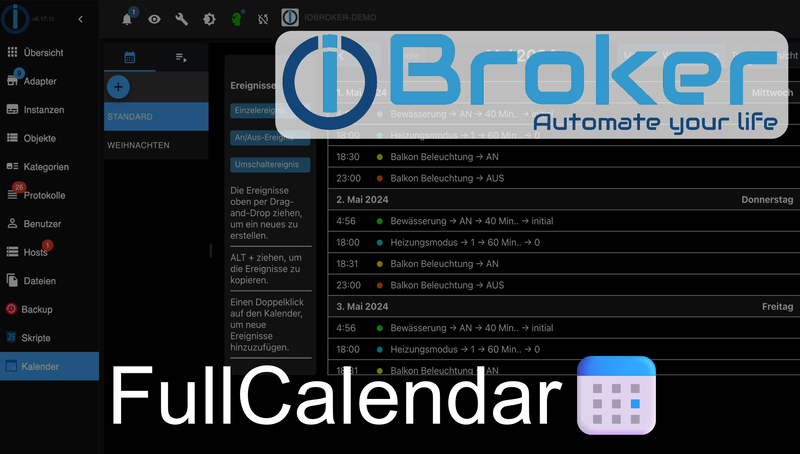
Link to video: https://youtu.be/nzPgbJV3kaQ
This tutorial video demonstrates how to use Fullcalendar to control devices based on time of day and date. The focus is on simple actions such as turning devices on and off. Additionally, useful features like presence simulation are introduced.
Installation of Fullcalendar
-
Install Adapter: Navigate to the adapters section, enter "Fullcalendar" in the search field, and install the adapter.
-
Open Calendar: After installation, click on the icon at the bottom left to display the calendar.
Basic Operation
- Standard Calendar: There is a predefined calendar named "Standard" which must not be renamed. It is always present and cannot be deleted. However, you can create additional calendars and name them as you wish.
- Adding Events: Click on a day in the calendar or drag events from the left side into the calendar to create new events or copy an existing event.
Types of Events
-
Single Event: Create a simple action like on/off. For example, in the video: the balcony lights are set to turn on 15 minutes before dusk and off at 11 PM.
-
On/Off Event: These events have a duration and are defined by a start and end value. For instance, the bathroom thermostat should heat for 1 hour starting at 6 PM, then switch back to automatic mode.
-
Automatically Calculated Event: Similar to the On/Off event, but calculated automatically based on a predefined event. If an event is defined to turn something on, a corresponding off event is automatically calculated. For example, the irrigation system starts 30 minutes before sunrise and waters the garden for 40 minutes.
Event Triggers
-
By Time of Day: Events can be triggered at specific times of the day.
-
Astronomical: Events can be based on astronomical occurrences like sunrise or dusk. A time offset can also be set, e.g., -30 minutes means half an hour before sunrise.
Event Settings
- Object ID: Each event requires an object ID that specifies which device is being controlled. Depending on the device, a logical value (true/false) or a numerical value (number) must be set.
- Repetitions: Events can be repeated at specific intervals, daily or monthly. Daily repetitions can specify weekdays; monthly repetitions can set the date and month.
- Special Events: Weekly, monthly, or annual events like Christmas lights can be defined.
- Description and Color: Each event can have a description and a color set for easier differentiation.
Presence Simulation
A special enhancement in FullCalendar is the presence simulation. This feature allows you to record your own behavior and transfer it to the calendar, for example, to play it back as a presence simulation when you are on vacation. This is also useful for other purposes like creating personal statistics or adjusting habits.
Here’s how presence simulation works:
-
Record Behavior: Before recording, define which devices should be recorded, typically lights and lighting, though shutters can be included if they are not already time-controlled.
-
Choose Intervals: There are two types of intervals that can be recorded:
- Daily Routine: The daily routine is recorded.
- Week: To simulate the difference between weekdays and weekends, a whole week can be recorded.
-
Select Devices: Devices can be selected individually or as an overlap of different categories, such as all lamps in the living room.
-
Play Simulation: After recording, the simulation can be played back, selecting start and end times and the days of the week.
-
Edit Events: After recording, the recorded events can be edited – moved, deleted, or new events added.
Enabling or Disabling Calendars
If needed, individual calendars can be activated or deactivated by creating a second instance (through re-installation of the adapter). A new calendar can be created for purposes like vacations, winter, or summer. This instance can then be started or stopped.
Integration into vis2
Fullcalendar can also be integrated into vis-2 to define new events or display existing ones. Various settings can be adjusted (e.g., select calendar, hide left/top blocks, hide weekends, choose view (month, week, day, list) and interval). Events can be edited in the editor. The editing function can be disabled to prevent accidental changes.