
vis-2 widgets for the Automatic Feeder
Ready-made vis-2 dashboard widgets for the ioBroker.automatic-feeder adapter — drag-and-drop cards for a fish / koi / pond feeder. There are no object IDs to look up and no HTML to write: you pick your feeder instance and your feeder switch by its friendly name from a dropdown, and every widget reads and controls the right data points on its own.
This package ships six widgets that together form a complete feeder dashboard, in a dark, tablet-friendly card design with an accent colour you can change. Four widgets only display data; two also let you act (trigger a one-off feeding, or suspend feeding).
This is only the visualization layer. All scheduling, the temperature model, sunrise/sunset logic, pauses and notifications live in the separate ioBroker.automatic-feeder adapter; these widgets are a live view onto — and a remote control for — that adapter. (In the wider smart-pond family the sibling pond-aeration adapter can, for example, pause aeration while the feeder feeds — but that is configured over there, not here.)
This document is a complete manual. If you have never used these widgets before, read it top to bottom: the Quick start gets you a working card in about a minute, and the rest explains every widget and every option in detail.
🇩🇪 Deutsche Anleitung: doc/de/README.md · other languages: see Documentation at the bottom.
Table of contents
- What are vis-2 widgets?
- What you get
- Requirements
- Installation
- Quick start
- The widgets in detail
- Configuration & bindings
- Which data points each widget uses
- Development
- Troubleshooting & FAQ
1. What are vis-2 widgets?
vis-2 is ioBroker's modern visualization tool (the successor to classic vis 1). You build dashboards ("views") by dragging widgets — buttons, gauges, cards — onto a canvas and connecting them to your device states.
Normally you connect a widget to a state by hand: you look up an object ID (something like
automatic-feeder.0.switches.sw-0.status.feedingActive) and type it into a binding field. That is fine for one
value, but a good feeder card needs a dozen of them working together.
A widget set like this one solves that: it is an add-on that ships purpose-built widgets for one adapter. Each widget already knows which states it needs. You only tell it which feeder to show — everything else is wired up for you. So instead of a dozen manual bindings you make two clicks (instance + switch) and get a finished card.
2. What you get
Six widgets. Each is a self-contained card; you can use just one or combine them into a full dashboard.
| Widget | What it shows / does | Writes? |
|---|---|---|
| FeederStatus | The main status card: an animated feeder graphic (the fan spins while feeding), a live runtime countdown, the countdown to the next feeding with time and mode, the last feeding and its result, the astronomical (sunrise/sunset) window and — when blocked — the reason. | no |
| FeedControl | A Feed now button with two-step confirmation, a portion (duration) slider and a master Suspend feeding switch. | yes |
| Environment | Water temperature (shallow and deep), the thermal stratification Δ, an oxygen reading (only if a sensor exists) and a sunrise→sunset day bar with a live "now" marker. | no |
| DynamicFeeding | The adapter's Q10 temperature model at a glance: average temperature, rate factor, interval and portion, plus which sensor (water/air) drives it. | no |
| SeasonBanner | A single, colour-coded status line showing the currently most important state (manual pause → time-based pause → winter pause → automatic active). | no |
| AnimatedFeeder | A large animated feeder on a canvas: food pellets fall and a countdown ring fills while feeding, pause symbols (manual / time / winter) otherwise. Tap it to trigger a one-off feeding. | yes |
The two "writing" widgets (FeedControl, AnimatedFeeder) only ever write when you click/tap — nothing is changed on its own.
In the vis-2 widget palette the whole set appears under the group name Automatic Feeder.
3. Requirements
- ioBroker with vis-2 installed (the modern vis). These are vis-2 widgets and do not work in classic vis 1.
- The ioBroker.automatic-feeder adapter, installed and configured with at least one switch (a "switch" is one
feeder in the adapter's configuration; it has a friendly name such as KoiTeich Ponton). Recommended adapter
versions:
- v1.4.0 or newer — required, for the numeric timestamps, the
blockReasonCodeand thefeedForcommand the widgets rely on. - v1.5.0 or newer — recommended, additionally enables the live runtime countdown in FeederStatus
(the
status.feedingEndsTsdata point). - v1.6.0 or newer — recommended for the exact countdown ring in AnimatedFeeder (the
status.feedingDurationSecdata point).
- v1.4.0 or newer — required, for the numeric timestamps, the
You never have to enter an object ID by hand: the widgets read and write only the selected switch's own status.* and
settings.* data points, resolved from the instance + switch you pick.
4. Installation
- Install ioBroker.vis-2-widgets-automatic-feeder in ioBroker — from the admin Adapters list once it is in
the repository, or directly from GitHub / npm. It installs as a visualization-widgets adapter (
onlyWWW, no running instance is created). - Open vis-2. A new widget group Automatic Feeder appears in the widget palette (left-hand side, in edit mode).
- Drag any of its widgets onto a view — see the Quick start below.
After every update: run
iobroker upload vis-2-widgets-automatic-feeder, then restart vis-2 (installing the adapter already flags vis-2 for a restart) and do a hard refresh (Ctrl+F5) in the browser, so the runner picks up the new widget bundle. See Troubleshooting.
5. Quick start
- In vis-2, switch to edit mode, open a view and drag the FeederStatus widget from the Automatic Feeder group onto it.
- With the widget selected, open the Attributes panel on the right and fill the two fields in the common
group:
- Feeder instance — pick your
automatic-feederinstance (usually0; this is a standard instance picker). - Switch — pick your feeder from the dropdown. It lists your configured switches by their friendly name (e.g. KoiTeich Ponton), read straight from the adapter's own configuration.
- Feeder instance — pick your
- The card immediately shows live data. Repeat for any other widget — the instance/switch selection works exactly the same for all six.
That is all: no object IDs, no manual bindings, no scripts. Until both fields are set, a widget shows a friendly "Select the feeder switch channel in the widget settings." hint instead of data.
6. The widgets in detail
Every widget shares the same two required settings — Feeder instance and Switch — in the common attribute group (see Configuration & bindings). The per-widget appearance options are listed with each widget below. All screenshots show live data from a real koi-pond feeder.
6.1 FeederStatus
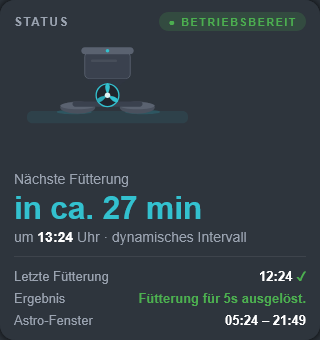
The main card. From top to bottom it shows:
- A status pill: Ready (green) or blocked (amber). "blocked" means the adapter is currently not allowed to feed (night, temperature too low, oxygen too low, a pause …).
- An animated feeder graphic. While a feeding runs the fan spins and — with adapter v1.5.0+ — a runtime
countdown (e.g.
5 s) appears next to it and counts down to the end of the current feeding. - The next feeding: a large countdown (in approx. 27 min, or
1 h 05 minpast an hour), the exact time, and the mode (dynamic interval when dynamic feeding is on, otherwise schedule). - The last feeding with a ✓ (success, green) or ✗ (error, red) marker and the adapter's result text.
- The astro window (sunrise – sunset) used for the day/night logic.
- When blocked, an extra reason line with the human-readable block reason (in amber).
The card re-renders once per second so the countdowns stay live.
Appearance options (group Appearance):
| Option | Type | Default | Meaning |
|---|---|---|---|
| Accent colour | colour | #33c1cf | Highlight colour of the card and graphic. |
| Runtime timer position | select (Right / Left) | Right | Show the running-feeding countdown left or right of the graphic. |
| Animate feeder graphic | checkbox | on | Turn the spinning-fan animation on/off. |
| No card background | checkbox | off | Render without the card background (to place it on your own panel). |
Default widget size: 320 × 340 px.
6.2 FeedControl
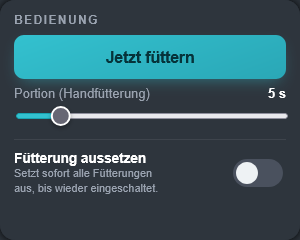
The control card:
- Feed now — a two-step button. The first click arms it and the label changes to Confirm: N s ?; the second click triggers exactly one feeding of the chosen duration and briefly shows Triggered ✓. If you do not confirm within ~4 seconds it disarms itself.
- Portion (manual) — a slider that sets the feeding duration in seconds, from
1up to Max. duration (default starts at 5 s). - Suspend feeding — a master switch that immediately suspends all feeding for this switch until you turn it
back off. It writes the adapter's
settings.pauseNow, which overrides every mode and every time-based pause.
Appearance options (group Appearance):
| Option | Type | Default | Meaning |
|---|---|---|---|
| Accent colour | colour | #33c1cf | Highlight colour. |
| Max. duration (s) | number (1–3600) | 30 | Upper end of the portion slider. |
| Show pause switch | checkbox | on | Show/hide the master Suspend feeding switch. |
| No card background | checkbox | off | Render without the card background. |
Default widget size: 300 × 240 px.
The button writes a one-off feeding via the adapter's
feedForcommand (value = duration in seconds). It does not change your schedule and does not restart the adapter.
6.3 Environment
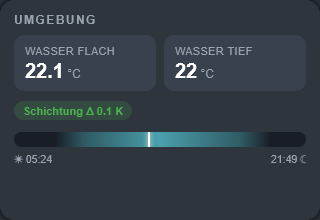
The water/environment card:
- Water shallow and Water deep temperatures (in °C, rounded to 0.1). The deep tile stays at
–if you did not configure a second, deeper sensor. - A Stratification pill showing the difference Δ between the two layers (in K). It turns amber when the layers differ by more than 3 K.
- An O₂ pill in mg/l — shown only when an oxygen sensor is configured, and turning red when the value falls
below the configured minimum (
settings.o2Min). - A day bar from sunrise (☀) to sunset (☾) with a live marker for the current time (recomputed every minute).
Appearance options (group Appearance):
| Option | Type | Default | Meaning |
|---|---|---|---|
| Accent colour | colour | #33c1cf | Highlight colour. |
| No card background | checkbox | off | Render without the card background. |
Default widget size: 320 × 220 px.
6.4 DynamicFeeding
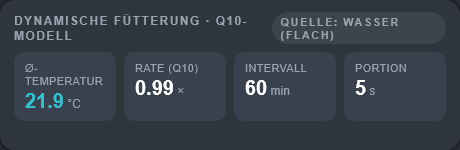
Shows the Q10 temperature model the adapter uses to adapt feeding to the water temperature. Four tiles:
- Avg. temperature — the averaged temperature the model is based on (°C).
- Rate (Q10) — the resulting rate factor (× relative to the reference temperature).
- Interval — the resulting feeding interval in minutes.
- Portion — the resulting feeding duration in seconds.
A Source pill in the header shows whether the model is driven by the Water (shallow) or the Air sensor
(settings.dynamicSource). If dynamic feeding is switched off for this switch, the card shows the hint "Dynamic
feeding is off for this switch." instead of the tiles.
Appearance options (group Appearance):
| Option | Type | Default | Meaning |
|---|---|---|---|
| Accent colour | colour | #33c1cf | Highlight colour of the Avg. temperature tile. |
| No card background | checkbox | off | Render without the card background. |
Default widget size: 460 × 150 px.
6.5 SeasonBanner

A single, colour-coded status line — ideal for the top of a view. It always shows the most important current state, in this order of priority:
- Manual pause (red) — the master pause switch (
status.pauseManual) is on. - Time-based pause (amber) — a configured pause window is active (
status.pauseActive), with its end time appended (status.pauseActiveUntil). - Winter pause (blue) — the winter window is active (
status.winterActive). - Automatic active (green) — nothing blocks feeding, the schedule runs normally.
This widget has no appearance options beyond the two common settings (instance + switch).
Default widget size: 460 × 44 px.
6.6 AnimatedFeeder
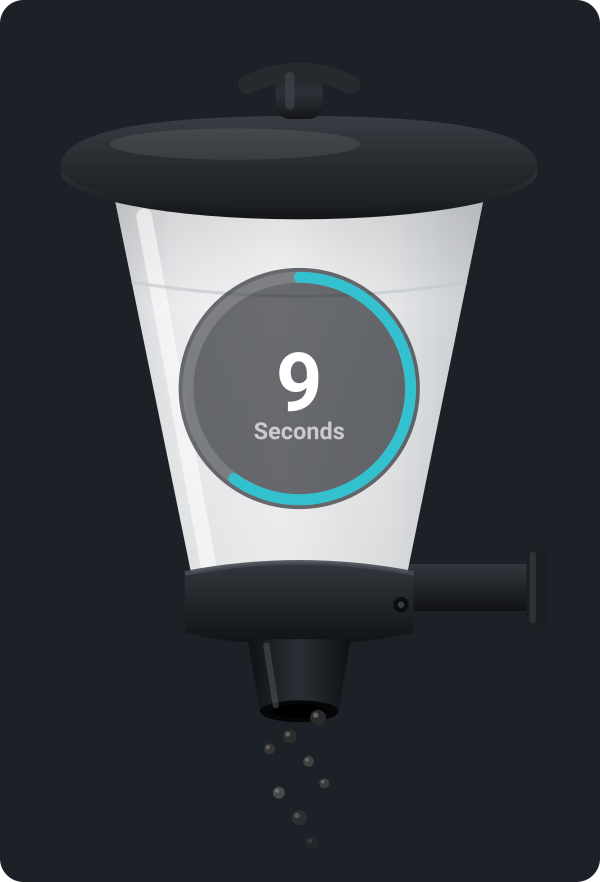
A large, animated feeder rendered on an HTML <canvas> — the visual centrepiece of a pond dashboard. It reacts live to
the switch:
- While feeding: food pellets fall from the outlet and a countdown ring with the remaining seconds fills.
The ring is exact when the adapter provides
status.feedingDurationSec(v1.6.0+); with older adapters the total duration is derived from the moment the feeding starts. - Pause states, shown as a symbol on a disc with a red cross, in the same priority as the SeasonBanner: manual pause (hand) → time-based pause (clock) → winter pause (snowflake).
- Idle: just the feeder, with an optional "Tap to feed" hint.
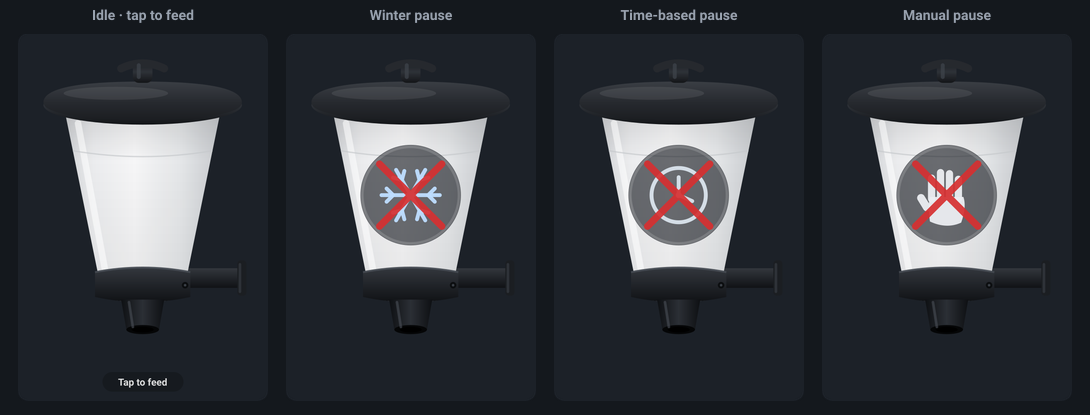
Tap to feed: tap the widget once to arm it (Confirm: N s ?), tap again to trigger a one-off feeding of the
configured duration (via feedFor). Tapping is ignored while a pause is active or a feeding is already running, and
the whole feature can be turned off with Enable tap-to-feed. (The falling-pellet animation is automatically
reduced when the operating system requests reduced motion.)
Options — the AnimatedFeeder has three attribute groups:
Behaviour:
| Option | Type | Default | Meaning |
|---|---|---|---|
| Enable tap-to-feed | checkbox | on | Allow triggering a feeding by tapping the widget. |
| Feed duration (s) | number (1–3600) | 5 | Duration written by the tap action. |
| Animate feeder graphic | checkbox | on | Turn the falling-pellet animation on/off. |
Appearance:
| Option | Type | Default | Meaning |
|---|---|---|---|
| Accent colour | colour | #33c1cf | Colour of the countdown ring and hint. |
| Image (optional) | image | (built-in) | Custom feeder image; leave empty for the built-in graphic. A custom image may have a different aspect ratio. |
| No card background | checkbox | off | Render without the card background. |
Geometry — positions are in % of the widget, so the animation can be aligned when you use your own image:
| Option | Type | Default | Range |
|---|---|---|---|
| Pellet outlet X (%) | number | 50 | 0–100 |
| Pellet outlet Y (%) | number | 80 | 0–100 |
| Countdown X (%) | number | 50 | 0–100 |
| Countdown Y (%) | number | 44 | 0–100 |
| Countdown size (%) | number | 20 | 5–45 |
Default widget size: 300 × 440 px.
6.7 FeedingAmount
A compact, read-only card for the adapter's feeding-amount model (automatic-feeder v1.16.0+) of one switch. It
shows the recommended daily ration in grams, the feeding percentage for the current water temperature and the
estimated total fish weight. When the adapter is in control mode (Phase B), it additionally shows the
per-feeding portion, the duration per feeding and the daily run-time, plus the name of the active feed
profile. Exact per-feeding values come from the adapter's status.feedTargetPortionGrams /
status.feedingsPerDayToday; older adapters fall back to a derivation.
A pill in the header shows whether the model is advisory (Phase A) or controls feeding (Phase B). To edit the model (fish counts, temperature percentages, the feed profile, the Phase switches, the daily cap), use the separate FeedingAmountSettings widget below.
Appearance: Accent colour (default #f2a63c) and No card background. Default widget size: 460 × 190 px.
6.8 FeedingAmountSettings
The editor for the feeding-amount model — a light settings panel that writes directly to the adapter's writable
switches.<id>.settings.* states (needs automatic-feeder v1.16.0+ for the settings mirror, and v1.17.0+ for
the feed-profile switcher). Use it on a dashboard next to the read-only FeedingAmount card.
It offers:
- a model on/off switch (
amountModelEnabled); - a fish list with a per-size icon, the fixed reference weight and an editable count for each size class (15/20/30/40/50/60 cm), with a live total weight;
- an active-feed switcher built from the feed profiles you defined for the switch in the adapter admin — one tap
selects the active profile (writes
settings.activeFeed) and its dispense rate (g/s) drives the control mode; - the seven temperature percentages (
<15°…>30°); - a control on/off switch (Phase B) and, when on, the optional daily maximum in grams.
Every field updates immediately in the widget and is written to the adapter, which applies it and restarts the instance (a short debounce) so the model recomputes. The panel follows the vis-2 colour mode (dark/light). Default widget size: 470 × 620 px.
7. Configuration & bindings
Every widget has the same two required settings in the common attribute group:
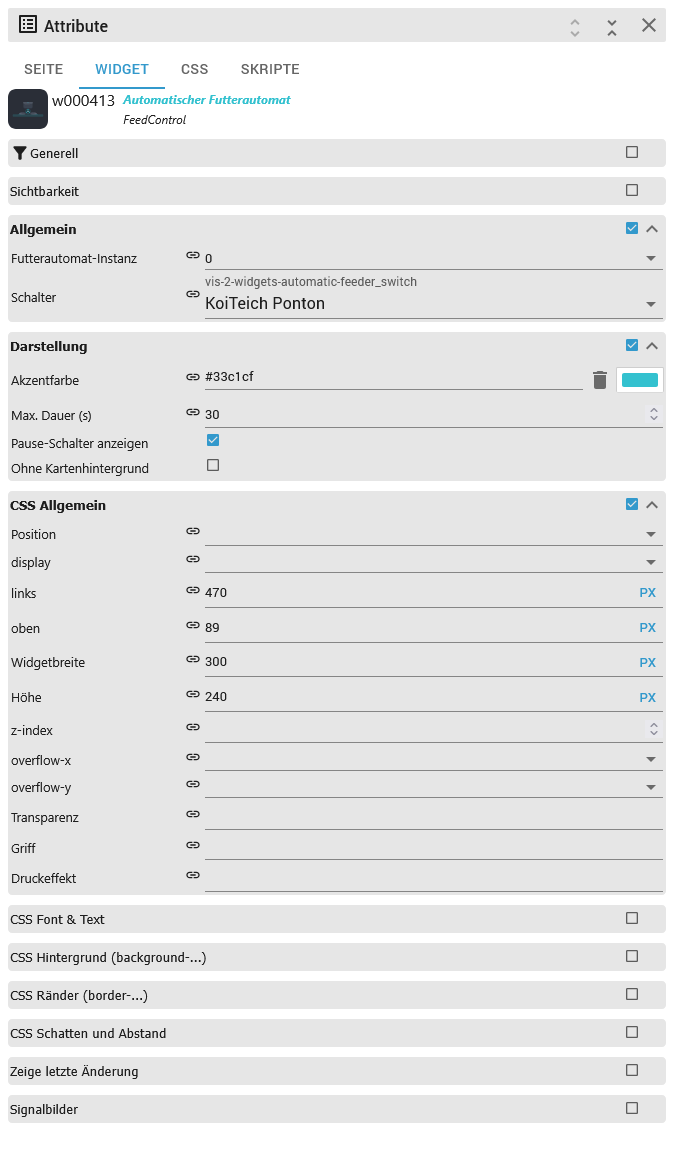
- Feeder instance — choose your
automatic-feederinstance from the dropdown (usually0). Accepts either the plain number (0) or the full form (automatic-feeder.0). - Switch — choose the feeder from a dropdown that lists your configured switches by their friendly name (e.g.
KoiTeich Ponton), not by an internal id. The list is read from the selected instance's configuration
(
system.adapter.automatic-feeder.<instance>→native.switches[]).
From these two values the widget builds the switch channel
automatic-feeder.<instance>.switches.<switch> and subscribes to the relative sub-states it needs — you never type a
binding yourself. Until both fields are set, a widget shows a "Select the feeder switch channel…" hint instead of
data.
The optional appearance settings live in each widget's Appearance group (and, for AnimatedFeeder, in Behaviour and Geometry); see each widget above. Common options across widgets:
| Option | Widgets | Meaning |
|---|---|---|
| Accent colour | all except SeasonBanner | The highlight colour (default pond-aqua #33c1cf). |
| No card background | all except SeasonBanner | Render the widget without its card background, e.g. to place it on a custom panel. |
8. Which data points each widget uses
For full transparency — the widgets subscribe to the switch channel
automatic-feeder.<instance>.switches.<switch>.… and use only these relative data points:
| Widget | Reads | Writes |
|---|---|---|
| FeederStatus | status.feedingActive, status.feedingEndsTs, status.nextFeeding, status.nextFeedingTs, status.lastFeeding, status.lastResult, status.blocked, status.blockReasonCode, status.blockReason, status.error, status.sunrise, status.sunset, settings.dynamicEnabled | — |
| FeedControl | status.pauseManual, status.feedingActive | feedFor (one-off feeding, value = seconds), settings.pauseNow (suspend toggle) |
| Environment | status.waterTemperature, status.waterTemperatureDeep, status.waterStratification, status.oxygen, status.sunrise, status.sunset, status.sunriseTs, status.sunsetTs, settings.o2Min | — |
| DynamicFeeding | settings.dynamicEnabled, settings.dynamicSource, status.dynamicAvgTemperature, status.dynamicRate, status.dynamicIntervalMin, status.dynamicDurationSec | — |
| SeasonBanner | status.winterActive, status.pauseActive, status.pauseActiveUntil, status.pauseManual, settings.winterWindow | — |
| AnimatedFeeder | status.feedingActive, status.feedingEndsTs, status.feedingDurationSec, status.winterActive, status.pauseManual, status.pauseActive | feedFor (tap-to-feed, value = seconds) |
| FeedingAmount | status.fishTotalWeight, status.feedPercentToday, status.feedTargetGramsToday, status.feedingsPerDayToday, status.feedTargetPortionGrams, status.feedTargetSecondsToday, status.feedEffectiveDurationSec, status.activeFeedName | — |
| FeedingAmountSettings | settings.amountModelEnabled, settings.amountControlEnabled, settings.feedDailyMaxGrams, settings.activeFeed, settings.fishCount15…60, settings.feedPctBelow15/feedPct15…30; reads feed profiles from system.adapter.automatic-feeder.<n> → native.switches[].feedProfiles | the same settings.* states it reads |
See the ioBroker.automatic-feeder documentation for the exact meaning of each data point.
9. Development
The widgets are written in TypeScript + React 18 (with MUI for the attribute editors) and bundled with Vite
and Module Federation into a single customWidgets.js that vis-2 loads at runtime. The source lives in
src-widgets-ts/src/:
| File | Widget / role |
|---|---|
FeederWidgetBase.tsx | Shared base class used by four of the widgets (Environment, DynamicFeeding, SeasonBanner, AnimatedFeeder): resolves the switch channel, subscribes to the sub-states, keeps values in state, and offers read/write/format helpers. FeederStatus and FeedControl extend window.visRxWidget directly and do their own subscribe/seed. |
common.tsx | The shared common attribute group (instance picker + the "switch by name" dropdown) and the channelOf() helper. |
FeederStatus.tsx, FeedControl.tsx, Environment.tsx, DynamicFeeding.tsx, SeasonBanner.tsx, AnimatedFeeder.tsx | The six widgets. |
styles.ts | The injected CSS for the card design. |
translations.ts + i18n/*.json | UI texts in 11 languages. |
The widget set is registered in io-package.json under common.visWidgets.vis2AutomaticFeeder
(components FeederStatus, FeedControl, Environment, DynamicFeeding, SeasonBanner, AnimatedFeeder).
Build & scripts (run from the repository root):
npm run npm      # install root + src-widgets-ts dependencies
npm run build    # build the TypeScript widgets → widgets/vis-2-widgets-automatic-feeder/
npm run lint     # ESLint over src-widgets-ts
npm test         # @iobroker/testing package tests (mocha test/package)
npm run build runs node tasks --typescript, which cleans, builds src-widgets-ts with Vite and copies
customWidgets.js, the assets, images and icon set into widgets/vis-2-widgets-automatic-feeder/ (the folder shipped
to end users; main points at its customWidgets.js). Releases are cut with the @alcalzone/release-script
(npm run release-patch / -minor / -major), which also runs the build before committing.
10. Troubleshooting & FAQ
A widget only shows "Select the feeder switch channel…". Set both common fields (instance and switch). The switch dropdown is filled from the selected instance, so pick the instance first.
The switch dropdown is empty.
The chosen automatic-feeder instance has no configured switches yet, or the instance number is wrong. Configure a
switch in the adapter first.
Values show –.
Make sure the adapter is v1.4.0 or newer (v1.5.0+ for the runtime countdown). Older versions do not provide the
numeric timestamps and command data points the widgets rely on. The Water deep tile stays – unless you
configured a second, deeper sensor; the O₂ pill is hidden unless an oxygen sensor is configured — both are normal.
The runtime countdown never appears.
It needs adapter v1.5.0+ (status.feedingEndsTs) and is only shown while a feeding is actually running.
The AnimatedFeeder countdown ring is not exactly proportional.
The exact ring needs adapter v1.6.0+ (status.feedingDurationSec); with older adapters the duration is estimated
from the feeding-start time, so the ring is approximate.
New/updated widgets don't appear, or only some are visible.
This is almost always a stale widget bundle in the browser/runner. Run
iobroker upload vis-2-widgets-automatic-feeder, restart vis-2 (or the host), and hard-refresh the browser (Ctrl+F5).
Does this replace the adapter? No. These are only the dashboard widgets. All scheduling, temperature logic, pauses and notifications live in the ioBroker.automatic-feeder adapter; the widgets are a view onto — and a remote for — it.
Changelog
0.4.7 (2026-09-12)
- (ssbingo) Maintenance: added Node.js 26 to the CI test matrix (now 22.x, 24.x, 26.x) as requested by the ioBroker check bot (#39). No widget changes
0.4.6 (2026-09-10)
- (ssbingo) The temperature band's biological meaning is now shown directly under each individual temperature instead of as one chip at the bottom of the card: Environment renders a separate band under both water shallow and water deep (each keyed off its own reading), DynamicFeeding renders it under the average-temperature tile. Still toggled per widget by the Show temperature band option
0.4.5 (2026-09-10)
- (ssbingo) DynamicFeeding and Environment now colour the water temperature by the koi-biology scale from the pondpump research (growth optimum 23–26 °C green, the cold 8–13 °C Aeromonas window amber, both extremes red) instead of a flat accent colour, and show the band's biological meaning as a small chip below the temperature. A new Show temperature band option (Appearance group, on by default) toggles the chip per widget
0.4.4 (2026-09-06)
- (ssbingo) Maintenance: dependency and build-tooling updates (
@iobroker/adapter-react-v58.3.3,@iobroker/types-vis-22.15.4,@module-federation/vite1.21.1). No widget changes
0.4.3 (2026-09-01)
- (ssbingo) FeedingAmountSettings now selects the active feed from the adapter's central feed list (
native.feeds) via a dropdown, written id-based tosettings.activeFeed— replacing the deprecated per-switch feed profiles (needs automatic-feeder v1.18.0+). FeedingAmount additionally shows the active feed's pellet size (status.activeFeedSize)
0.4.2 (2026-09-01)
- (ssbingo) FeedingAmountSettings now has an Accent colour option (Appearance group), just like the FeedingAmount widget — the accent drives the toggles, active borders and highlighted values, so both widgets can be given the same accent for a consistent design. In light mode the accent is darkened for readable text; in dark mode it is used directly
0.4.1 (2026-09-01)
- (ssbingo) FeedingAmountSettings now follows the vis-2 colour mode (dark/light) like the other widgets — it reads
context.themeTypeand renders a dark panel in dark mode and the light panel in light mode (previously it was always light) - (ssbingo) The No card background option of FeedingAmountSettings now actually works (transparent background) instead of doing nothing
0.4.0 (2026-09-01)
- (ssbingo) New separate FeedingAmountSettings widget — a light settings panel matching the agreed design: a model on/off switch, a fish list with per-size icons + reference weights and editable counts (with a live total weight), the seven temperature percentages, a Phase-B control switch and the optional daily maximum. All fields write to the adapter's writable
switches.<id>.settings.*states (automatic-feeder v1.16.0+) - (ssbingo) FeedingAmountSettings has an active-feed switcher built from the feed profiles configured for the switch in the adapter admin; one tap selects the active profile and its dispense rate (writes
settings.activeFeed, needs automatic-feeder v1.17.0+) - (ssbingo) The FeedingAmount widget is now purely a read-only display card again; all editing moved to the new FeedingAmountSettings widget. It also shows the active feed-profile name (
status.activeFeedName)
0.3.2 (2026-09-01)
- (ssbingo) Housekeeping: keep only the latest 7 entries in
common.news(repository checker W1032). No widget changes
0.3.1 (2026-09-01)
- (ssbingo) Housekeeping (repository checker): bumped
@alcalzone/release-script-plugin-licenseto 5.2.2 (S0064), removed the unneededprepublishOnlyscript (W0095) and the unnecessary admin dependency — this is a pure widget set with no admin config UI (S1091) — and unpinned the CI deploy action to@v1(S3044). No widget changes
Documentation
- 🇩🇪 Deutsche Dokumentation
- 🇷🇺 Документация на русском
- 🇳🇱 Nederlandse documentatie
- 🇫🇷 Documentation française
- 🇮🇹 Documentazione italiana
- 🇪🇸 Documentación en español
- 🇵🇱 Dokumentacja polska
- 🇵🇹 Documentação portuguesa
- 🇺🇦 Документація українською
- 🇨🇳 简体中文文档
License
MIT License
Copyright (c) 2026 ssbingo silvio.sternitzke@googlemail.com
Permission is hereby granted, free of charge, to any person obtaining a copy of this software and associated documentation files (the "Software"), to deal in the Software without restriction, including without limitation the rights to use, copy, modify, merge, publish, distribute, sublicense, and/or sell copies of the Software, and to permit persons to whom the Software is furnished to do so, subject to the following conditions:
The above copyright notice and this permission notice shall be included in all copies or substantial portions of the Software.
THE SOFTWARE IS PROVIDED "AS IS", WITHOUT WARRANTY OF ANY KIND, EXPRESS OR IMPLIED, INCLUDING BUT NOT LIMITED TO THE WARRANTIES OF MERCHANTABILITY, FITNESS FOR A PARTICULAR PURPOSE AND NONINFRINGEMENT. IN NO EVENT SHALL THE AUTHORS OR COPYRIGHT HOLDERS BE LIABLE FOR ANY CLAIM, DAMAGES OR OTHER LIABILITY, WHETHER IN AN ACTION OF CONTRACT, TORT OR OTHERWISE, ARISING FROM, OUT OF OR IN CONNECTION WITH THE SOFTWARE OR THE USE OR OTHER DEALINGS IN THE SOFTWARE.