This is an alternative Adapter that uses the JSON/RPC-protocol to get data
and send commands to the Logitech Media Server/Lyrion Media Server (LMS)
for controlling connected devices like
- native squeezebox,
- raspberry pi with additional audio module and small linux based firmwares like picoreplayer or max2play.
- WiiM Multiroom Audio (can talk to an LMS/Lyrion server)
- with plugins chromecast, airplay or
UPnP/DLNA-Devices
The LMS-Server can manage/provide very big music collections on harddrives
or NAS, connect to different streaming providers like Spotify, Deezer,
Soundcloud, shoutcast, tunein, napster, pandora, tidal and more
Table of contents
- Features
- Installation
- Configuration
- Update
- Troubleshooting
- Provided states
- Widgets
- SendTo commands
- Todo
- Changelog
- License
Features
- most of data that the
LMS-Service provides is available in the adapter - detailed information about the player status, song title, artist, album, artwork, playlist
- many control features to play, pause, stop, forward,
rewind, repeat, shuffle, play favorite, jump to time
(absolute and relative) , jump to playlist index (absolute and relative),
power on/off and preset buttons - all favorites and all sub levels from server
- many widgets for the iobroker-vis component are included to
create own control user interfaces (select player,select favorites, manage syncgroups, buttons for play/pause,fwd,rew, repeat mode and shuffle mode selection)
Installation
- Install the package
- Create an instance
- Configure the Instance with the IP of the logitech/Lyrion media server and the port (normaly 9000)
- start/restart the instance
Configuration
Main settings
| Option | Default | Description |
|---|---|---|
| LMS server | 0.0.0.0 | Hostname or IP address of the Logitech/Lyrion Media Server. An automatically discovered server can be selected. |
| LMS port | 9000 | HTTP port used by JSON-RPC or the experimental WebSocket plugin. |
| Connection type | JSON-RPC | Uses stable HTTP JSON-RPC or the experimental LMS WebSocket plugin. |
| WebSocket URL | empty | Optional independent plugin web-server URL, for example http://192.168.1.87/. |
| LMS Telnet port | 9090 | CLI/Telnet port. Used only with JSON-RPC when Telnet signaling is enabled. |
| Username | empty | Optional LMS username. |
| Password | empty | Optional LMS password. |
WebSocket mode requires the experimental
LMS WebSocket plugin.
It carries commands and notifications over the same connection, so the Telnet
settings are ignored in this mode. The regular player polling remains enabled
as a fallback for missing or incomplete notifications. HTTP(S) WebSocket URLs
are converted to WS(S), and /ws is added automatically when only a root URL
is configured.
Timer settings
| Option | Default | Minimum | Description |
|---|---|---|---|
| Server refresh (seconds) | 30 | 15 | Interval for refreshing LMS server information. |
| Player refresh (ms) | 950 | 200 | Interval for refreshing player status information. |
| Favorite refresh (minutes) | 720 | 1 | Interval for refreshing the favorites tree. |
| Discovery refresh (seconds) | 30 | 10 | Interval for searching for other LMS servers on the local network. |
Short refresh intervals increase the number of requests sent to the LMS.
Performance settings
| Option | Default | Description |
|---|---|---|
| Provide playlist information | enabled | Creates and updates the Playlist JSON state for every player. |
| Search for other LMS servers | enabled | Enables discovery of other LMS servers on the local network. |
| Use Telnet signaling | disabled | With JSON-RPC, uses LMS CLI/Telnet for additional player connection and disconnection signaling. |
| Request favorites | enabled | Periodically retrieves the favorites tree from the LMS. |
Disable information that is not required to reduce LMS requests and adapter processing.
Announcement settings
| Option | Default | Description |
|---|---|---|
| ioBroker web base URL | empty | Base URL of an ioBroker web instance, for example http://192.168.1.10:8082. Required only for announcements from local files. |
| Announcement volume | 50 | Volume used while playing the announcement. Valid range: 0 to 100. |
| Use FadeTools | disabled | Uses the optional LMS FadeTools plugin before and after announcements. |
| Fade-out duration | 2 s | Whole seconds passed to fadeout stop. Valid range: 1 to 60 seconds. |
| Fade-in duration | 2 s | Whole seconds passed to fadein play. Valid range: 1 to 60 seconds. |
For local announcement files, the LMS must be able to reach the configured ioBroker web URL. HTTP(S) announcement URLs are passed directly to the LMS and do not require this setting. FadeTools commands are sent only when the option is enabled. Without FadeTools, all volume values are set directly and verified with the LMS.
Debug settings
| Option | Default | Description |
|---|---|---|
| Player debug output | disabled | Enables additional debug messages for player processing. |
| Player silly output | disabled | Enables very detailed player messages. |
| Server debug output | disabled | Enables additional debug messages for LMS server processing. |
| Server silly output | disabled | Enables very detailed LMS server messages. |
Debug and especially silly logging should normally remain disabled and be enabled only while diagnosing a problem.
Update
- After installation or update, it may sometimes be necessary
to execute the following command if problems have arisen in vis-1
iobroker upload squeezeboxrpc
Trouble Shooting
SLIMP3 players
It has been reported that older SLIMP3 players may be unable to connect to the server while the adapter is searching for new servers. Disabling the search under ´Instance Configuration -> Performance Settings -> Search for other LMS servers´ should allow the player to connect.
Provided states
Server
| State | Description |
|---|---|
LastScan | timestamp of last music scan |
PlayerCount | Number of known players |
PlayerCountOther | Number of known other Players |
PlayerCountSN | Number of known SN Players |
TotalAlbums | Number of all known Albums |
TotalArtists | Number of all known Artists |
TotalDuration | Sum playtime of all songs |
TotalGenres | Number of all known Genres |
TotalSongs | Number of all known songs |
SyncGroups | Existing Syncgroups |
Version | Version of LMS |
mac | MAC-ID of the server |
uuid | uuid of the LMS-instance |
additional a defined button to refresh the favorites
| button | Description |
|---|---|
getFavorites | request all favorites from server |
cmdGeneral | a general command field to send commands to the server. every field must enclosed by quotation marks. parameters musst be seperated by comma. Example: "playerid or empty",["para1","para2"] |
Favorites
For each favorite All attributes are read only
| State | Description |
|---|---|
Name | Name of the favorite |
hasitems | indicates if this is a dir |
id | id of the favorite |
image | image/icon for favorite if available |
isaudio | isaudio |
type | Example types: link, text, audio, playlist |
url | url of the track |
All sub levels (subdirectories) of favorite are available.
Players
for each player The mode shows if you can change the value. the taken action is described at the attribute
| State | mode | Description |
|---|---|---|
Alarms | R/- | All registered Alarms for this player as JSON |
Album | R/- | Name of the current album |
Announce | -/W | Play an audio file from an absolute path or HTTP(S) URL, then restore playback and volume. Local files require the configured ioBroker web URL (for example http://192.168.1.10:8082). |
Artist | R/- | Name of Artist |
ArtworkUrl | R/- | url to the Artwork |
Bitrate | R/- | Bitrate of the track |
Connected | R/- | connectionstate of player (0/1) |
Duration | R/- | Duration of the track |
Genre | R/- | genre of the track |
IP | R/- | IP of the player |
Mode | R/- | play / pause / stop |
Playername | R/- | Name of the Player |
PlayerID | R/- | Player ID |
Playlist | R/- | The actual Playlist as JSON |
PlaylistCurrentIndex | R/W | go to a absolut position by specifying thetrackindex or go relative with a + or - at the beginning. Example 10,-3,+2 |
PlaylistRepeat | R/W | Repeat song(1)/playlist(2)/dont repeat(0) |
PlaylistShuffle | R/W | shuffle playlist(1)/shuffle album(2)/dont shuffle(0) |
Power | R/W | get/set Powerstate of player off(0)/on(1) |
RadioName | R/- | Name of Radiostation |
Rate | R/- | Rating of the song |
Remote | R/- | If remote stream (1) |
SyncMaster | R/- | ID/MAC of Syncmaster |
SyncSlaves | R/- | ID/Mac of Players in Syncgroup |
Time | R/- | elapsed song time |
Title | R/- | song title |
Type | R/- | type of media (eg MP3 Radio) |
Url | R/- | Url of track / stream |
Volume | R/W | get/set Volume of the player (0-100) |
state | R/W | get/set play state: pause(0),play(1),stop(2) |
The playlist provide actual the following attributes if available in LMS.
Somme attributes depends of the type of songs (stream/file/...)
All attributes are read only
| Attribute | Description |
|---|---|
Album | Name of the current album |
Artist | Name of Artist |
ArtworkUrl | url to the Artwork |
Bitrate | Bitrate of the track |
Duration | Duration of the track |
RadioName | Name of Radiostation |
Rate | Rating of the song |
title | song title |
Type | type of media (eg MP3 Radio) |
url | Url of track / stream |
index | index of the song in the playlist |
id | id of the song |
additional defined buttons:
| Button | Description |
|---|---|
btnForward | Next song |
btnRewind | Previous song |
btnPreset\_\* | 1-6 buttons to define in player or server |
cmdGeneral | a general command field to send commands to the player. every field must enclosed by quotation marks. parameters musst be seperated by comma. Example: "play","1" |
cmdPlayFavorite | to play a favorite set the id of the favorite |
cmdPlayUrl | to play a url. example "http://50.7.77.114:8101/;" |
cmdGoTime | jump to a absolut position by specifying a number of seconds or jump relative with a + or - at the beginning of the seconds. Example 100,-50,+50 |
The announcement settings define its volume and optional integration with the
LMS FadeTools plugin. When enabled,
the adapter sends fadeout stop, waits for the configured fade-out duration,
and later resumes playback using fadein play. When disabled, the previous and
announcement volumes are set directly. For local files, you must configure the
base URL of an ioBroker web instance
(for example http://192.168.1.10:8082). The LMS host must be able to reach
that URL. Remote streams are restored without seeking because they generally
do not support a playback position.
Remarks on Datapoints depending of the Setting TPE2 in LMS
Depending on the setting, different MP3 tags are delivered to the data points. The capitalized names are the names of the mp3 tags
| Setting TPE2 in LMS | Artist | Albumartist | Trackartist | Band |
|---|---|---|---|---|
| as a band | ARTIST | empty | TRACKARTIST | ALBUMARTIST |
| as the performers of the album | ALBUMARTIST | ALBUMARTIST | empty | empty |
It should also be noted that after a change in the LMS, the entire library must
be searched and indexed again, and a song must be stopped and restarted
before the LMS delivers other data.
Further API documentation
For more information visit the CLI-documentation:
https://github.com/oweitman/LMS-CLI-Documentation/blob/master/LMS-CLI.md
Widgets
The adapter includes matching widget sets for both visualization generations. Each widget reference contains its purpose, a preview image, all code-backed configuration options and relevant runtime notes:
Both widget sets use a Players widget as their central selection source. Configure that widget first, then select it in controls, value displays, Favorites, Playlist, PlaylistDetail, Browser and SyncGroup. VIS 2 references can work across different views.
Legacy widget overview retained for existing links
Player button bar
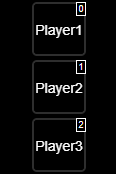
All players that are integrated into your Logitech/Lyrion Media Server can be selected
using this widget. After selecting a squeezerpc.? instance, the available
players are displayed in the widget.
Attributes
| Group | Attribute | Description |
|---|---|---|
| SqueezeboxRPC instance | General group | Select an instance of the squeezeboxrpc adapter. Only these are recognized as valid here. |
| Widget format | General group | The widget type can be selected here. The "formatbutton" type has the full range of functions and also works with the SyncGroup widget. The "formatselect" type is a simple selection box. The player name or an individual text is used as the name. |
| Display index | General group | Individual buttons can be hidden or displayed in a different order by deleting the button’s index. To hide them, simply delete the respective index position, including the comma. Index numbers are displayed on the respective button in edit mode if edit mode help is enabled. |
| Line break in CamelCase | General group | If the player name is written in CamelCase, a line break can be activated here so that the player name appears larger on the button. |
| Edit mode help | General group | If this help is activated, index numbers are displayed on the respective button, and the “transparency” setting in the button settings has no effect. |
| Image width | button settings | Image width of a button |
| Image height | button settings | Image height of a button |
| Transparency | button settings | If the button is not activated, it is hidden against the background. 0 = Invisible, 1 = Fully visible |
| Border width | button settings | Border width in pixels around the button |
| Border display | button settings | Type of border display, e.g., solid, dashed. |
| Normal border color | button settings | If the button is not activated, it is shown by this color. |
| Border color active | button settings | If the button is activated, it is shown by this color. |
| border-radius | button settings | A radius in pixels can be entered here for curved border corners. |
| Background color | button settings | Background color for text |
| Image | button[x] | An image can be defined individually here. The image takes precedence over the text. |
| Text | button[x] | Text can be defined individually here. The image takes precedence over the text. |
Favorites button bar
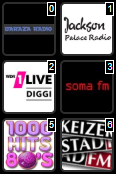
You can use this widget to select all of the favorites that have been
created in your Logitech/Lyrion Media Server.
After selecting the Player widget, the available favorites
are displayed in the widget.
| Group | Attribute | Description |
|---|---|---|
| Player widget | General group | Select the Player widget. |
| Display index | General group | Individual buttons can be hidden or displayed in a different order using the index. |
| Edit mode help | General group | If this help is activated, index numbers are displayed on each respective button. |
| Image width | button settings | Image width of a button |
| Image height | button settings | Image height of a button |
| Transparency | button settings | If the button is not activated, it is hidden against the background. 0 = Invisible, 1 = Fully visible |
| Border width | button settings | Border width in pixels around the button |
| Border display | button settings | Type of border display, e.g., solid, dashed. |
| Normal border color | button settings | If the button is not activated, it is displayed with this color. |
| Border color active | button settings | If the button is activated, it is displayed with this color. |
| border-radius | button settings | A radius in pixels can be entered here for curved border corners. |
| Background color | button settings | Background color for text |
| Image | button[x] | An image can be individually defined here. The image takes precedence over the text. |
| Text | button[x] | Text can be individually defined here. The image takes precedence over the text. |
Play Button

The play button starts or stops the music on the selected player.
To prepare, you must connect the button to the player widget.
The button has its own graphics (SVG),
alternatively you can also select your own graphics.
Attributes for Play button
| Group | Attribute | Description |
|---|---|---|
| Player Widget | General group | Selection of the player widget. |
| Pause image | General group | Image for pause |
| Play image | General group | Image for play |
| Stop image | General group | Image for stop |
| fillcolor | SVG settings group | Fill color of the button |
| strokecolor | SVG settings group | Color for the border |
| strokewidth | SVG settings group | Width of the border in pixels |
Forward

The Forward widget allows you to skip forward in the current track.
The button can be configured to skip forward by a specific amount
of time if the player supports this feature.
Attributes for Forward button
| Group | Attribute | Description |
|---|---|---|
| Player widget | General group | Selection of the Player widget. |
| Step size | General group | Specifies the amount of time in seconds to skip forward. |
| Button label | General group | Customizable label for the button. |
| Button icon | General group | Selection of an icon for the button, e.g., for skipping forward. |
Rewind

The Rewind widget allows you to jump back in the current track.
Similar to the Forward widget, a time period can be set.
Attributes for Rewind button
| Group | Attribute | Description |
|---|---|---|
| Player widget | General group | Selection of the Player widget. |
| Step size | General group | Specifies the time period in seconds by which to jump back. |
| Button label | General group | Customizable label for the button. |
| Button symbol | General group | Selection of a symbol for the button, e.g., for jumping back. |
Repeat

The Repeat widget allows you to activate or deactivate the repeat function
for the current track or playlist if this function is supported by the player.
Attributes for Repeat button
| Group | Attribute | Description |
|---|---|---|
| Player widget | General group | Selection of the Player widget. |
| Button label | General group | Customizable label for the button. |
| Button symbol | General group | Selection of a symbol for the button, e.g., for repeat. |
| Repeat mode | General group | The mode can be selected here, for example single repeat (track) or list repeat (playlist). |
Shuffle

The Shuffle widget enables or disables shuffle for the current playlist,
if this feature is supported by the player.
Attributes for Shuffle button
| Group | Attribute | Description |
|---|---|---|
| Player widget | General group | Selection of the Player widget. |
| Button label | General group | Customizable label for the button. |
| Button icon | General group | Selection of an icon for the button, e.g., for shuffle. |
| Enabled state | General group | Color or style of the button when shuffle is enabled. |
Volume

The Volume widget displays the current volume level of the player and
allows you to adjust the volume.
Attributes for Volume button
| Group | Attribute | Description |
|---|---|---|
| Player widget | General group | Selection of the Player widget. |
| Volume step size | General group | Specifies the step size for increasing or decreasing the volume. |
| Maximum volume | General group | Sets the maximum value for the volume, e.g., 100. |
| Volume bar main color | General group | Color for the area of the bar that represents the current volume. |
| Volume bar background color | General group | Color for the area of the bar that is not covered by the volume. |
| Button icon | General group | Selection of an icon for the volume control. |
SyncGroup button bar
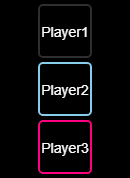
This widget can be used in conjunction with the player widget to control
the synchronization of the players with each other.
Most of the settings for the number of buttons, labels or images are taken
over by the player widget.
To prepare, you must connect the button to the player widget.
After selecting a player in the player widget, the current synchronization
is visible in the SyncGroup widget.
The sync status is shown using the various adjustable colors.
The player selected in the player widget cannot be selected in the SyncGroup widget.
If a player is selected in the SyncGroup widget that is already in
another group, it is automatically removed from this group.
Attributes for SyncGroup button
| Group | Attribute | Description |
|---|---|---|
| Player widget | General group | Selection of the player widget. |
| Border width | button settings | Border width/border width in pixels around the button. |
| Border display | button settings | Type of border display, e.g. solid, dashed. |
| Border color - Not in group | button settings | The button gets a border with this color if the player is not in a group. |
| Border color - In group | button settings | The button gets a border with this color if the player is in a group with the selected player. |
| Border color - In other group | button settings | The button gets a border with this color if the player is in another group. |
| border-radius | button settings | A radius in pixels can be entered here for curved border corners. |
| Background color | button settings | Background color for text. |
Playtime bar

The playtime bar visually shows the progress of the song currently being played,
provided that a total running time (duration) is provided by the server.
This is usually not the case with online streams. The width of the bar
corresponds to 100% of the playing time of the song. By clicking on a point on
the bar you can jump to the desired point in the song.
To prepare, you must connect the button to the player widget.
Attributes for Playtime bar
| Group | Attribute | Description |
|---|---|---|
| Player widget | General group | Selection of the player widget. |
| Bar main color | General group | The background color of the bar for times not yet played. |
| Playtime color | General group | The color of the bar for times played. |
| Frame width | General group | Frame width/border width in pixels around the button. |
| Border display | General group | Type of border display, e.g. solid, dashed. |
| Border color | General group | Color of the border around the bar. |
| border radius | General group | A radius in pixels can be entered here for curved edge corners. |
String/character string

Display of player-specific character strings. To prepare, you must connect
the button to the player widget.
Attributes for String
| Group | Attribute | Description |
|---|---|---|
| Player widget | General group | Selection of the player widget. |
| Player Attribute | General group | Selection list of all available attributes of a player. |
| Test text | General group | Text that should be displayed in the editor for testing purposes. |
Number

Display of numbers with additional formatting options. To prepare,
you must connect the button to the player widget.
Attributes for Number
| Group | Attribute | Description |
|---|---|---|
| Player widget | General group | Selection of the player widget. |
| Player Attribute | General group | Selection list of all available attributes of a player. |
| Prepend HTML | General group | Text or HTML code that is placed in front of the number. |
| Append HTML | General group | Text or HTML code that is appended to the number. |
| Test text | General group | Text that should be displayed in the editor for testing purposes. |
| Character after comma | Advanced settings | Number of decimal places. |
| Comma as separator | Advanced settings | A comma is used to separate the decimal places. |
| Thousands separator | Advanced settings | For large numbers, a separator is inserted every 3 places. |
Playlist
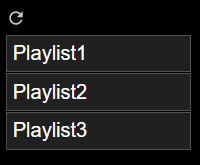
Display the playlist from the server. If you click on an entry the playlist is loaded and the player starts. The widged dosent refresh automaticly, you have to press the refreshh button.
Attributes for Playlist
| Group | Attribute | Description |
|---|---|---|
| Player widget | General group | Selection of the player widget. |
The widget itself has very little formatting. For self formating there are some predefined css-classes:
| CSS-class | description |
|---|---|
| plcontainer | Class name assigned to the ul-tag |
| plentry | Class name assigned to the li-tag |
| plrefresh | Class name assigned to the refresh-li tag |
| pltext | Class name assigned to the playlist name |
The following CSS for the vis-css tab can serve as an example:
Dark-mode
.plentry {
    border: 1px #505050 groove;
    margin: 1px 0px;
    padding: 5px;
    background-color: #202020;
}
.plrefresh {
    padding: 5px;
}
.plentry:hover {
    background-color: #404040;
}
.plrefresh svg {
    color: #cccccc;
}
.plrefresh svg:hover {
    color: #ffffff;
    filter: drop-shadow(0px 0px 1px #87ceeb);
}
Light-mode
.plentry {
    border: 1px #b0b0b0 groove;
    margin: 1px 0px;
    padding: 5px;
    background-color: #c0c0c0;
}
.plrefresh {
    padding: 5px;
}
.plentry:hover {
    background-color: #e0e0e0;
}
.plrefresh svg {
    color: #444444;
}
.plrefresh svg:hover {
    color: #000000;
    filter: drop-shadow(0px 0px 1px #87ceeb);
}
Browser

Displays music, albums, artists, radio stations, apps, etc. from the server. Click on an item to navigate deeper into the hierarchy. The available commands are displayed with additional buttons. You can go up one level by clicking on the path displayed at the top.
Attributes for Browser
| Group | Attribute | Description |
|---|---|---|
| Player widget | General group | Selection of the player widget. |
| debug | General group | Enable extra debugging (function reference) in the browser console. |
| debugwithfetchresults | General group | Enable extra debugging (object reference) in the browser console. |
The widget itself has very some formatting. For self formating there are some predefined css-classes:
| CSS-class | description |
|---|---|
| sqbrowser-list-container | container for the widget |
| sqbrowser-parent-directory | element to show the parent directory |
| sqbrowser-btn-svg | Class for all svg buttons |
| sqbrowser-btn-svg-menu | Class for svg menus |
| sqbrowser-scrollable-area | Class for scroll container |
| sqbrowser-list-item | Class for single item |
| sqbrowser-list-item-content | Class for item title |
| sqbrowser-button-group | Class for button group in a list item |
| sqbrowser-btn-svg sqbrowser-btn-svg-action | Class for action button |
Note about alpha state of this widget:
- Implementing LMS/Lyrion for browsing is hell.
- The technical model for this widget is the "Material" theme plugin in the LMS/Lyrion server.
- Not all features are currently implemented.
- All input field types are not yet available.
- Not all item types may have been implemented.
- Optional, extensive debug output has been added for analysis (see also attributes).
- Output of the function reference: All function names are output in order in the browser console.
- Output of the data reference: All data requested and returned by the server is output.
If testers encounter errors/problems or missing implementations, please provide as detailed a description as possible:
- Where does the data come from in the LMS/Lyrion (already built-in service/additionally installed plugin)
- What steps/clicks were performed to create the problem
- What are the function references and data references?
SendTo commands
getPlayerNames
Returns the names of all players currently registered in the adapter.
The returned names are the sanitized names
used below squeezeboxrpc.<instance>.Players.
async function main() {
    const playerNames = await sendToAsync('squeezeboxrpc.0', 'getPlayerNames', {});
    console.log(JSON.stringify(playerNames));
}
main();
Example result:
["Living_room", "Kitchen"]
cmdGeneral
This command can be used to send any command to the LMS server to receive a response.
Example:
All Playlists:
async function main() {
    let data = await sendToAsync('squeezeboxrpc.0', 'cmdGeneral', {
        playerid: '',
        cmdArray: ['playlists', '0', '999', 'tags:us'],
    });
    console.log(JSON.stringify(data));
}
main();
All Favorites:
This command is used internally by the adapter to load the favorites.
async function main() {
    let data = await sendToAsync('squeezeboxrpc.0', 'cmdGeneral', {
        playerid: '',
        cmdArray: ['favorites', 'items', '0', '999', 'want_url:1', 'item_id:'],
    });
    console.log(JSON.stringify(data));
}
main();
Further options and detailed descriptions of the parameters are contained in the following CLI documentation:
Development
vis-1
- start dev-server with
dev-server watch --noStart - start adapter with launch configuration "default Launch ioBroker Adapter"
- start watch script in widgets directory with
npm run watch - open vis-1 editor or runtime
- if you change something in the vis-1 widget wait some seconds to upload changes to dev-server
- in vis-1 reload the vis-1 page
- if something changed in squeeboxrpc.html you have to restart vis-1 adapter
vis-2
- for debugging vis-2 widget you have to run vis-2 in a second vis-2 window.
- to install and run follow instructions in https://github.com/ioBroker/ioBroker.vis-2#development-and-debugging
- start adapter with launch configuration "default Launch ioBroker Adapter"
- start vite dev server in directory src-widgets with
npm run start - in iobroker admin/objects tab, in expert mode, edit the object of
system.adapter.squeezeboxrpc.0 - change common.visWidgets.vis2vis-squeezeboxrpc.url from vis2squeezeboxrpc/customWidgets.js to http://localhost:4173/customWidgets.js this is the address of the vite def server.
- open vis in edit or runtime with the launch configuration "vis2 edit 3000" or "vis2 runtime 3000"
- if you change something in the vis-2 widget code an auto reload is triggered or you press F5 in browser
final runtime test
- stop
dev-serverand your adapter in vscode - create a production build and upload to dev-server with build
with
dev-server upload - start iobroker with
npm run start - revert the change in system.adapter.squeezeboxrpc.0 to the original value
- open vis-1 or vis-2 in edit or runtime mode
additional test on a real iobroker server
- in root directory create a npm package file with
npm pack - in iobroker on the admin/adapter tab in expert mode press the cat button
- in the dialog, select tab
from file - select the created package file
- press install
- if something does not work, on shell start
iobroker upload all
Todo
- add player controlled circle knob widget
stop playing if favorite button is pressed again. dont implementedmore testing/fixingmore configuration to optionaly turn features on/off to improve memory and performanceadd playlist widgetadd browse widget to browse inLMS-Menureduce dependencys to other packages (squeezenode)cmdGeneral für Server.add telnet communication to get push events from the server tooptimize the pollingimplement a command state to place user individual commands (via json)for server and playerimplement more control features (select playlist pos to play,ffwd,frew,jump to a time position in song,repeat song,random song)add the playlist to playerdata as json arrayadd artwork (station-logo/playlist-cover) for favoritesimplement more levels (subdirectories) of favoritesautodiscover logitech media server
Changelog
3.0.1 (2026-09-08)
- fix little regressions
3.0.0 (2026-09-07)
- complete rework of the LMS API
- add experimental websocket support, only usable with LMS 9.2 build after 5.9.2026
2.0.2 (2026-09-07)
- fix io-package.json
2.0.1 (2026-09-05)
- fix package-lock
- fix tests
2.0.0 (2026-09-05)
- power/connected state fixed
- players button font size fixed
- bring back fade in/out for Announcement with additional LMS plugin
Older entries are in CHANGELOG_OLD.md.
License
MIT License
Permission is hereby granted, free of charge, to any person obtaining a copy of this software and associated documentation files (the "Software"), to deal in the Software without restriction, including without limitation the rights to use, copy, modify, merge, publish, distribute, sublicense, and/or sell copies of the Software, and to permit persons to whom the Software is furnished to do so, subject to the following conditions:
The above copyright notice and this permission notice shall be included in all copies or substantial portions of the Software.
THE SOFTWARE IS PROVIDED "AS IS", WITHOUT WARRANTY OF ANY KIND, EXPRESS OR IMPLIED, INCLUDING BUT NOT LIMITED TO THE WARRANTIES OF MERCHANTABILITY, FITNESS FOR A PARTICULAR PURPOSE AND NONINFRINGEMENT. IN NO EVENT SHALL THE AUTHORS OR COPYRIGHT HOLDERS BE LIABLE FOR ANY CLAIM, DAMAGES OR OTHER LIABILITY, WHETHER IN AN ACTION OF CONTRACT, TORT OR OTHERWISE, ARISING FROM, OUT OF OR IN CONNECTION WITH THE SOFTWARE OR THE USE OR OTHER DEALINGS IN THE SOFTWARE.
Copyright (c) 2019-2026 oweitman