Control and monitor SONOS devices with ioBroker.
Widgets
The adapter ships one widget for both visualisation adapters. Both are installed with the adapter; vis and vis-2 are restarted automatically, and the editor needs a hard reload (Ctrl+F5).
Sonos Control switches rooms, controls playback, forms groups and starts favorites, playlists,
queue tracks, recent tracks and sources. Bind it to an instance, for example sonos.0 - not to a
single state such as play. The widget discovers every speaker of that instance on its own.
Every discovered speaker appears as a chip at the top. Group membership is toggled with the checkboxes. If a room belongs to a group, the now-playing area shows the track of the group, not the last local title of that room. The library buttons (Favorites, Playlists, Queue, Recent, Sources) open a sheet below them. Recent lists the last tracks of the selected room.
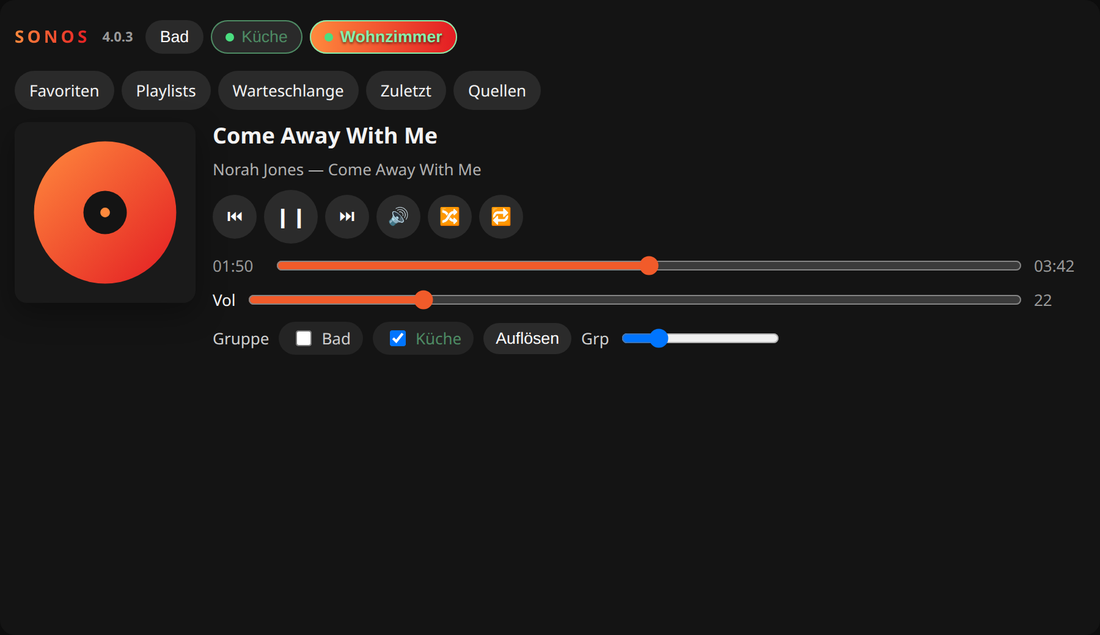
Rooms, grouping and now-playing
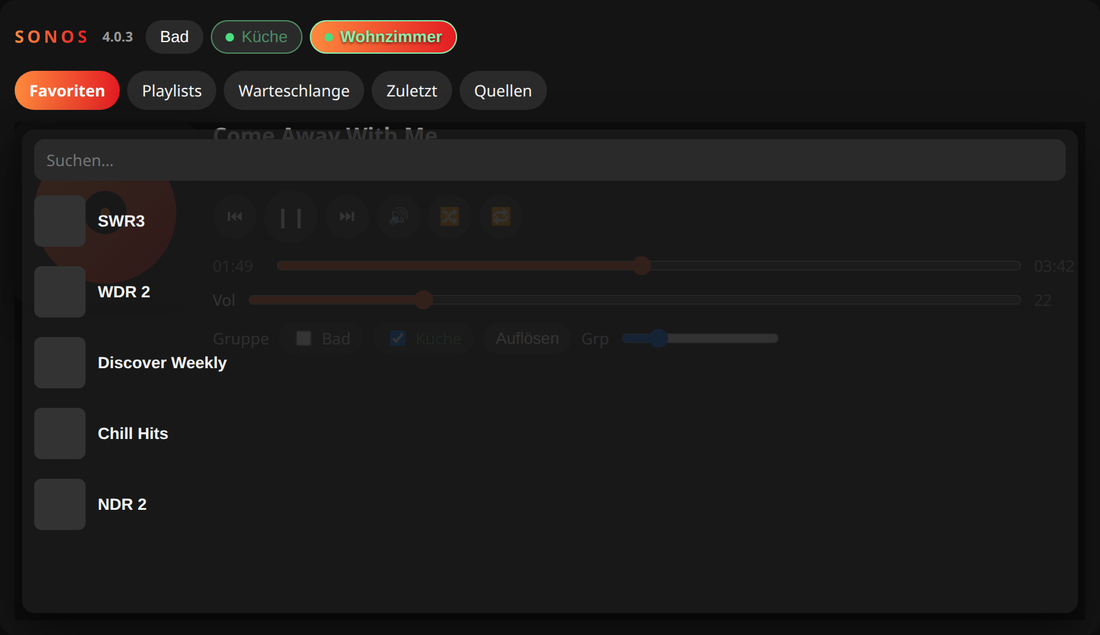
The library buttons open a sheet below the rooms
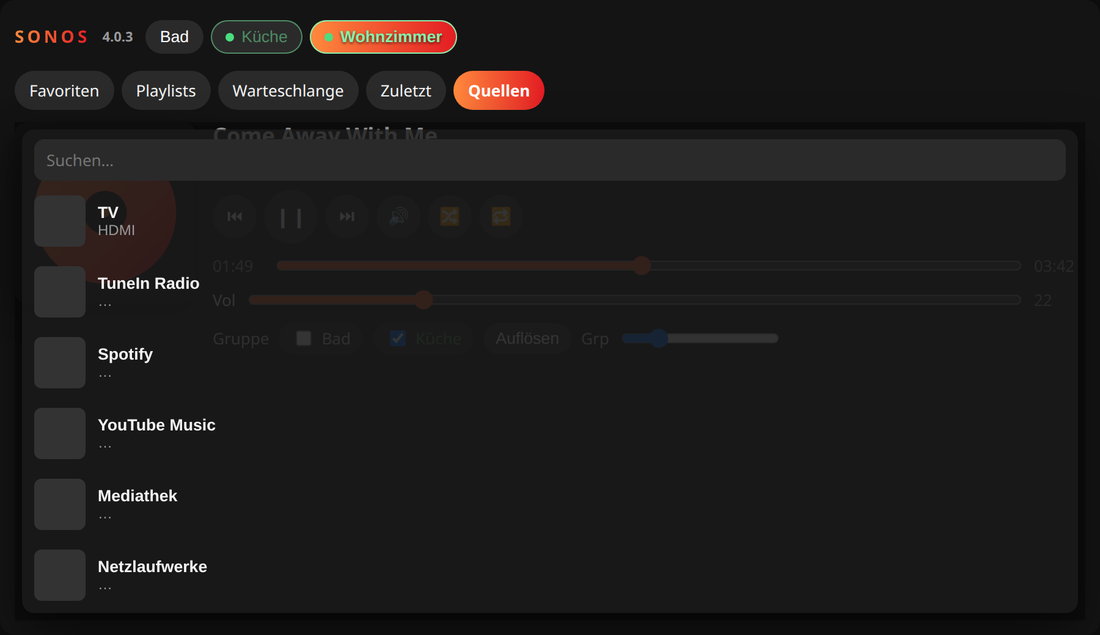
Sources: TuneIn, the music library, network shares, line-in and TV HDMI
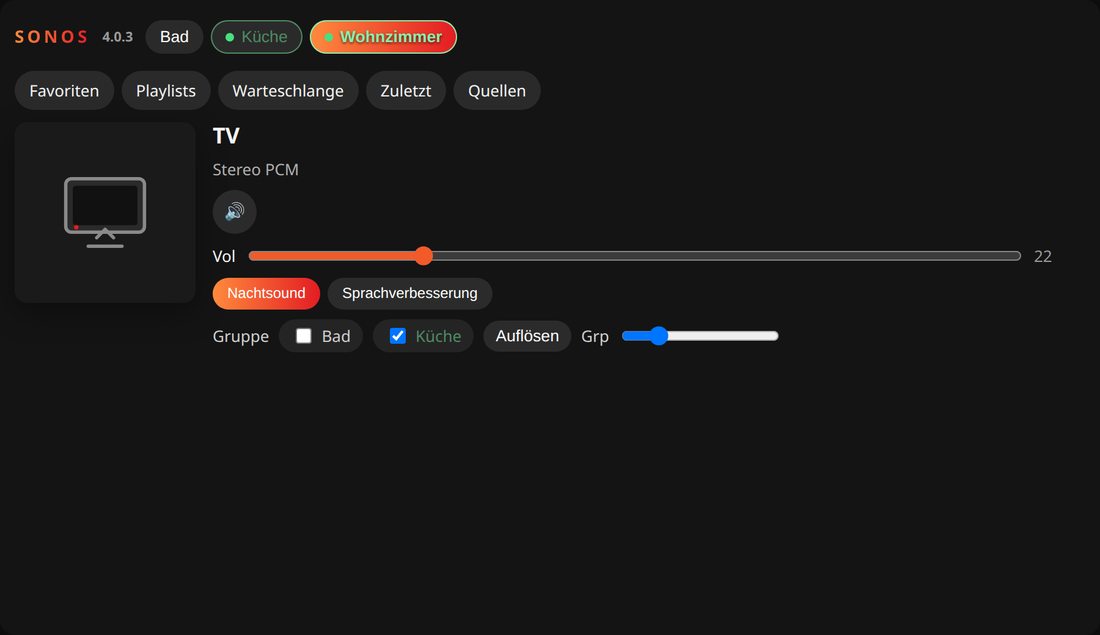
TV HDMI: title TV, format, mute, night sound and speech enhancement
vis-2 and vis 1
There are two implementations of Sonos Control under the same template id tplSonosControl:
a React one for vis-2 (src-widgets) and the original jQuery one for vis 1 (widgets/sonos.html).
Each editor only ever shows one of them. Because the adapter declares common.visWidgets, vis-2
skips widgets/sonos.html completely and loads the React widget; vis 1 does not know about React
widget sets and loads the jQuery one. Views that were built with the vis-1 widget keep their
oid binding when they are opened in vis-2.
vis-2 additionally offers Sonos room, one speaker as a compact card with cover, title, transport and volume. Its last button opens the same source selection in a dialog, so a single card can also start a favorite, a playlist or a source. It has no vis-1 counterpart.
In vis-2 each part of Sonos Control (rooms, groups, volume, library) can be switched off, and the widget can start on a given room.
Sources
Sources browses TuneIn radio, the music library, network shares and line-in through the speaker's content directory. Music services are listed only when the household actually reports them, and services with a SMAPI catalog (Spotify for example) can be searched after a one-time sign-in. Services without such a catalog only show what is already saved in the Sonos app as a favorite or playlist.
TV appears only on speakers that really have an HDMI or optical input (Arc, Beam, Playbar, Playbase, Ray, Amp). On the TV input there is no transport control - play, pause, seek, next and previous are not offered; mute, night sound and speech enhancement are.
Widgets for ioBroker.devices
Besides the vis widgets the adapter delivers two widgets for the dashboard of the ioBroker.devices adapter. They are added there with + → SONOS player / SONOS rooms, and every widget is configured with its own settings dialog - no state has to be picked by hand.
SONOS player is one speaker. The settings ask for the instance and the speaker; the list of speakers comes from the adapter itself, so it always matches the devices on the SONOS devices tab.
| Size | What is shown |
|---|---|
| 1x1 | The cover as background, the speaker, title, artist, play state and the progress |
| 2x0.5 | A strip: cover thumbnail on the blurred cover, the speaker, title, artist, progress |
| 2x1, 2x2 | The large cover with the speaker and play state on it, title, artist and progress |
The tiles are built like the media player of ioBroker.devices: a click opens the full player as a dialog - cover, title, artist and album, the progress slider to jump within the track, previous / play-pause / next, shuffle, repeat (off → all → one track), mute, volume and the source selection.
Cover, progress, volume, the shuffle/repeat buttons and the source button can be switched off individually. On a speaker that plays its TV input, the transport buttons and the progress are hidden because the HDMI input cannot be controlled - mute, volume and the source selection stay.
The source button opens the same selection the vis widget shows - favorites, playlists, the queue, recently played and the browsable sources of the speaker - as a second dialog on top of the player.
SONOS rooms is the whole household in one widget: how many speakers are playing, what each of them plays, and their volume. The small sizes show the counter and open the list in a dialog; 2x1 and 2x2 show the list directly.
Every row also has a source button that opens the source selection for that speaker, so a favorite or a playlist can be started without leaving the overview.
It also forms groups: the link button of a speaker marks it as the group master, and the link button of every other speaker then adds it to that group or removes it again. Clicking the master a second time leaves the mode.
Control tab in admin
The instance settings have a third tab, Control. It is the same player as in vis, but inside admin: pick a speaker on the left and control it on the right - transport, progress, volume, grouping, and the library with favorites, playlists, queue, recently played and sources.
This is meant for checking that a freshly added speaker really answers, without leaving the adapter configuration. The tab talks to the running instance, so it stays empty while the instance is stopped.
Control page in the browser
The adapter ships a control page for the web adapter. It is reachable at
http://<ioBroker>:8082/sonos/
and offers the same as the vis widget: the room chips, what is playing with its cover, transport, progress, volume, the grouping checkboxes and the source selection with favorites, playlists, queue, recently played and the browsable sources of the speaker.
No web extension is involved. iobroker upload sonos puts the www/ folder of the adapter into
its ioBroker file storage, and the web adapter serves it from there - its catch-all route reads the
first path segment of the URL as the adapter name. That is the same mechanism the adapter already
uses to hand a TTS file to a speaker.
The page talks to ioBroker through the socket of the web instance that serves it, so it inherits
that instance's authentication and its user rights. The socket client is not bundled: the page asks
the web adapter for socket.io.js and gets whatever that instance uses - socket.io or
@iobroker/ws.
?instance=sonos.1 pins the page to one instance, ?room=Kitchen opens it on a given speaker.
Without them the page falls back to the instance and the speaker it was used with last, both
remembered in the browser; only when nothing is remembered yet does it open the first instance and
its first speaker.
In admin the page also appears as a tile on the overview, next to the tiles of the other adapters.
Handling of groups
- States for handling SONOS groups:
coordinator: set/get the coordinator, so the SONOS device which is the master and coordinating the group. It requires the IP address (channel name) of the SONOS device to be the coordinator, but with underscore_instead of dot., so use for example192_168_0_100for IP address192.168.0.100. If the device does not belong to any group, then the value is equal to the own channel name (IP).group_volume: the volume of the groupgroup_muted: mute status of the group.add_to_group: Add a certain SONOS device to the SONOS device under which this state is. Use IP address with underscores (see above).remove_from_group: Remove a certain SONOS device from the SONOS device under which this state is. Use IP address with underscores (see above).
*) These states will be updated if changes are made in the SONOS app.
Using it with the sayIt adapter
To use the sayit adapter with this SONOS adapter, ensure that the web adapter is instantiated and running too. The web adapter is required to allow the SONOS adapter to read the generated MP3 file from the sayit adapter.
Warning: Stability problems in combination with sayIt adapter
Please note: This SONOS adapter has stability issues if using 'text to speech' with the sayIt adapter. Symptoms observed:
- Arbitrary change of volume to 0 or 100 %.
- No response after a random number of text-to-speech sequences
Workaround for text to speech is to use the SONOS HTTP API.
Favorites & Queue in VIS
Use states favorites_list_html and queue_html to show playlists and current queue with basic HTML widget in VIS. By clicking on a row, the playlist or track will be played immediately.
For an own UI the same lists are available as JSON: favorites_list_array, playlist_list_array
and queue_array. queue joins the tracks with a comma and cannot be split back reliably, so use
queue_array - it carries one { artist, title, album, cover } entry per track, and the index of
an entry is the value for current_track_number.
Format the table with the following CSS classes:
Favorites
sonosFavoriteTable: whole favorite tablesonosFavoriteRow: rows with favorite informationsonosFavoriteNumber: Number of favoritessonosFavoriteCover: Album art of favorite (grab image with.sonosFavoriteCover img)sonosFavoriteTitle: Name of favorite
Queue
.sonosQueueTable: whole table.sonosQueueRow: rows containing track information.currentTrack: added to the row containg the current playing track.sonosQueueTrackNumber: Number or track.sonosQueueTrackCover: Album art of track (grab image with.sonosQueueTrackCover img).sonosQueueTrackArtist: Name of artist.sonosQueueTrackAlbum: Name of album (usedisplay:noneif not needed).sonosQueueTrackTitle: Name of title
For long lists add overflow:auto; or overflow-y:auto; to basic HTML widget.
Please note: highlighting current playing favorite is not supported.
Sample CSS
.sonosFavoriteTable {
    color: #bbb;
    font-size: 12px;
}
.sonosFavoriteRow {
    cursor: pointer;
}
.sonosFavoriteNumber {}
.sonosFavoriteCover img {
    width: 30px;
    height: 30px;
}
.sonosFavoriteTitle {}

.sonosQueueTable {
    color: #bbb;
    font-size: 12px;
}
.sonosQueueRow {
    display: table-row;
    cursor: pointer;
}
.sonosQueueRow.currentTrack {
    color: #fff;
    font-weight: bold;
}
.sonosQueueTrackNumber {}
.sonosQueueTrackCover img {
    width: 30px;
    height: 30px;
    display: table-column;
}
.sonosQueueTrackArtist {
    display: table-row;
}
.sonosQueueTrackAlbum {
    display: none;
}
.sonosQueueTrackTitle {
    display: table-row;
}
Development
Four front-ends live next to the adapter, all built with vite - the first three additionally with module federation:
| Sources | Build output | Loaded by |
|---|---|---|
src-widgets/ | widgets/sonos/ | vis-2 |
src-admin/ | admin/custom/ | the Control tab of the instance settings |
src-devices/ | admin/dm-widgets/ | the dashboard of ioBroker.devices |
src-web/ | www/ | the web adapter, at /sonos/ |
npm run npm            # install the adapter and all four front-ends
npm run build          # all four of them plus the adapter - what CI and npm publish run
npm run build:widgets  # the vis-2 widget set         -> widgets/sonos/
npm run build:web      # the control page             -> www/
npm run build:admin    # the Control tab component    -> admin/custom/
npm run build:devices  # the ioBroker.devices widgets -> admin/dm-widgets/
npm run build:all      # the same as build, in a single tasks.mts run
All of them are driven by tasks.mts, which node runs straight from source with its own type
stripping - there is no build step for the build script, but npm run check:ts type-checks it and
rejects syntax that could not be stripped.
admin/custom/ and admin/dm-widgets/ are committed, because a cold module federation build
pre-builds the whole shared GUI stack and takes several minutes. npm run build rebuilds them
together with everything else, npm run build:admin / npm run build:devices rebuild only one of
them - either way, commit the output when something below src-admin/ or src-devices/ changed.
src-devices has a dev harness: cd src-devices && npm start opens the widgets on
http://localhost:3000 against a real ioBroker admin on localhost:8081, so they can be developed
without rebuilding into ioBroker.devices every time.
src-web has the same: cd src-web && npm start serves the control page on
http://localhost:3000 and proxies the socket, the socket client and the cover images to a web
instance on localhost:8082. The page recognises its dev server by that port, so it cannot be
changed - and because src-devices listens on 3000 as well, only one of the two harnesses can run
at a time.
To Do
- Make
@svrooij/sonosthe default once the experimental backend has proven itself on real households, and dropsonos-discovery
Configuration
- Web server - [optional] If web server enabled or not
- Update of elapsed time(ms) - Interval in ms how often to update elapsed timer when the title is playing. (Default 2000)
- Fade in (text2speech) - Interval in ms over which the volume is raised at the start of an announcement. 0 disables the fade in. (Default 0)
- Fade out (text2speech) - Interval in ms over which the volume is lowered at the end of an announcement. 0 disables the fade out. (Default 0)
- Sonos library - which client library talks to the speakers, see below
Sonos library
The adapter ships two client libraries and the setting picks one. Nothing else changes: the states, their names and their values are the same either way.
| Setting | Library | Status |
|---|---|---|
sonos-discovery (default) | sonos-discovery | What the adapter has always used |
@svrooij/sonos (experimental) | @svrooij/sonos | Maintained replacement, being tested |
sonos-discovery has not seen a release since 2022 and one of its dependencies broke the
adapter on start, so the replacement is being prepared. It is offered here so that it can be
tried on real households - there is no SONOS hardware in the CI, and the parts that only real
speakers exercise cannot be covered by tests.
If you try it, the interesting cases are grouping speakers and dissolving the group again, announcements over running playback, starting a favorite or a playlist, the TV input on a soundbar, and searching a music service. Switch back to the default if anything misbehaves and please report what you saw - the setting exists so that nobody has to downgrade the adapter to get a working state back.
Changelog
4.2.9 (2026-09-15)
- (@GermanBluefox) SONOS player widget for ioBroker.devices: the tile looks like the media player of
ioBroker.devices, and a click opens the full player with shuffle, repeat, seek, volume and the source selection
4.2.6 (2026-09-09)
- (@GermanBluefox) Corrected devices widget
4.2.5 (2026-09-08)
- (@GermanBluefox) Added a control page for the web adapter under
/sonos/, plus a tile on the admin overview - (@GermanBluefox) Added the source selection (favorites, playlists, queue, recently played, sources) to all four widgets
- (@GermanBluefox) Added
queue_array, the play queue as JSON -queuejoins the tracks with a comma and cannot be split back reliably
4.2.2 (2026-09-08)
- (@GermanBluefox) Added two widgets for the
ioBroker.devicesdashboard: SONOS player and SONOS rooms - (@GermanBluefox) Added a "Control" tab to the instance settings, which plays and groups the speakers directly in admin
4.2.0 (2026-09-06)
- (@GermanBluefox) The client library can be switched in the instance settings
- (@GermanBluefox) Added
@svrooij/sonosas an experimental alternative tosonos-discovery - (@GermanBluefox) The adapter talks to a backend interface now, so both libraries fill the same states
License
The MIT License (MIT)
Copyright (c) 2014-2026, bluefox dogafox@gmail.com
Permission is hereby granted, free of charge, to any person obtaining a copy of this software and associated documentation files (the "Software"), to deal in the Software without restriction, including without limitation the rights to use, copy, modify, merge, publish, distribute, sublicense, and/or sell copies of the Software, and to permit persons to whom the Software is furnished to do so, subject to the following conditions:
The above copyright notice and this permission notice shall be included in all copies or substantial portions of the Software.
THE SOFTWARE IS PROVIDED "AS IS", WITHOUT WARRANTY OF ANY KIND, EXPRESS OR IMPLIED, INCLUDING BUT NOT LIMITED TO THE WARRANTIES OF MERCHANTABILITY, FITNESS FOR A PARTICULAR PURPOSE AND NONINFRINGEMENT. IN NO EVENT SHALL THE AUTHORS OR COPYRIGHT HOLDERS BE LIABLE FOR ANY CLAIM, DAMAGES OR OTHER LIABILITY, WHETHER IN AN ACTION OF CONTRACT, TORT OR OTHERWISE, ARISING FROM, OUT OF OR IN CONNECTION WITH THE SOFTWARE OR THE USE OR OTHER DEALINGS IN THE SOFTWARE.