This adapter uses Sentry libraries to automatically report exceptions and code errors to the developers. For more details and for information on how to disable the error reporting, see Sentry-Plugin Documentation! Sentry reporting is used starting with js-controller 3.0.
With the Mi Home adapter, a Mi Control Hub (gateway) is integrated into an ioBroker system and enables the communication of various Xiaomi sensors, switches, etc. with ioBroker. For example, the lighting and the loudspeaker of the gateway can be controlled via ioBroker.
Requirements
- Mi Home app on an Android or iOS device with the local network function activated
- Connected Mi Home gateway
- Ready-to-use ioBroker system
Installation of the Mi Home app and activation of the local network function
The local network function must be enabled first, because the adapter communicates with the gateway over the local network only.
Android
- Download the Android app on an Android device, install it, open it and agree to the terms and conditions
- Select
Mainland Chinaas country (undersettings -> Locale) - at the time of writing this seems to be required. The language can still be set to English - Create an account via Login
- After successful registration, add a device via
+ - Under Household Security, select the
MI Control Huband follow the instructions - After the gateway has been integrated successfully, tap the 3 dots at the top right of the screen and then About
- Tap the text Plug-in version at the bottom of the screen 10 times (in older app versions: the version number). This switches on the developer mode and after a certain time 2 additional menu entries appear. [ If not, try all steps again! ]
- Select the menu entry
Wireless communication protocol(the first new entry in older app versions) - Turn on the slide switch at the top, write down the password (
29p9i40jeypwck38in the screenshot) and confirm withOK(to the right of the cancel button) to save your changes
The password is required later during the configuration of the ioBroker adapter. If you change something here, a new password is generated and the old one is lost!
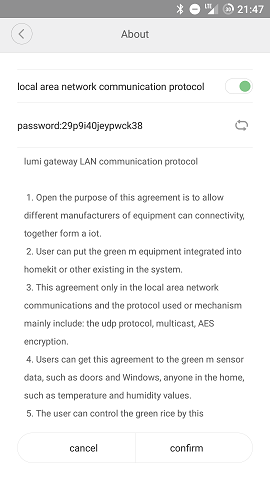
Now additional devices can be taught in using the + symbol.
iOS
- Download the iOS app on an iOS device, install it, open it and agree to the privacy policy
- Select the country Mainland China via Profile/Settings/Country settings - required for the moment. The language can still be set to English
- Create an account via Login
- After successful registration, add a device via
+ - Under Household Security, select the
MI Control Huband follow the instructions - After the gateway has been integrated successfully, tap the 3 dots at the top right of the screen and then About
- Tap repeatedly on the empty area below the Tutorial menu. This switches on the developer mode and after a certain time additional menu entries appear (in Chinese in older app versions). [ If it does not work right away, repeat the steps! ]
- Select the 4th menu entry (the second new entry in older app versions)
- Turn on the slide switch at the top, write down the password and confirm with
OK(to the right of the cancel button) to save your changes
The password is required later during the configuration of the ioBroker adapter. If you change something here, a new password is generated and the old one is lost!
Now additional devices can be taught in using the + symbol.
Setting on the router
Under About/Hub info, the IP address used by the gateway can be determined in the text after localip. This IP should be permanently assigned to the gateway in the router used. If you no longer want to operate the taught-in devices via the app, you can also switch off the gateway's internet access in the router after all devices have been taught in.
Using acpartner
An adapter of version 1.3.xx or higher allows you to control the air conditioner connected to ioBroker using acpartner.v3 (KTBL11LM), (it will probably work with version v2 too, but the developer had no hardware to test it, if anyone tries, let us know).
The following states have been added to control the air conditioner:
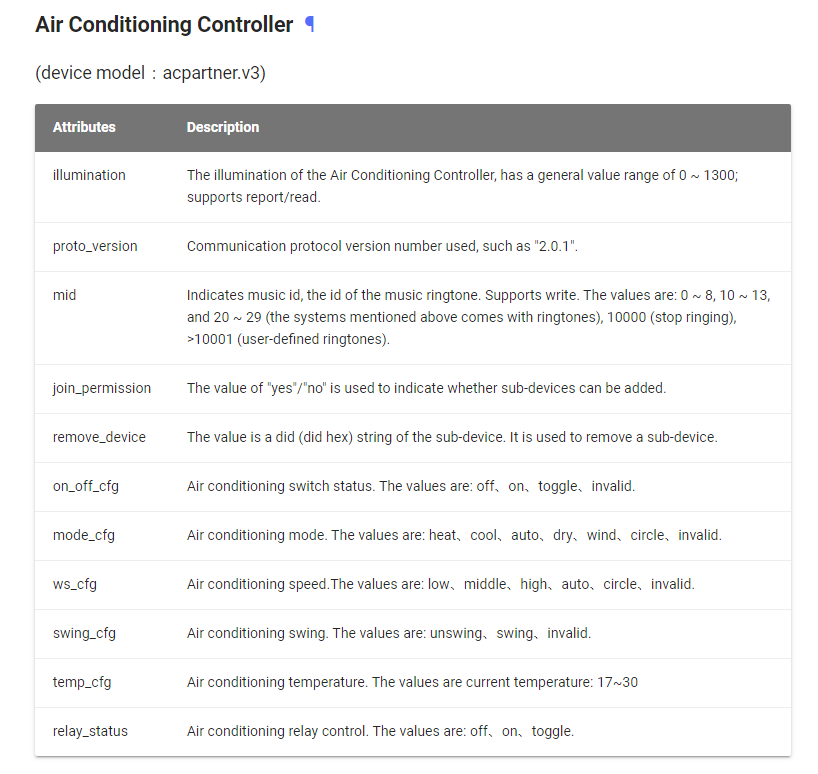
The process of enabling LAN access and receiving GATEWAY KEY can be of some difficulty, the process is described below.
To start using:
- Install the Aqara Home application on your smartphone (https://play.google.com/store/apps/details?id=com.lumiunited.aqarahome),
- register in the Aqara Home application,
- select the "Mainland China" region in the settings,
- add acpartner to the Aqara Home app,
- update the acpartner firmware (click on the air conditioning icon, then the three dots in the upper right corner, then click the lowest point “Software Version”), as a result, Aqara firmware will be installed on acpartner (when using the MiHome application, it was from Xiaomi),
- register on the site https://opencloud.aqara.cn/ with the same password and login as in the Aqara Home application (registration confirmation may take some time, I had about 6 hours),
- log in to the console https://opencloud.aqara.cn/console/
- create an application on the tab https://opencloud.aqara.cn/console/app-management with the type "Device access" (I’m not sure about the need for this item (because I did it yet), so you can try to skip it),
- then go to the console https://opencloud.aqara.cn/console and select Gateway LAN on the left, fill in the "Aqara account" and "Password" fields and click the Submit button - you will see your Air Conditioning Controller and the network protocol enable button by clicking to which you allow LAN access, and you will see the network key, which is necessary to configure the adapter in ioBroker.
- in the adapter settings, enter the key obtained above.
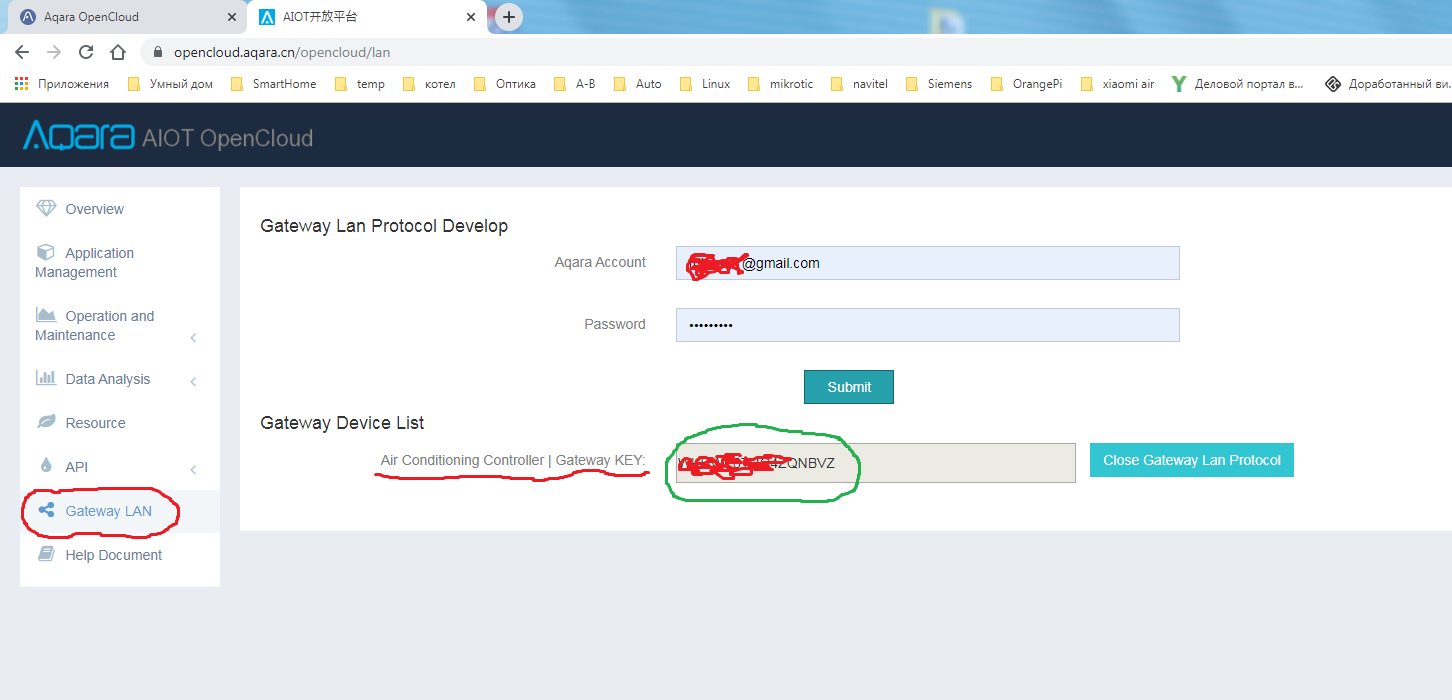
Installation of the ioBroker Mi Home adapter
Further settings are made via the ioBroker admin interface only.
Search for the adapter in the Adapter area and install it using the + symbol.

The following configuration window will then open:
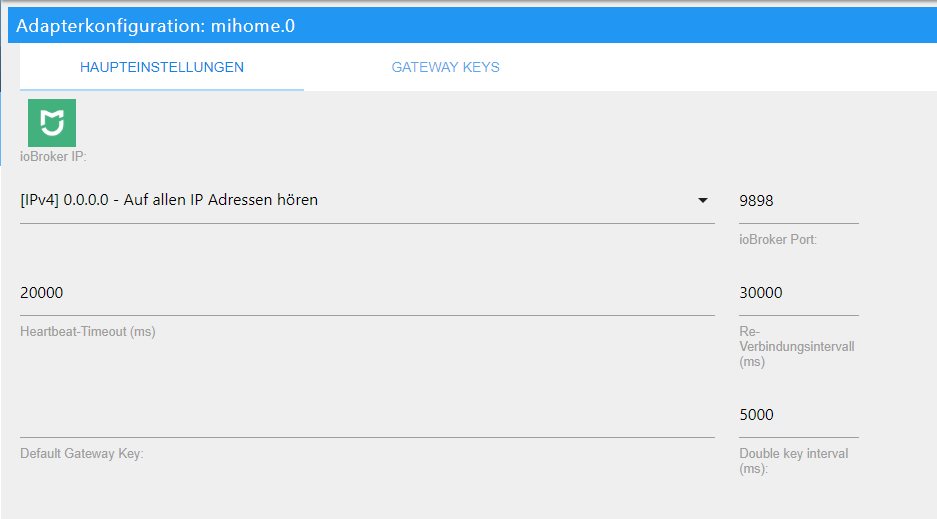
Enter the password determined above under Default Gateway Key and close the window with save and close. The running adapter should then be displayed in green under Instances:

The gateway and its taught-in devices are now displayed under Objects:

This manual has been prepared to the best of our knowledge and belief.
Usage
You can use small button on temperature sensor to trigger double Press event. Just press twice within 5 seconds. You can set this interval in settings, but do not set it over 10 seconds.
Add a device by SID
In case of a device does not get recognized by its Model name, it is possible to try to add a device using SID. Currently, it is applicable for Aqara 2 channels relay control module which has an empty model name due to some problems in Gateway firmware.
In order to add a device by SID, open DEVICE SID tab in adapter settings and specify SID and device name from the supported devices list below.
For Aqara relay module it should be specified like this:

Supported devices
The following list does not claim to be complete:
gateway- Xiaomi RGB Gatewayacpartner.v3- Aqara AC Partner (KTBL11LM)sensor_ht- Xiaomi Temperature/Humidityweather.v1- Xiaomi Temperature/Humidity/Pressureswitch- Xiaomi Wireless Switchsensor_switch.aq2- Xiaomi Aqara Wireless Switch Sensorsensor_switch.aq3- Xiaomi Aqara Wireless Switch Sensorplug- Xiaomi Smart Plug86plug- Xiaomi Smart Wall Plug86sw2- Xiaomi Wireless Dual Wall Switch86sw1- Xiaomi Wireless Single Wall Switchnatgas- Xiaomi Mijia Honeywell Gas Alarm Detectorsmoke- Xiaomi Mijia Honeywell Fire Alarm Detectorctrl_ln1- Xiaomi Aqara 86 Fire Wall Switch One Buttonctrl_ln1.aq1- Xiaomi Aqara Wall Switch LNctrl_ln2- Xiaomi 86-zero-fire wall switch double keyctrl_ln2.aq1- Xiaomi Aqara Wall Switch LN double keyctrl_neutral2- Xiaomi Wired Dual Wall Switchctrl_neutral1- Xiaomi Wired Single Wall Switchcube- Xiaomi Cubesensor_cube.aqgl01- Xiaomi Cubemagnet- Xiaomi Door Sensorsensor_magnet.aq2- Xiaomi Aqara Door Sensorcurtain- Xiaomi Aqara Smart Curtainmotion- Xiaomi Motion Sensorsensor_motion.aq2- Xiaomi Aqara Motion Sensorsensor_wleak.aq1- Xiaomi Aqara water sensorctrl_ln2.aq1- Xiaomi Aqara Wall Switch LN (Double)remote.b186acn01- Xiaomi Aqara Wireless Remote Switchremote.b186acn02- Xiaomi Aqara Wireless Remote Switchremote.b286acn01- Xiaomi Aqara Wireless Remote Switch (Double Rocker)remote.b286acn02- Xiaomi Aqara Wireless Remote Switch (Double Rocker)remote.b1acn01- Xiaomi Aqara Wireless Remote Switchvibration- Xiaomi vibration Sensorwleak1- Xiaomi Aqara Water Sensorlock_aq1- Xiaomi Lockrelay.c2acn01- Aqara 2 channels relay control module (using SID number)
Changelog
2.0.0 (2026-09-10)
- (bluefox) The adapter was refactored to TypeScript and the configuration was migrated to JsonConfig
- (bluefox) Breaking: Node.js >= 22, js-controller >= 6.0.11 and admin >= 7 are required now
- (bluefox) The reports of the curtain are no longer written into a
stateobject that does not exist - (bluefox) Fixed the
open,closeandstopstates of the curtain: the reported status was never evaluated
1.4.0 (2022-03-10)
- (drtsb) Added two new aqara devices and some missing icons
- (VLGorskij) fixed the error messages for some states
- (Apollon77) Catch some errors reported by Sentry and users
1.3.7 (2021-01-22)
- (Apollon77) Prevent a crash case (Sentry IOBROKER-MIHOME-A)
1.3.6 (2020-09-25)
- (VLGorskij) Added new device QBKG24LM
1.3.5 (2020-09-17)
- (Apollon77) Fix crash cases (Sentry IOBROKER-MIHOME-1..4)
License
The MIT License (MIT)
Copyright (c) 2017-2026 bluefox dogafox@gmail.com
Permission is hereby granted, free of charge, to any person obtaining a copy of this software and associated documentation files (the "Software"), to deal in the Software without restriction, including without limitation the rights to use, copy, modify, merge, publish, distribute, sublicense, and/or sell copies of the Software, and to permit persons to whom the Software is furnished to do so, subject to the following conditions:
The above copyright notice and this permission notice shall be included in all copies or substantial portions of the Software.
THE SOFTWARE IS PROVIDED "AS IS", WITHOUT WARRANTY OF ANY KIND, EXPRESS OR IMPLIED, INCLUDING BUT NOT LIMITED TO THE WARRANTIES OF MERCHANTABILITY, FITNESS FOR A PARTICULAR PURPOSE AND NONINFRINGEMENT. IN NO EVENT SHALL THE AUTHORS OR COPYRIGHT HOLDERS BE LIABLE FOR ANY CLAIM, DAMAGES OR OTHER LIABILITY, WHETHER IN AN ACTION OF CONTRACT, TORT OR OTHERWISE, ARISING FROM, OUT OF OR IN CONNECTION WITH THE SOFTWARE OR THE USE OR OTHER DEALINGS IN THE SOFTWARE.